
Checklist Questions Tab
The Questions tab on the Checklist enables you to design the experience your users will have when they create, view and review a checklist. Folio provides you with a number of tools to design an effective and engaging layout for each checklist. You can do the following in the Questions tab:
- Create new questions or add questions from the Checklist Questions Library
- Design your Checklist layout
- Group questions in Sections
- Create Tables
- Make questions dependent on answer selections in other questions
- Create formulas based on values entered in numeric questions
- Make questions optional or mandatory
- Preview the Checklist layout that you are designing.
Top Bar

At the top of the Questions tab you will see the following buttons:
- + New Question: Enables you to create a new question or add existing questions from the Checklist Questions Library. You also have the option to import the questions by clicking the “Import Questions”.
- Disable Evidence/Comments: Enables you to disable evidence/comments on all the questions that exist on a checklist in one click.
- Show Inactive: Shows any inactive questions which are part of the checklist.
- Preview: Lets you preview the checklist layout while you are building it. For more information please refer How do I preview a Checklist?
How to add questions
Questions can be added to the Checklist and Checklist Review Stages by clicking on the + New Question button.
You can then Search for a Question from the Question Library (Read more about the Question Library here). Folio allows you to reuse questions across different checklists making it easy to filter or report across multiple Checklists. If you change the Name or the Instruction in a question it will affect all Checklists that the question has been used on.

You can also click on Create a New Question to create a brand new question for your checklist. This question will be added to the Question Library to be used on other checklists.
Also you can click on the ‘Import Questions’ option and import questions using a CSV file. For more information please refer How do I Import checklist questions?
Click here to learn more about Question Types.
You can also add Deliverable and Indicator questions to a checklist.
Click here to learn more about Deliverable Questions.
Click here to learn more about Indicator Questions.
Design your Checklist layout
You can design your checklist’s layout. Folio gives you the ability to resize questions or drag and place them where you want. You may also group questions into sections or tables.
Resizing fields
You can resize questions so that more than one question can be added to a row (You may have up to 3 questions in a row). To resize a question, grab the resize handle that appears on hover on the right hand side of the question card and slide left or right to reduce or increase the size of the question. Once the size of the question has been reduced you can place another question of an appropriate size in the space available.

You will typically be guided by data types you are capturing in each question. For example you would place the questions, First Name, Middle Name and Last Name side by side on the same row as they are short text fields but the question Incident Description may be on a row by itself because it is a long text question and needs more space.

Drag and Drop to re-order
You may also order questions by grabbing the drag handle next to the question name and dragging the field to where you would like to place it.

Note:
- Folio is a responsive application, the checklist layout will rearrange itself on phones or tablets to work with the space available.
- The Risk Matrix has to be placed on a row by itself and cannot be resized.
- Questions on Tables come in fixed sizes and cannot be resized.
Creating a Section
Sections allow you to organize questions in a meaningful way by grouping them on a Checklist.
Sections are created by selecting one or more questions using the tick boxes at the start of the question cards and then clicking on the Create Section button.
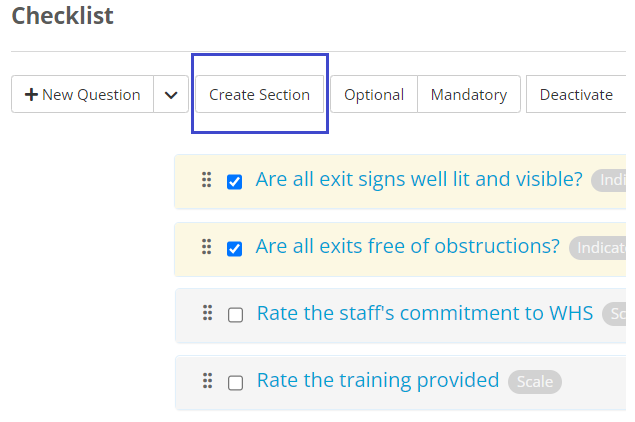
You must give the New Section a Name, you may add some instructions and you can choose a distinctive Background Colour to distinguish the section for other sections. We give you four colour options, blue, orange, green or white but you may also enter a colour hex code to use your own colour.

You can also add questions to an existing Section by first selecting the questions you would like to add to the section, then selecting the section you would like to add them to and clicking on Create Section.
The sections on the checklist record appear on separate pages. For example, the below checklist has two sections ‘Invoice’ and ‘Provider Details’ and their questions respectively appear on separate pages.

You can navigate through each section by clicking the down arrow and selecting the section you want to go to.

Note:
- You cannot create a Section within a Section.
Creating a Table
Tables are a group of questions where a user can add multiple rows. Tables can exist both within a section or outside a section.
Tables may also be used to create a distinct grouping of questions within a Section where the user may only add one row of data and not more.
You can create a table by selecting one or more questions and clicking on the Create Table button.
You must give the New Table a Name and you may enter Instructions. You can choose a Layout for your Table (Click here to learn more about different layouts for Tables) . You can choose a distinctive Background Colour to distinguish the table from other tables. We give you four colour options, blue, orange, green or white but you may also enter a colour hex code to use your own colour.

You can also add questions to an existing Table by first selecting the questions you would like to add to the table, then selecting the table you would like to add them to and clicking on Create Table.

If your table has Numeric questions you can add a Summary by selecting Summary Type. Summary Types available are:
- Total: Total of all the Numeric values in the column.
- Average: Average of all the Numeric values in the column
- Median: The Median value of all the Numeric values in the column
You can apply the summary to all numeric questions or just selected ones. To do this, in the field called Apply Summary To, choose between All Numeric fields or Select Numeric fields. If you choose the latter option you must choose the Numeric fields that the summary is required for.

Setting up dependent questions
Dependent questions appear when a particular answer is selected in either a single or a multi-select question. Dependent questions enable you to have questions, entire sections or tables hidden until the appropriate answer is selected.
Click here to learn more about how to setup dependent questions
Setting up questions as optional or mandatory
Folio allows you to set questions as optional or mandatory. If a question is marked as mandatory then the checklist can’t be submitted if it has a blank value.
Creating Formulas
Formulas are Numeric questions where the value of the question is automatically calculated based on values in other questions in Checklist . To see how a formula can be setup please refer How do I add a Formula
How to preview a checklist
You can preview the checklist by clicking on the Preview button while you are building it. For more information please refer How do I preview a Checklist?