In Checklists there are a range of different question types you can choose from
|
Short Text |
A Short text question allows you to store freeform responses that are less than 255 characters.
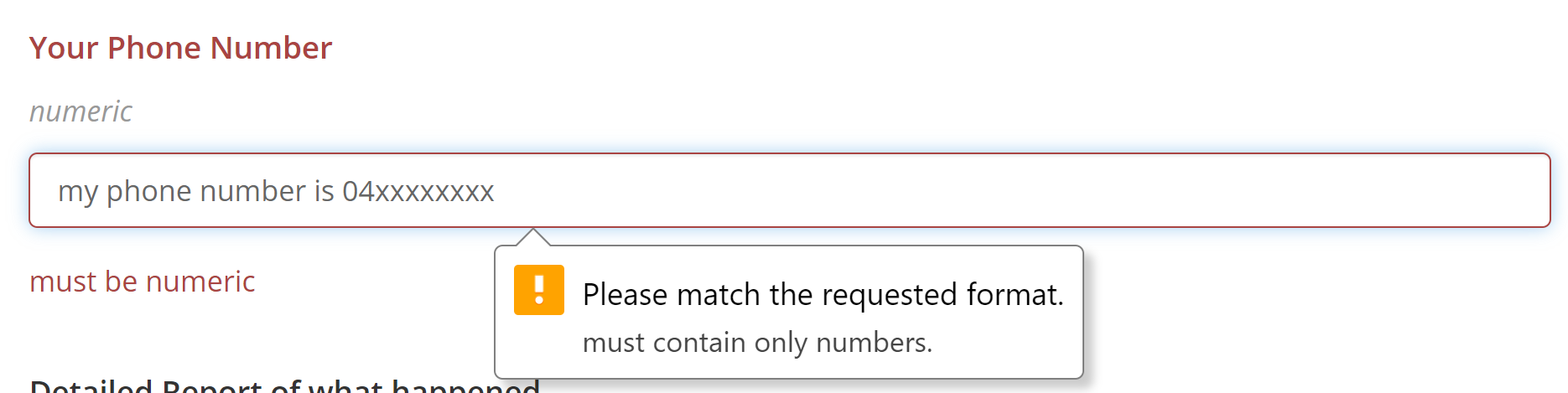
You are also able to change the format of the short text to be Numeric, meaning the response must only contain numbers. This is ideal to collect Telephone Numbers for example.
You can also set a minimum and maximum number of characters required.
|
|
Long text |
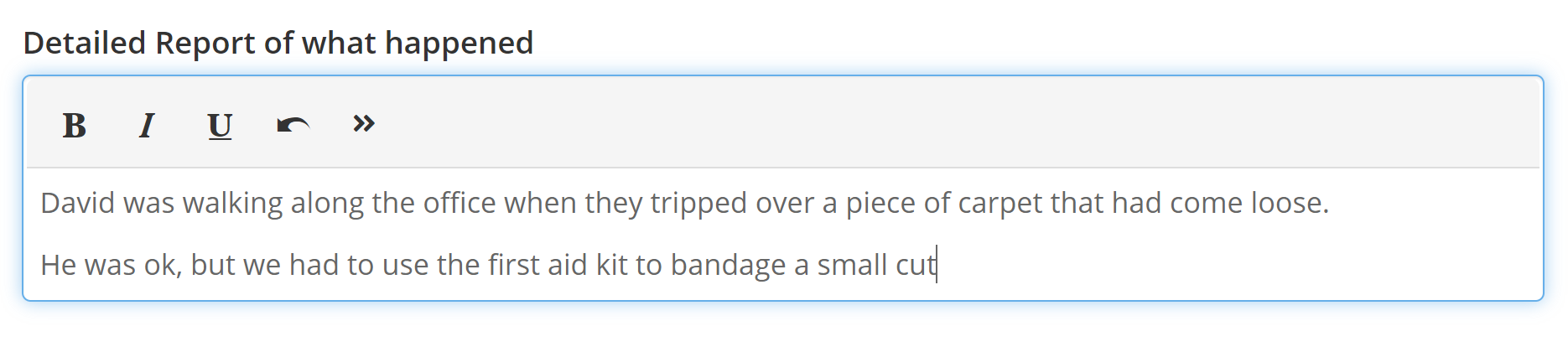
Long Text questions are not limited to a particular number of characters and also allow rich text formatting (making bullet points, bold text, images and links for example)
|
|
Single Select |
A Single select allows you to present multiple answers, and then the person is able to select one of those answers. Learn more about setting up a Single Select Field. There are three display types for single selects, Buttons, Radio buttons and Dropdowns. ButtonsButtons are ideal for touch devices and where there is a small set of answers to select from. With buttons you may even change the colour of each answer to make them easily distinguishable.
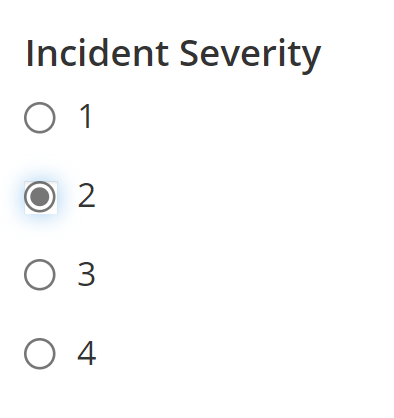
Radio ButtonsAnother way to represent single select answers is in radio buttons, the user may only select one answer. Note: once an answer is selected the user cannot deselect the answer.
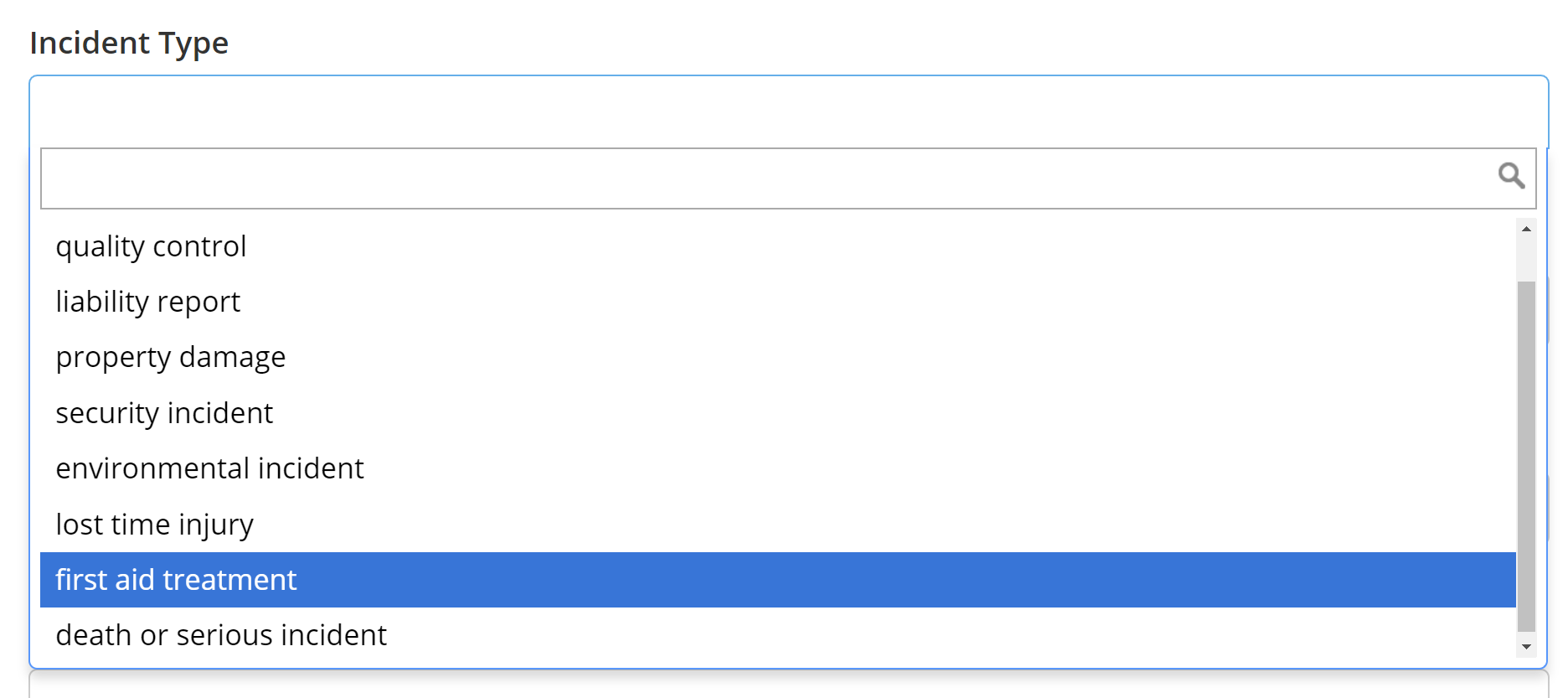
DropdownsDropdowns are ideal when there are a large number of answers as the user is able to type into the search box to search for the answer they need to find.
|
|
Multi Select |
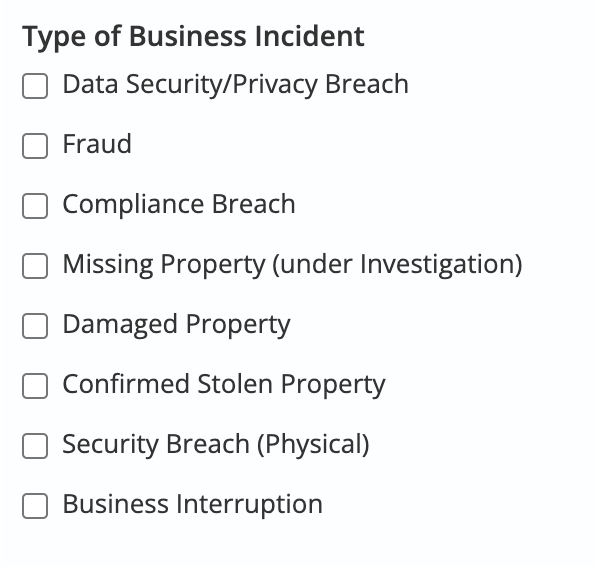
A Multi select allows you to present multiple answers, and then allow a person to multiple answers . Learn more about setting up a multi-select field. There are three display types for Multi selects, Buttons, Checkboxes and Dropdowns. ButtonsButtons have the same features as Buttons in Single Selects above, except that the user may select more than one answer. CheckboxesWith Checkboxes, users may check more than one response.
DropdownDropdowns work the same way as they do with Single Select questions except that the user may select multiple answers. |
|
Numeric |
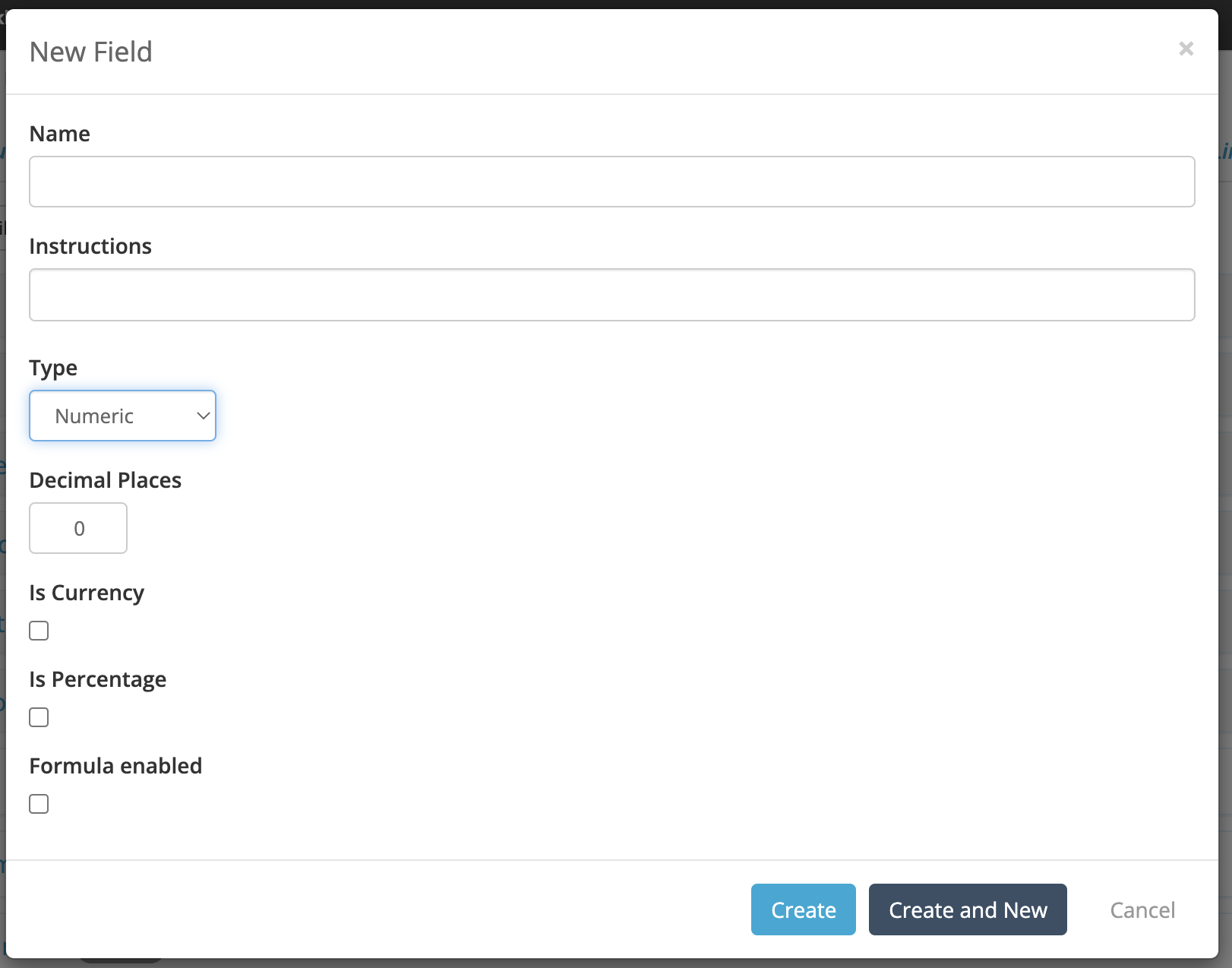
The Numeric question type accepts only numbers which are displayed in a numeric format with commas. You can specify the number of decimal places the number should have. Is currency will show a $ next to the number, so the person filling it in knows that it is a currency based question . Is Percentage will show a % next to the number. Formula enabled allows you to have the question contain a value that is calculated based off other question values. Learn more on how to set up Formulas.
|
|
Date |
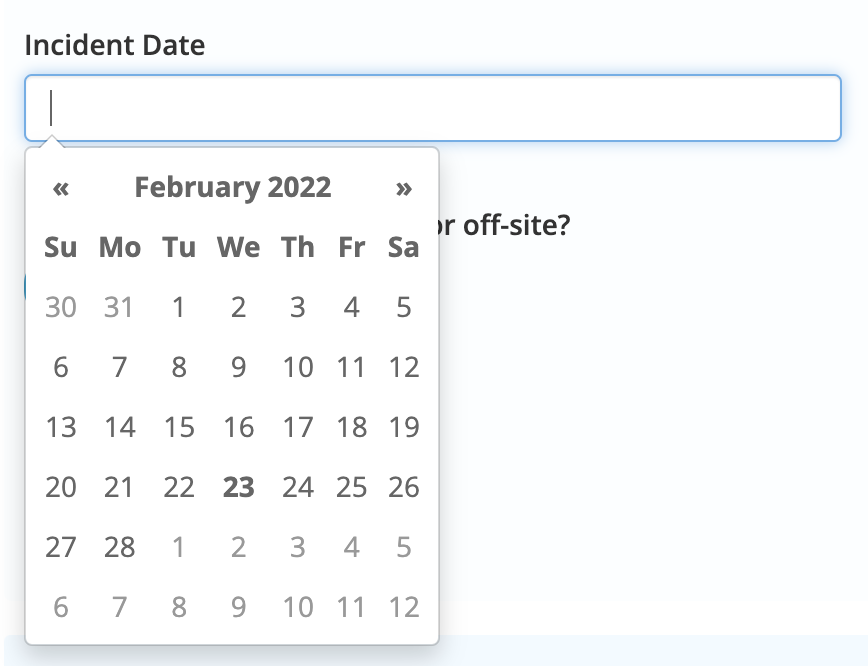
A Date question allows the user to select a date, either by typing in the answer or using the date picker.
|
|
Time |
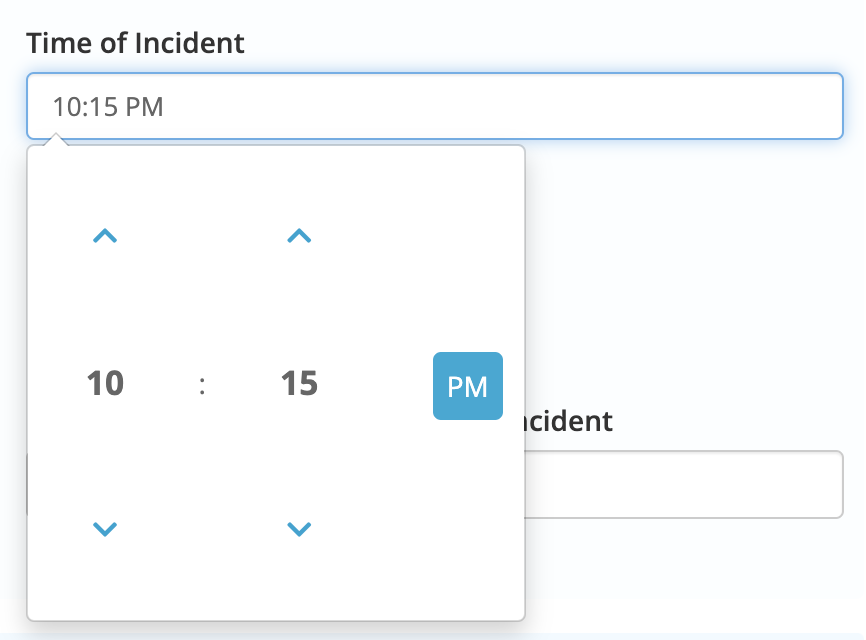
A Time question allows the user to select a time using the time picker.
|
|
URL |
A URL question requires that the user must enter a valid url, this can be used to link to other websites or even to internal intranet files. |
|
Attachments |
Attachment question allow people to upload attachments directly to the question , the user is able to upload as many attachments as they want (Maximum File Size for each Attachment is 100MB). On a Folio uploaded attachments will also appear on the attachments tab as well as on the field.
|
|
Address |
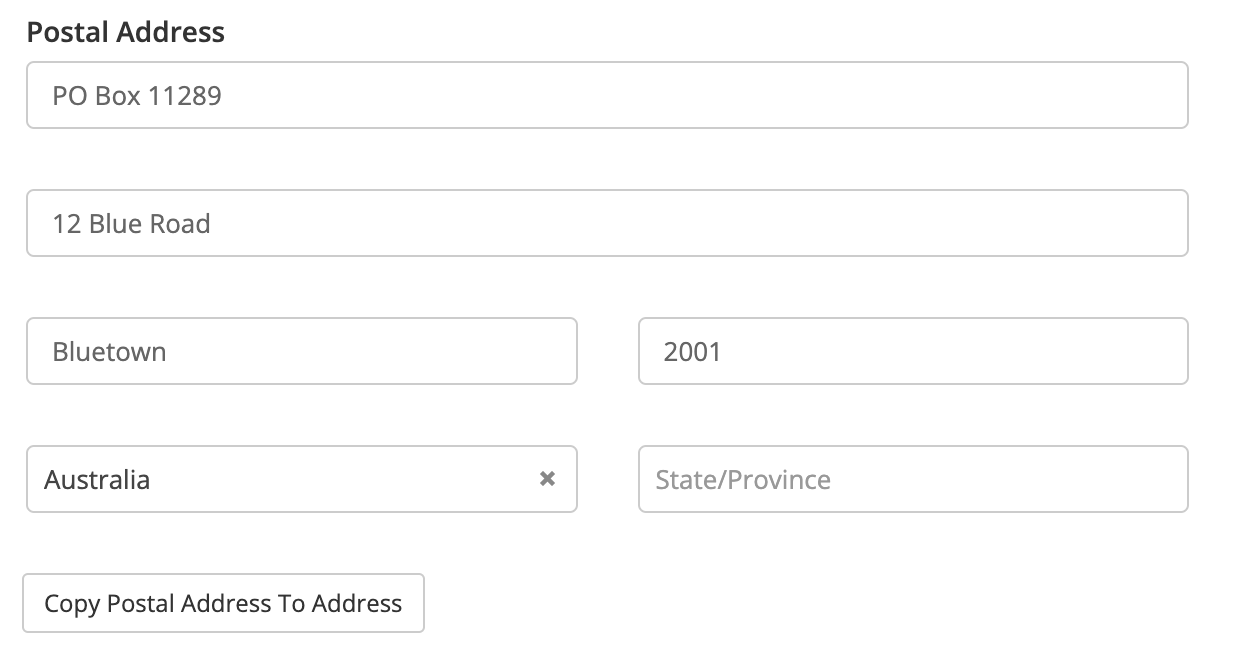
Address question provide the user with the fields required for a address. In reporting you are able to extract each individual component of the address, or the address as a whole.
|
|
Scale |
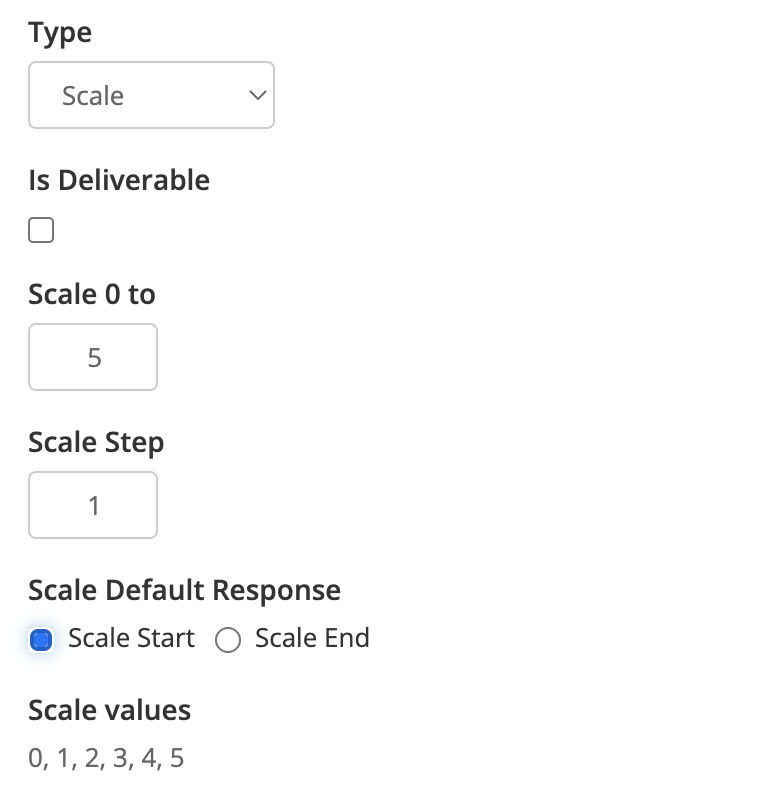
A Scale based Question on a checklist provides the user with a rating scale for example: Rate our performance on a scale of 1-5. 5 being Excellent and 1 being Poor. The Scale 0 to setting enables you are able to set what number the scale goes to For example 0 to 5. The Scale Step settings allows you to set the increments the scale will go up in. Scale Default Response lets you set if the scale defaults to the Start of the Scale (Scale Start) or the End of the Scale (Scale End) Scale Values tells you the values on the scale.
|
|
Hierarchy |
A Hierarchy question allows the user to select from multiple responses that have been setup in a hierarchical setup, where answers can be parent or child responses. |
|
Instructions |
An instructions question are designed to provide a message or an instruction to the user. They can be text in a coloured box. |
|
|
An Email question requires the user to provide an valid email address (contains an @ symbol and a “.com” or equivalent) |
|
Signature |
A Signature question gives the user a box which they are able to draw a signature into. This signature will appear on the submitted form, on any reports or list screens the question will be listed as either “signed” or “not signed” |