
Setting up an Indicators Checklists
Adding Numeric Indicator Questions
Adding Single/Multi Select Indicator Questions
Linking an Indicator Checklist to a Folio
Assigning an Indicator Checklist
Assigning an Indicator Checklist from a Folio
Assigning an indicators checklist that is not linked to a Folio
Setting up an Indicator Checklist
An indicator checklist can be created just as you would create any other checklist.
Indicators are numeric or single/multi select questions on a checklist.
Adding Numeric Indicator Questions
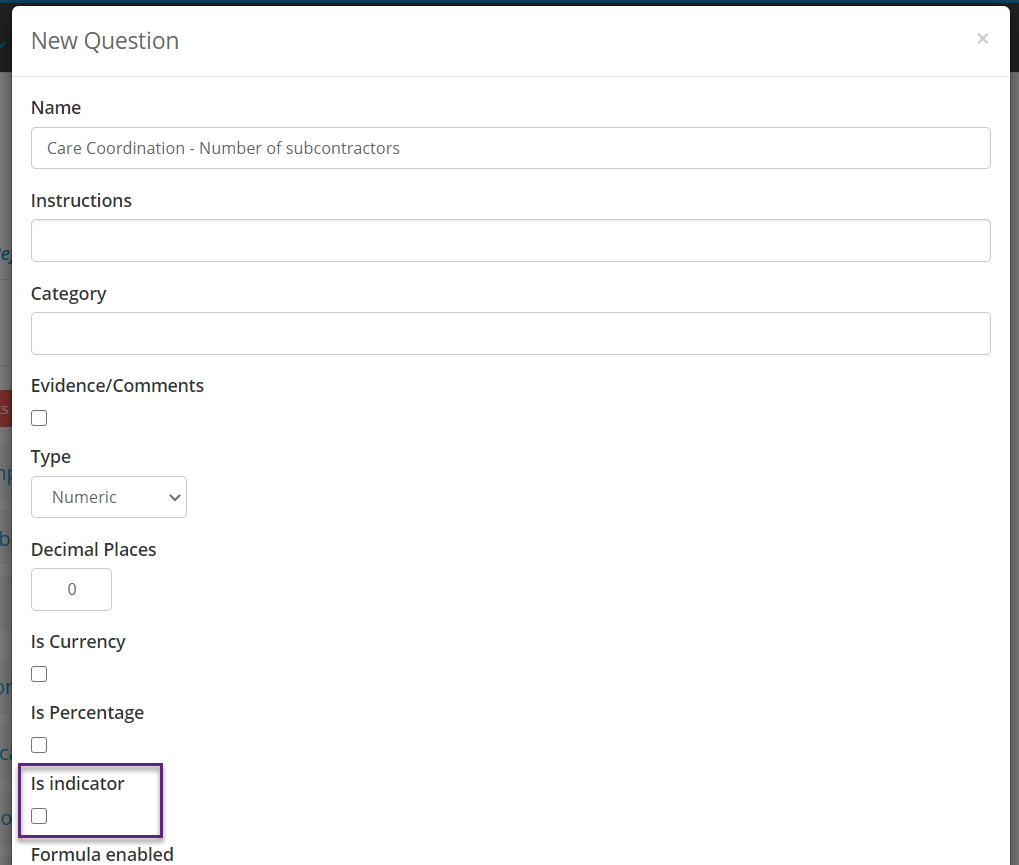
When you add a numeric question to a checklist, you will see the option Is Indicator, select this option:
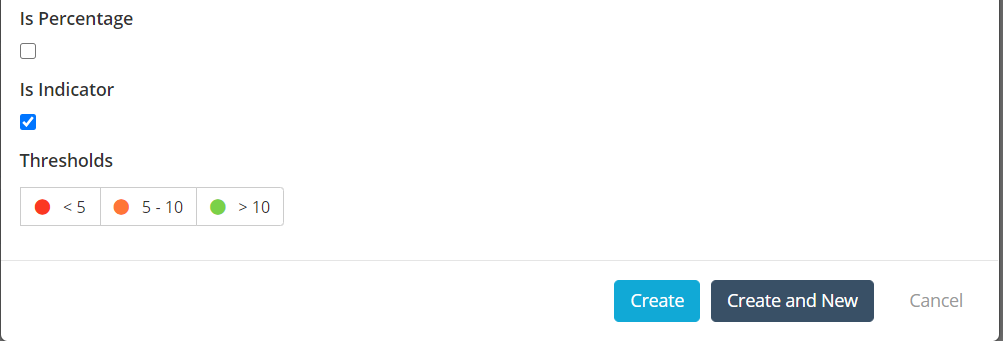
You can then set up the Red, Amber and Green thresholds for that Indicator.
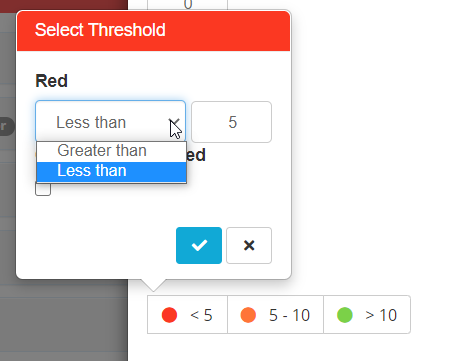
Depending on your indicator, the Red threshold could either be greater than or less than a given number. If you select greater than, the Green threshold will be less than and vice versa. Amber will always be a range of numbers between Red and Green.
You can also make comment mandatory if the user's response falls in a particular threshold. For e.g. if their response falls in the Red threshold they are required to provide a comment. When you are done select Create.

Adding Single/Multi Select Indicator Questions
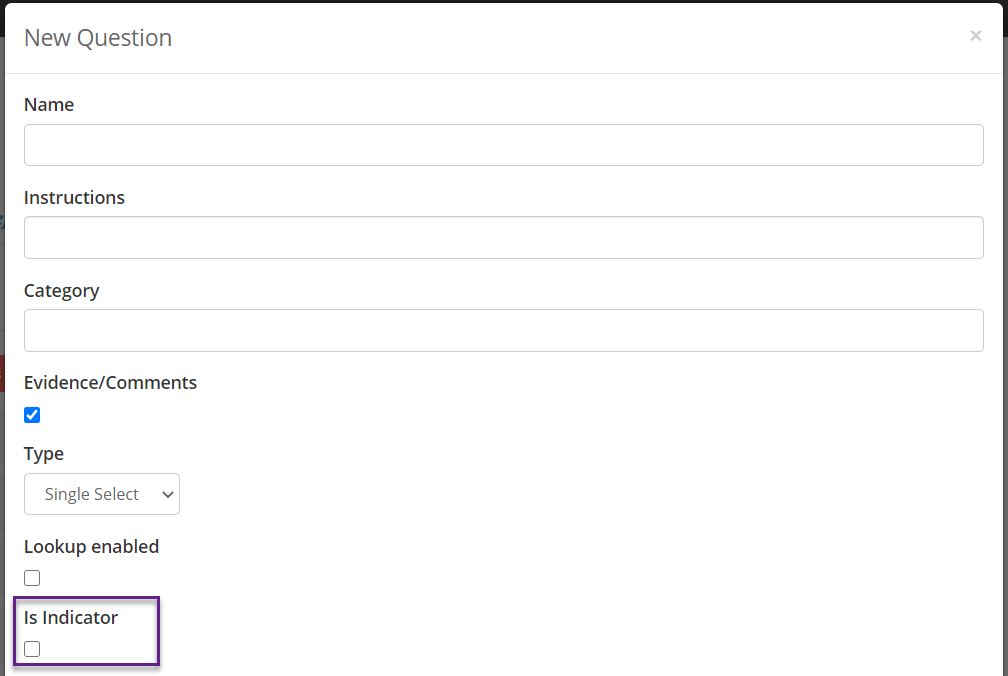
When you add a single or multi select question to a checklist, you will see the option Is Indicator, select this option:
You can then set up the Red, Amber and Green thresholds for that Indicator.
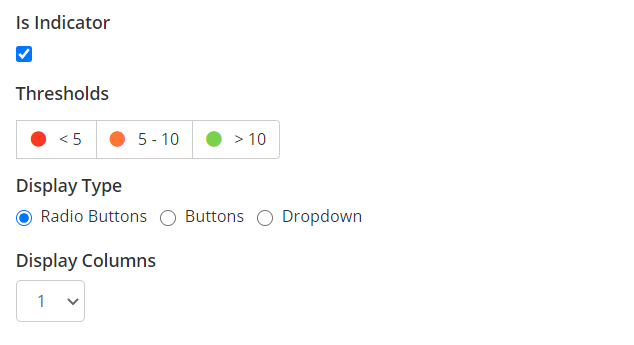
Depending on your indicator, the Red threshold could either be greater than or less than a given number. If you select greater than, the Green threshold will be less than and vice versa. Amber will always be a range of numbers between Red and Green.
You will also need to set the score for each question response. This will determine what threshold each answer falls under when the Checklist is being responded to:
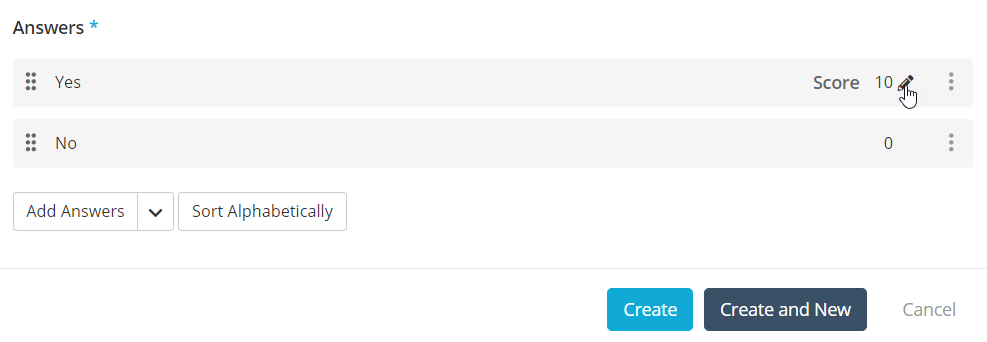
If you want the question to be excluded from the overall score when an answer is selected you can set its score to No Score under the Ellipsis. Doing this will mean that the question is marked as no score and removed from the total score for the checklist when the answer is selected.

If you are setting up the scores for a multi select question you will also see an option labelled Max Score:
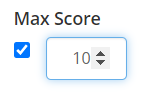
Ticking this option will allow you to give a ceiling for the maximum score that can be attained for that question, meaning that even if more responses are selected for the question the score for it will not exceed the Max Score that you have set.
Once you have finished setting up the scores for your Single and Multi Select fields you can click on the Details tab of the checklist to view the overall score on the right side of the screen. The overall score is calculated by tallying the sum of the maximum score available for each single/multi select indicator question:
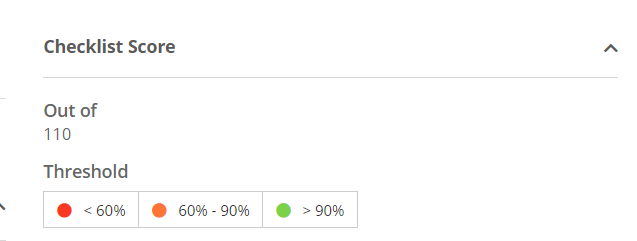
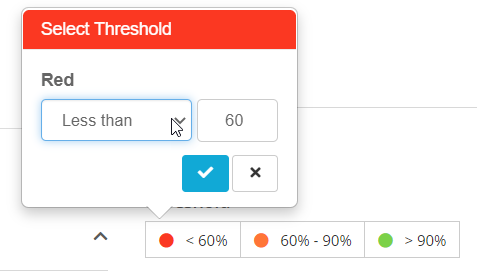
You can also see what thresholds a final score falls under, and edit the thresholds by clicking on the one you want and changing the value:
Checklists don't have to exclusively have only Indicator Questions. They can have questions that are not Indicators. Indicator Questions cannot however be combined with Deliverable Questions in a single checklist.
Linking an Indicator Checklist with a Folio
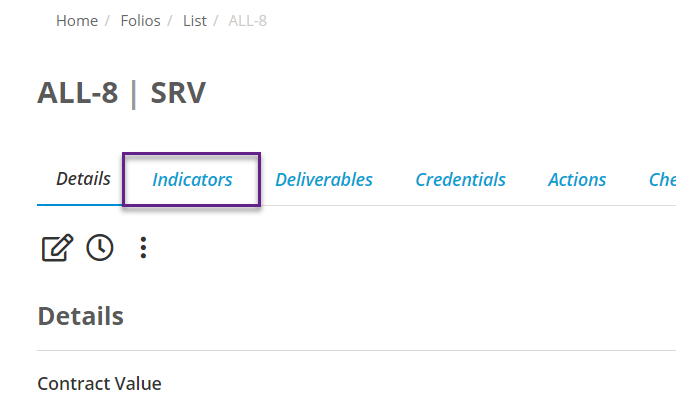
To link an Indicator Checklist first navigate to the Folio you want to link the checklist to, then select the Indicators tab:
If you dont see the Indicators tab on your Folio you will need to enable the Indicators tab on your template first, see the article explaining it here
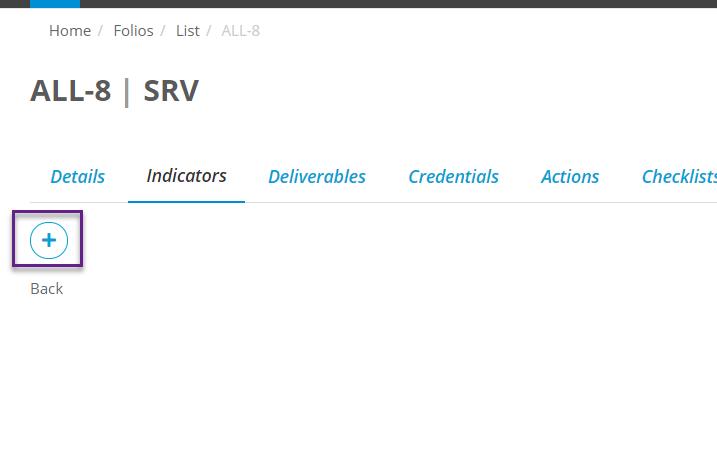
Then click on the blue + button to select a checklist:
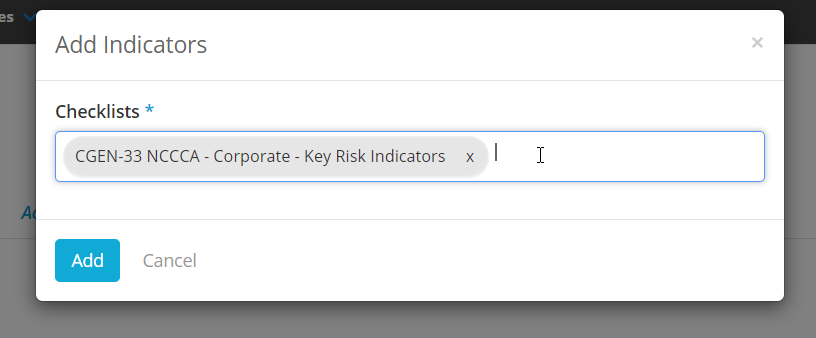
You will be shown a list of indicator checklists in your system. Select the one(s) you want and click Add:
Assigning an Indicator Checklist
Assigning an Indicator Checklist from a Folio
To assign an indicator checklist from a Folio navigate to the Indicators tab of the Folio you are making the assignment for. On the Indicators tab if there are multiple indicator checklists attached to the Folio then you can select the checklist you want to make the assignment for by clicking on the checklist name:
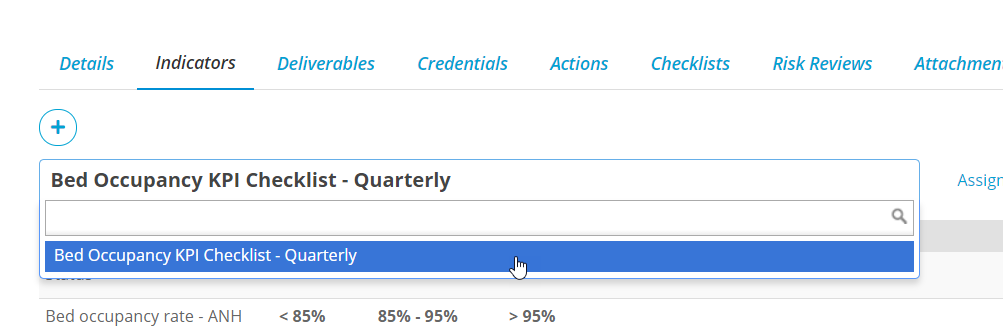
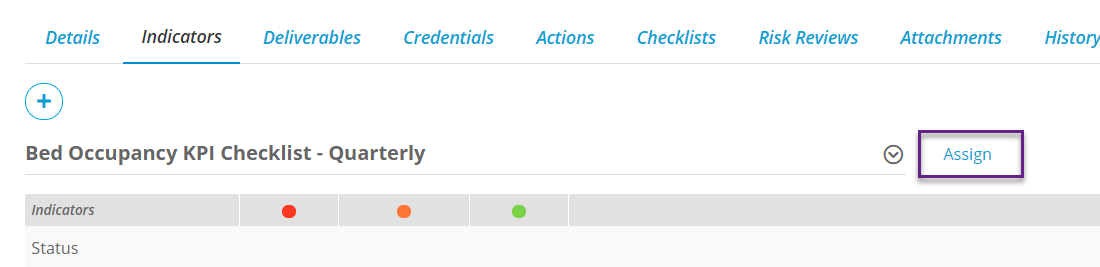
If there are no existing assignments on this Folio for that checklist then you can create a new assignment by clicking on the Assign button next to the name:
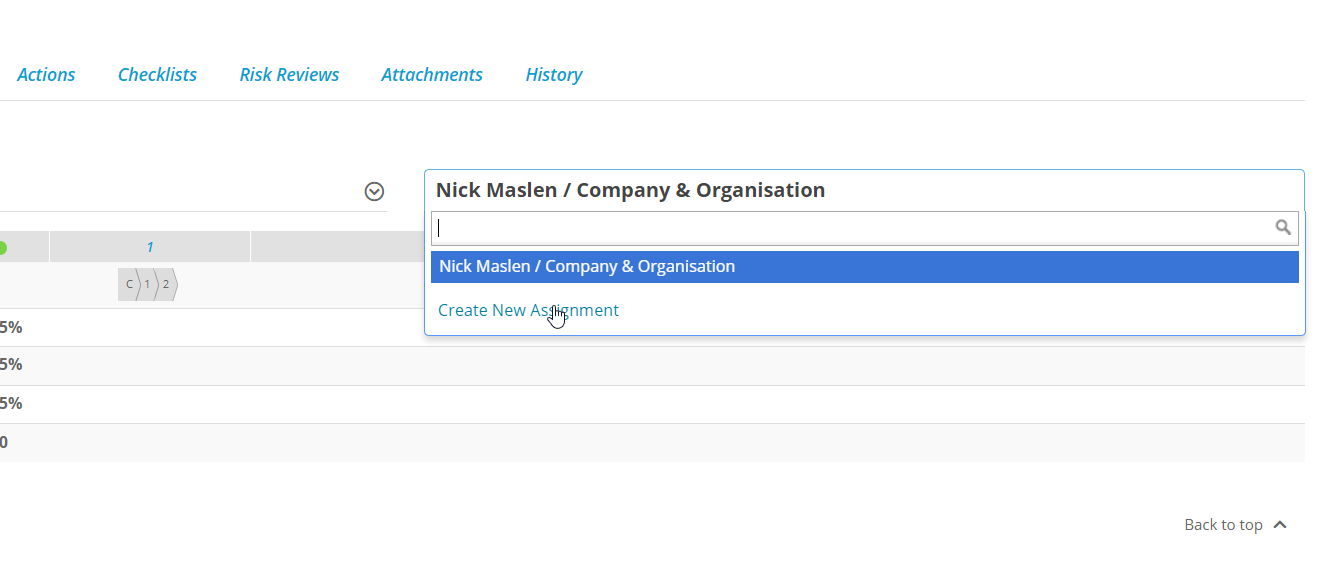
If there are already assignments on this Folio click on the assignment name on the right of the screen to bring up the list of assignments for this checklist, and select Create New Assignment:
The assignment popup works the same as for regular checklists.
Assigning an indicators checklist that is not linked to a Folio
If the checklist is not linked to a Folio. You can also assign it, following the usual checklist assignment process.