
A snapshot provides a quick overview of important information in Folio. It also provides you with the ability to quickly drill down to a key piece of information.
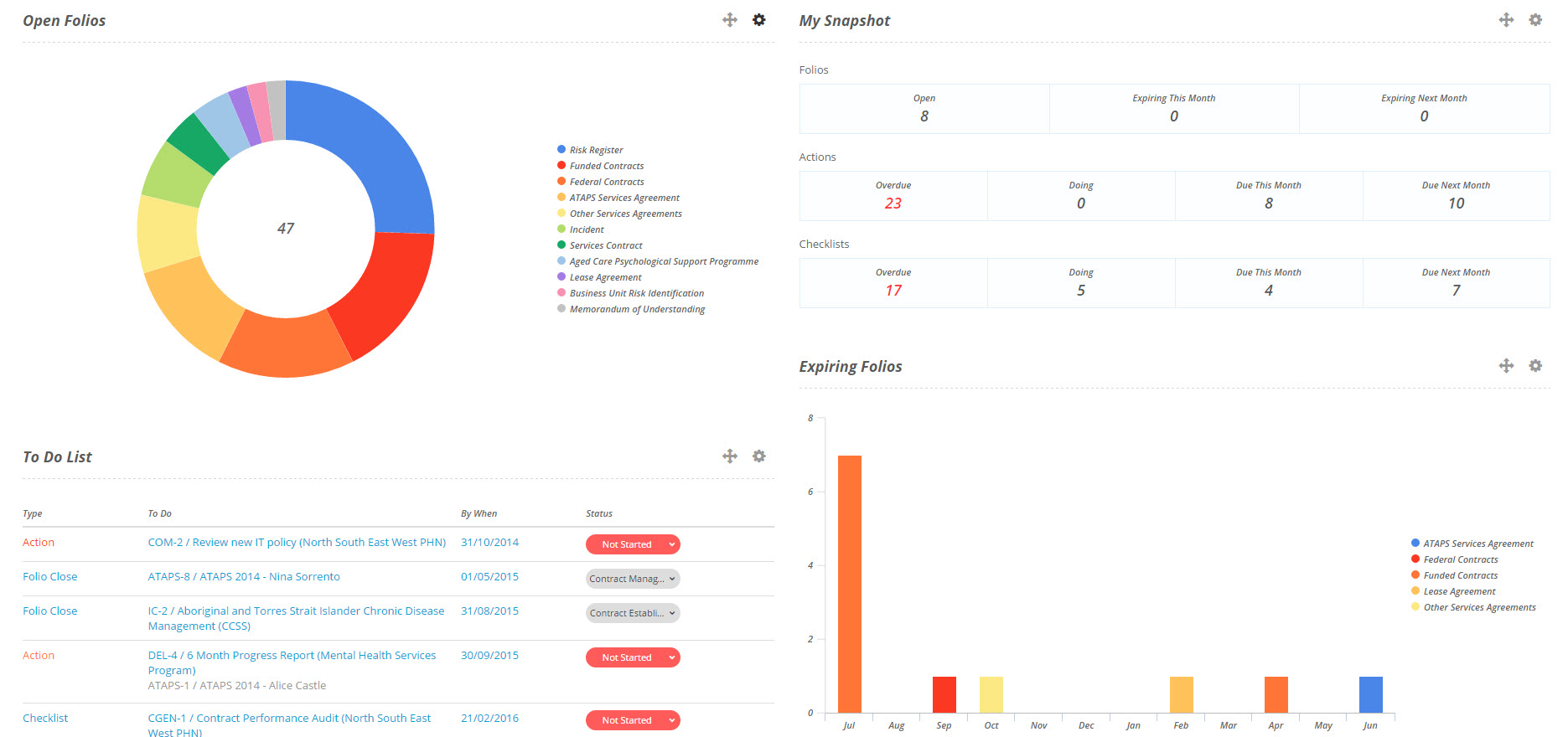
Snapshots are found on Home, Folio Dashboards and the Risk Dashboard.
Folio provides users the ability to configure snapshots
Settings
Some snapshots give the user filters to configure what they see in the snapshot. Click on the ellipsis and then on Settings:
All the available filters will be displayed to you:
Create Custom Snapshots with Save As
Custom Snapshots can be created in Folio using the Save As feature. Snapshots in Click on the ellipsis and select Save As:
Give the snapshot a name and select Next:
Change the settings for your new snapshot and then click on Save to create your new snapshot.
Export to PDF
Snapshots that have the Export to PDF option allow you to download a PDF of the snapshot, This PDF will have your logo and a date time of when it is exported.
You are also able to export the entire dashboard to a PDF in one click, for more information about this click here.
Data Labels
For Chart snapshots the Data Labels option allows you to add or remove the data labels from the chart, these labels appear in the data series and tell you the number of records that make up each series without having to hover on the chart to find out.
Download
Many snapshots can be downloaded as an image (jpg) or a document (pdf). Click on the ellipsis and the Download.
Remove & Add
You can remove snapshots from the dashboard by clicking on the ellipsis and selecting Remove:
And add snapshots by clicking on Add Snapshot at the top right of the dashboard:
Please note that when Custom Snapshots are Removed the cannot be added back and will need to be made again.
Rearranging Snapshots
The snapshots can be rearranged by using the drag handles: