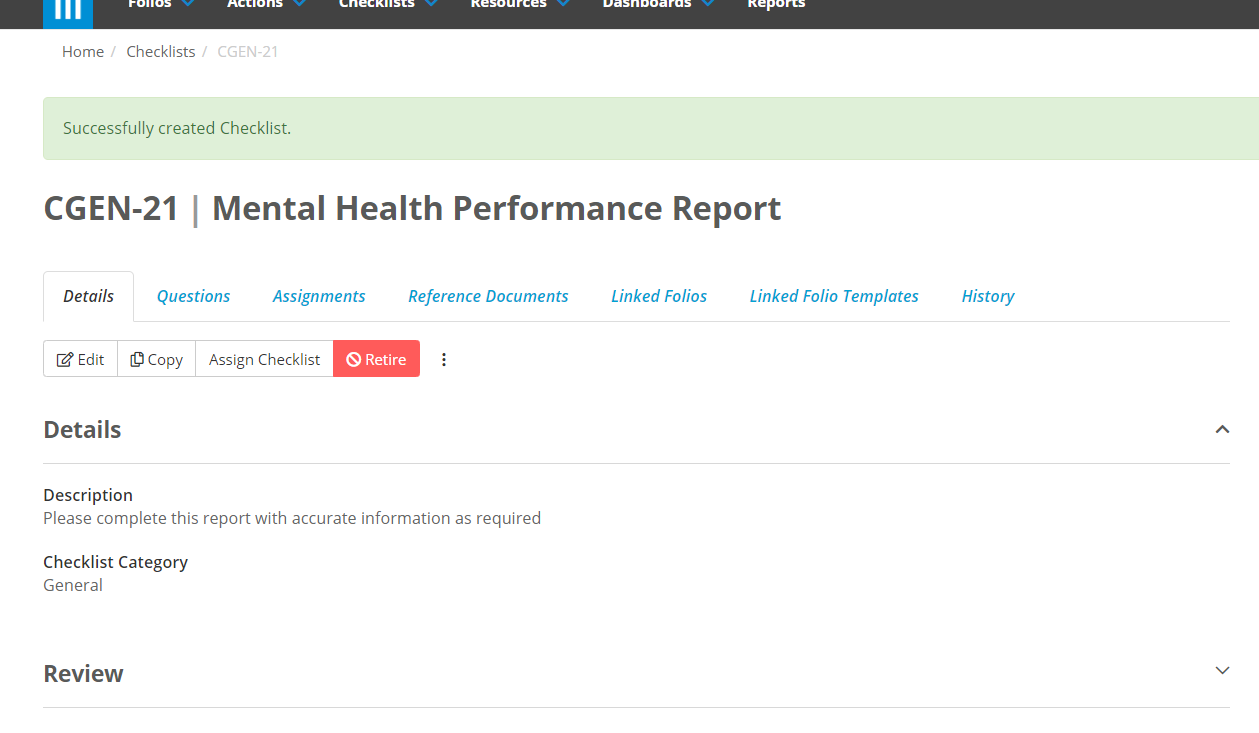
There are two ways to create a new Checklist in Folio:
Creating a Checklist through Folio
Creating a Checklist via JSON Import
Creating a Checklist through Folio
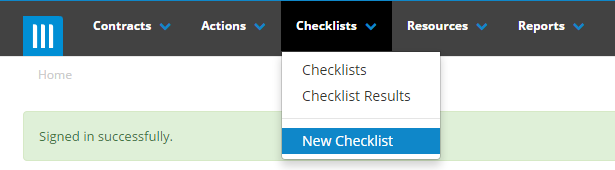
To create a new Checklist through Folio, click on the Checklist Tab at the top of your Folio Screen and select New Checklist
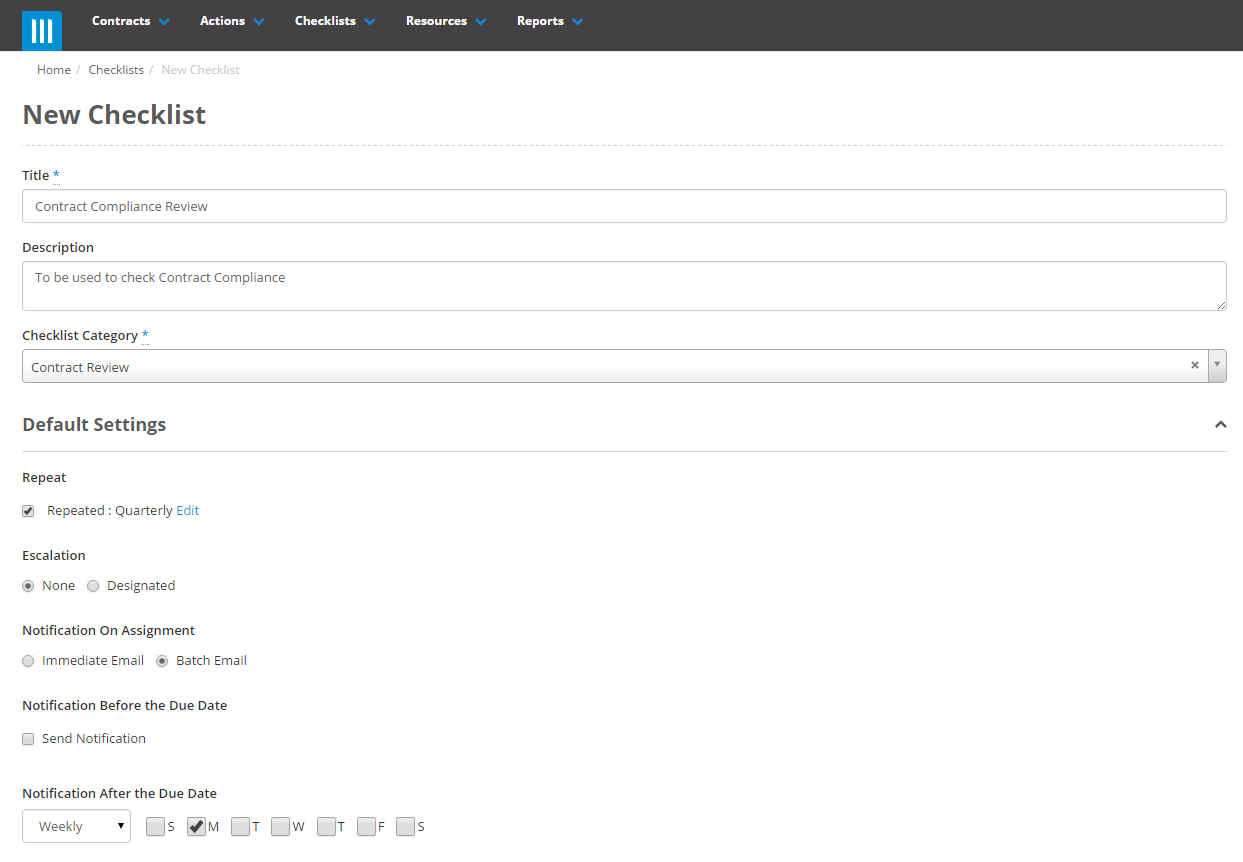
Next fill in the Title and Description of the Checklist and select an appropriate category. You are also able to set up default settings for your checklist. So for example if your Contract Reviews are typically done on a quarterly basis, tick the Repeated box and then select quarterly. You can also change other default settings for the Checklist, such as whether or not it is escalated to another user if it becomes overdue and notification settings.
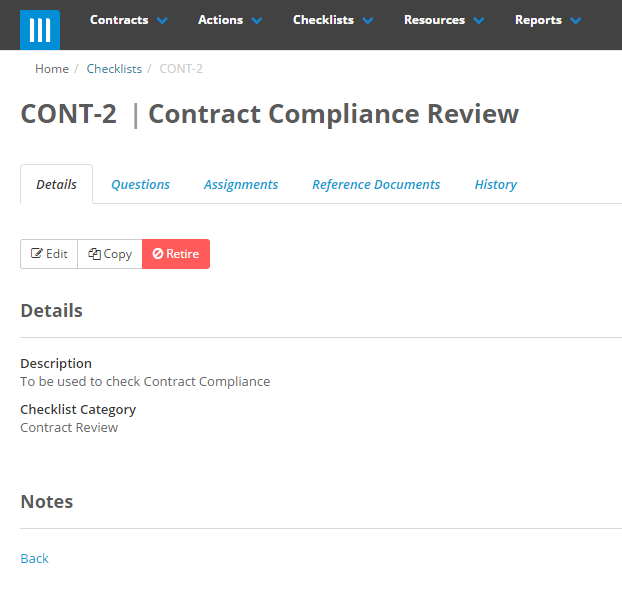
Once you have completed all these details, click on Create to set up your Checklist. Your next steps will be to add questions to the checklist and then assign it to a user to complete.
Creating a Checklist via JSON Import
Creating a checklist via a JSON import is generally done to move a checklist between Folio instances, for instance moving a checklist from your Sandbox environment to your Production environment without having to rebuild it from scratch.
Importing will also carry over any assignment settings and review stages that have been set up on the Checklist.
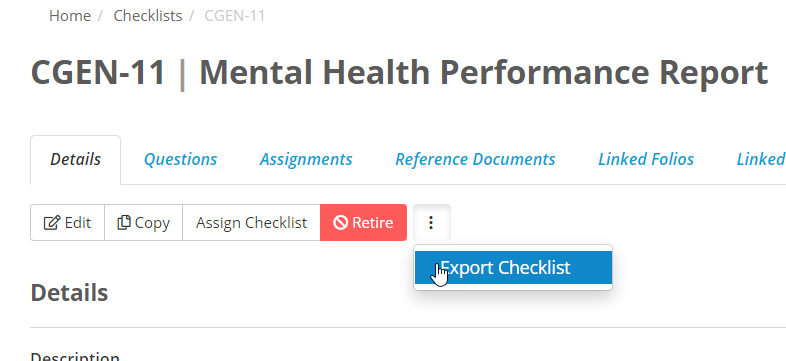
To do this first go to the checklist that you want to import, click on the ellipsis next to the retire button and select Export Checklist:
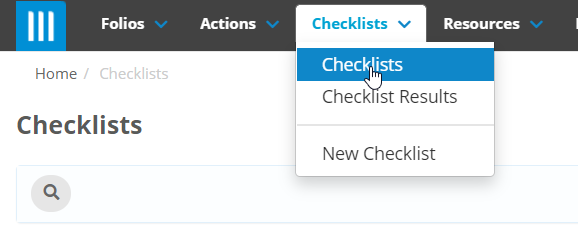
Then in the Folio instance that you want to import the Checklist into, select Checklists at the top of the screen:
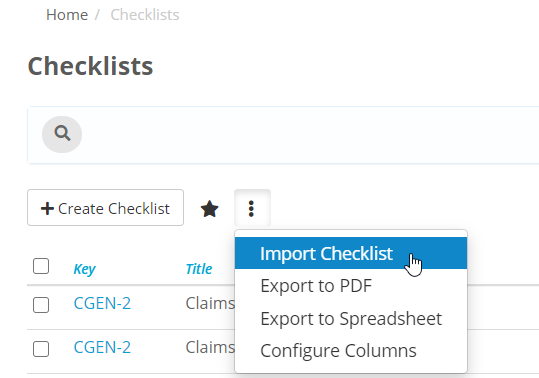
Then on the Checklists page click on the ellipsis above the list of checklists and select Import Checklist:
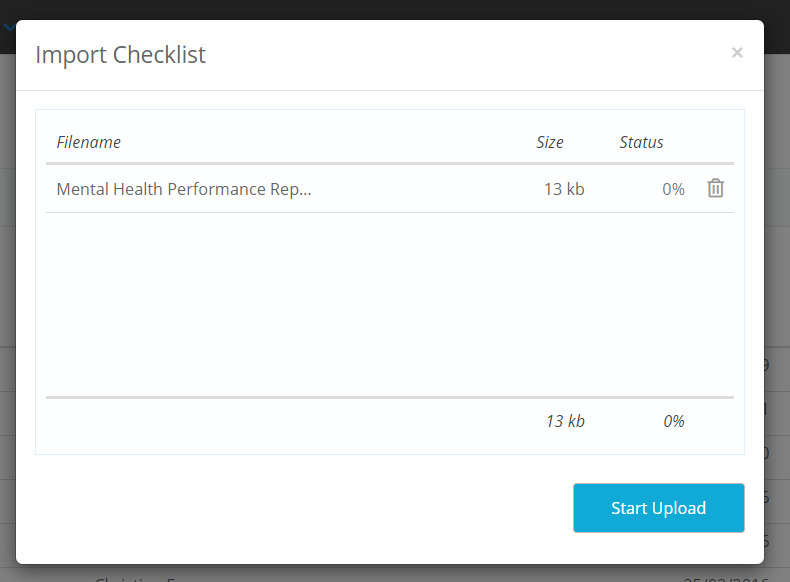
Add the file that you previously Exported and then select Start Upload:
You will then be taken to the Details page of the new checklist once it is done importing: