
You can assign one action to multiple users at the same time. To do this, click Assign action on the action you wish to bulk assign.
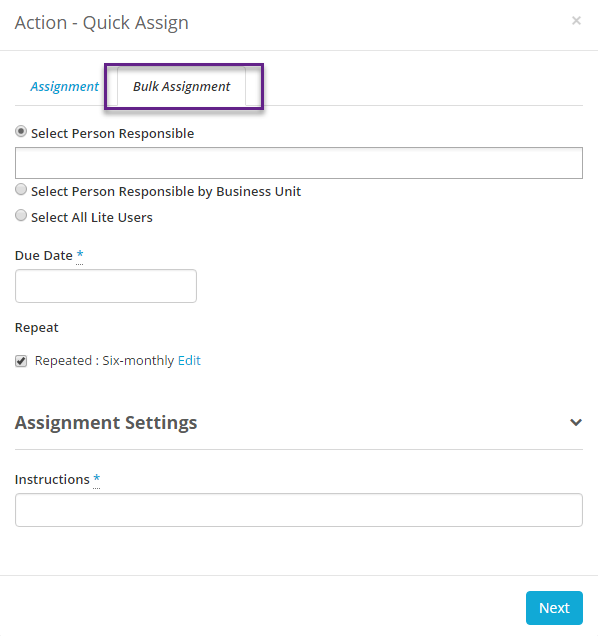
You have three different options for adding users to be assigned this action:
- Selecting users normally, this can include Lite Users.
- Selecting users by business unit. Selecting a business unit will add all users in that business unit to the bulk assignment.
- Select all Lite Users.
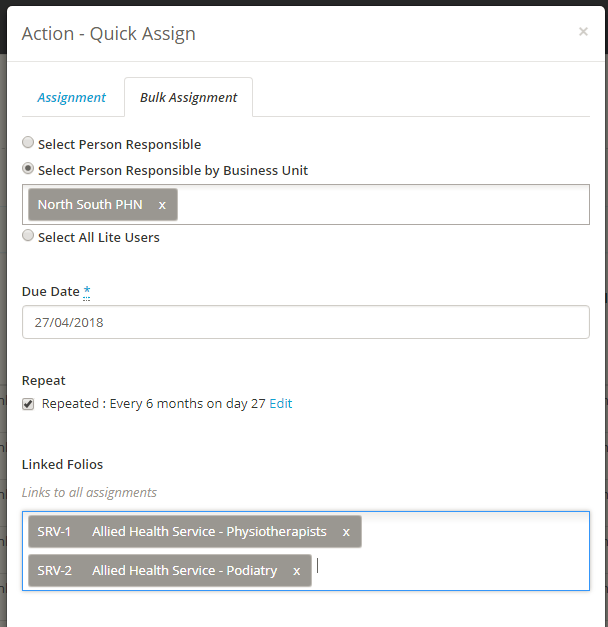
Then choose the Due Date for the assignments and select Repeat if you want those assignments to repeat and select the frequency. You can also choose any Folios you want to link the assignments to.
Clicking on the Assignment Settings tab reveals the settings for these assignments
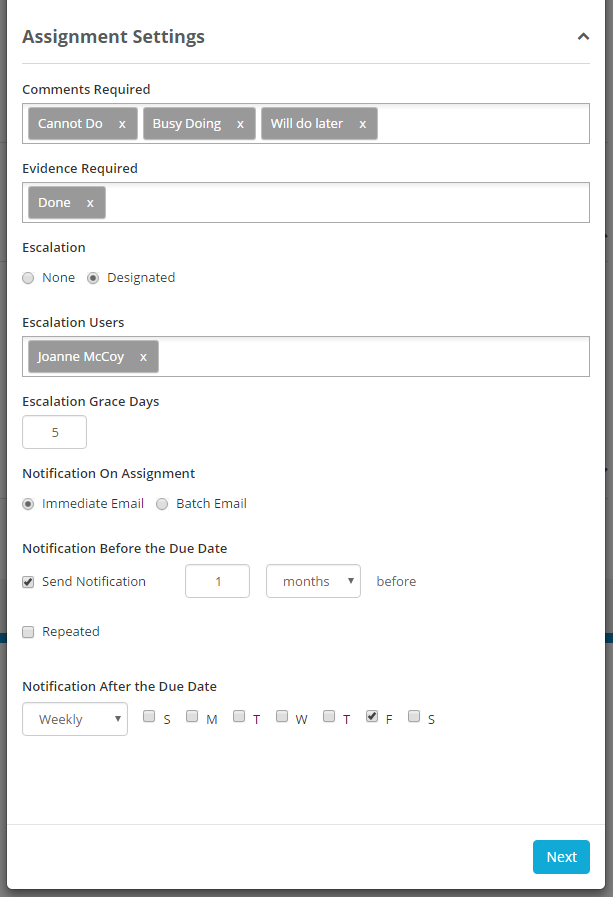
Once everything is correct click next to go onto the next screen. Here you will see a list of the assignment to be created.
If you do not wish a particular assignment to be created, click on the trash can next to the assignment to remove.
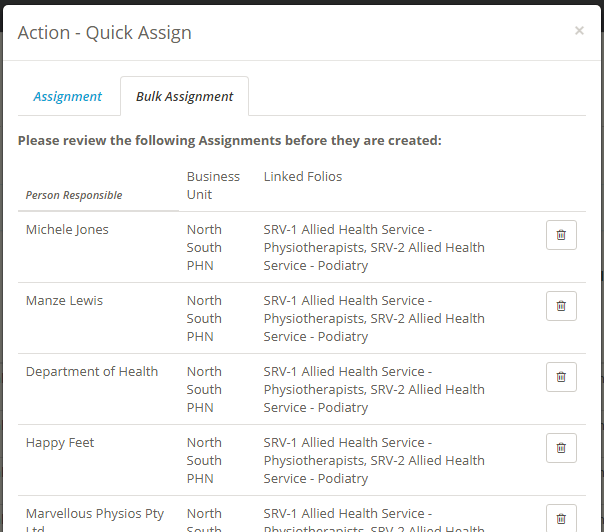
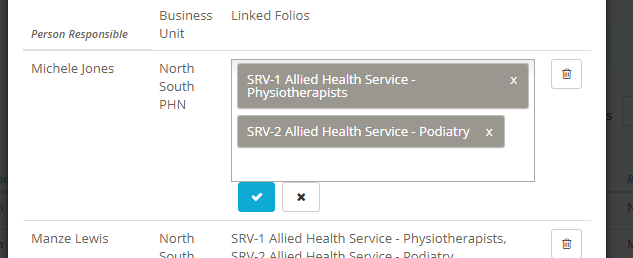
You can also edit the Business Units or Linked Folios for each individual assignment from this screen:
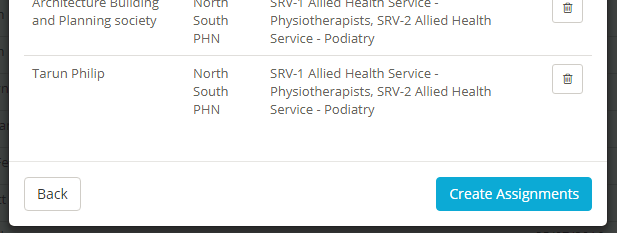
Once all of the settings are complete click Create Assignments and Folio will begin assigning the actions to the users.
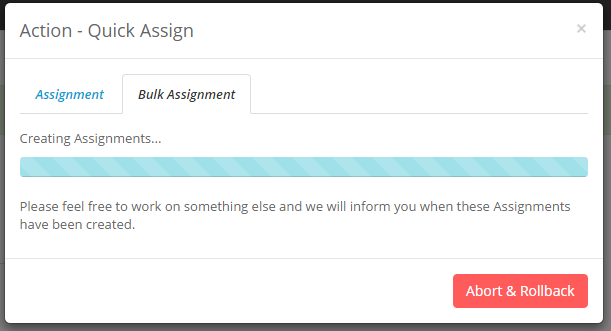
Once complete the blue bar will be at the end of the loading bar.
If during the process you need to cancel the assignments click Abort & Rollback. Doing this will bring a warning to the screen, confirming that you wish to abort the bulk assignment and will remove all of the assignments it has already created and not make any more. You can do this until it has finished assigning all actions. After that it cannot be undone.
During the assignment you are able to click the x to close the window. Doing this will not stop the assignment, they are done in the background. But once the assignment is done the notification button on the top right corner will turn blue.
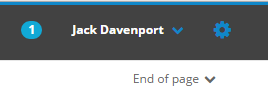
You can click on the circle on the top menu bar to view the notification that the bulk assignment has finished.