
With the basic Document feature the user can do the following to manage a Document.
- Replace Documents with a new version
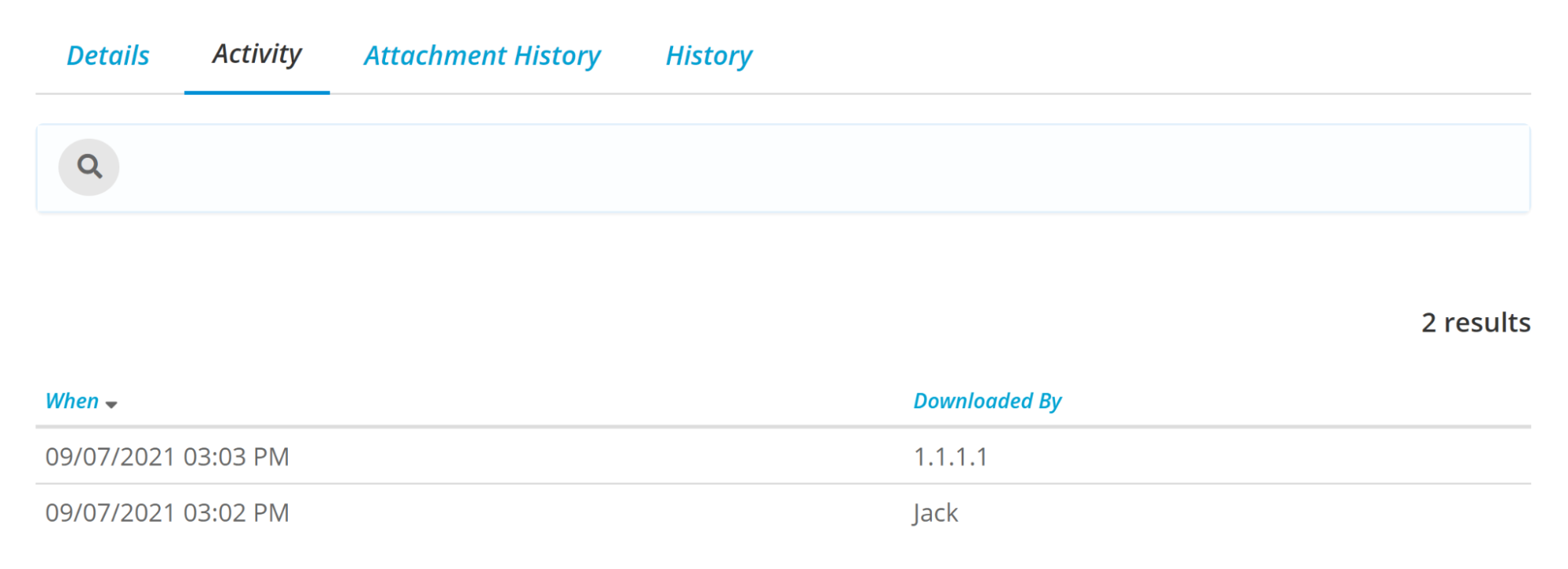
- The Activity tab provides a log of who has viewed a Document and when.
- Previous versions of Uploaded Documents can be viewed in the Attachment History tab.
- Previous versions of Composed Documents can be viewed in Content History tab.
- Bookmarking Documents
- Permanently Deleting Documents
- Update Publishing Approvers
With the Policy and Procedure add-on you will have all the features above and the following additional features to manage Documents:
- Version History
- Activating and Deactivating Documents
- Save as Draft
To manage a document, click on Resources and then Documents. On the list of Documents select the Document you would like to manage.
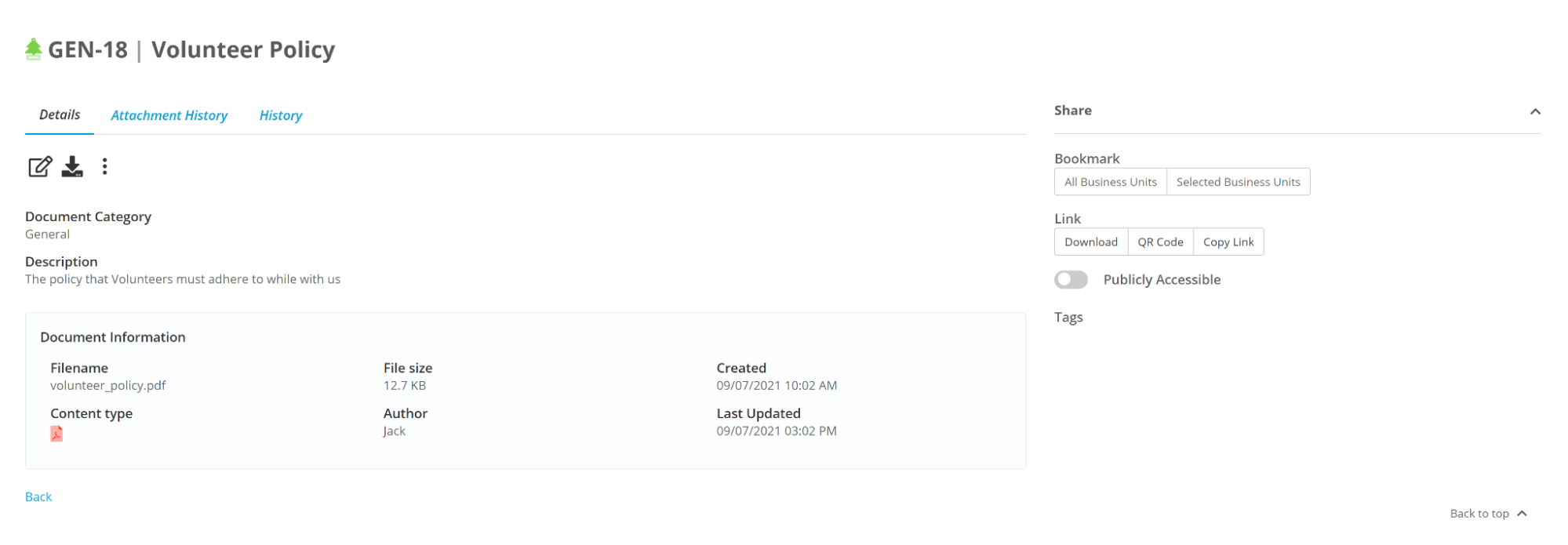
You will be taken to that Document record. The Details tab of the Document record has the title, category and description which are all editable (either by clicking on the text to inline edit, or by clicking on the edit icon and doing a full edit). There is also the Document Information which contains the information about the document, including the author, the file’s size and when it was last updated.
Updating Document Details
Documents may be updated details may be updated by editing the fields inline or in the basic version of the Document feature user may click on the Edit button to go to a full edit screen.

Replacing a Document
If you have a new version of the Document that you would like to replace the current document with, you are able to do that by clicking on the ellipsis and clicking Replace
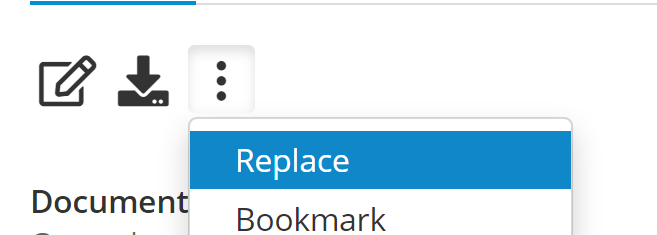
You will then need to select the new Document you want to use, you can either choose to save it as a draft to work on it or can directly replace, if you choose to replace then Folio will update the document to link to the newest version.
Replacing a Document (Policy & Procedure add-on)
Follow the replace and review process outlined in the replace and review article
Activity
Folio keeps a count of every time the document has been downloaded/viewed and by who.
You can see this activity on the Activity tab, where you will see who downloaded the document and when. If the document was accessed by someone who is not a User you will see their IP Address, while the names of logged in users will be displayed.
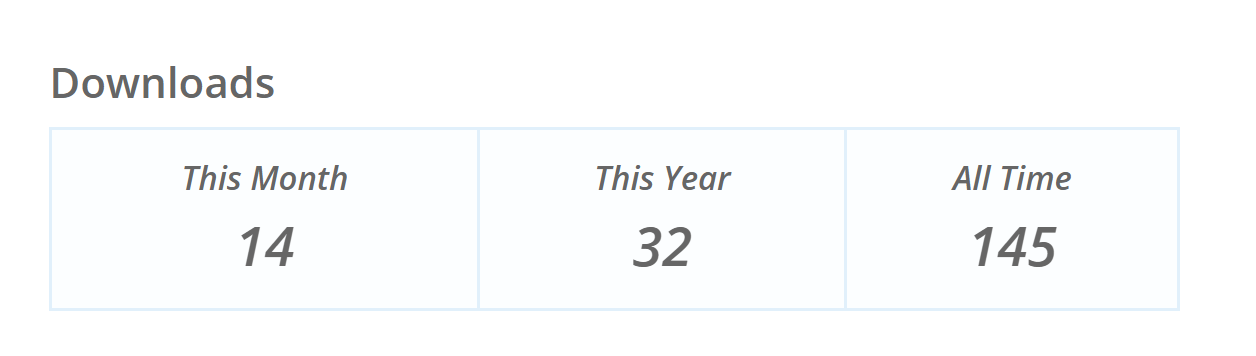
On the right hand side you can also see a count of Downloads/ views, for This Month, This Year and All Time.
Attachment History
The attachment history will appear when the document has been replaced.
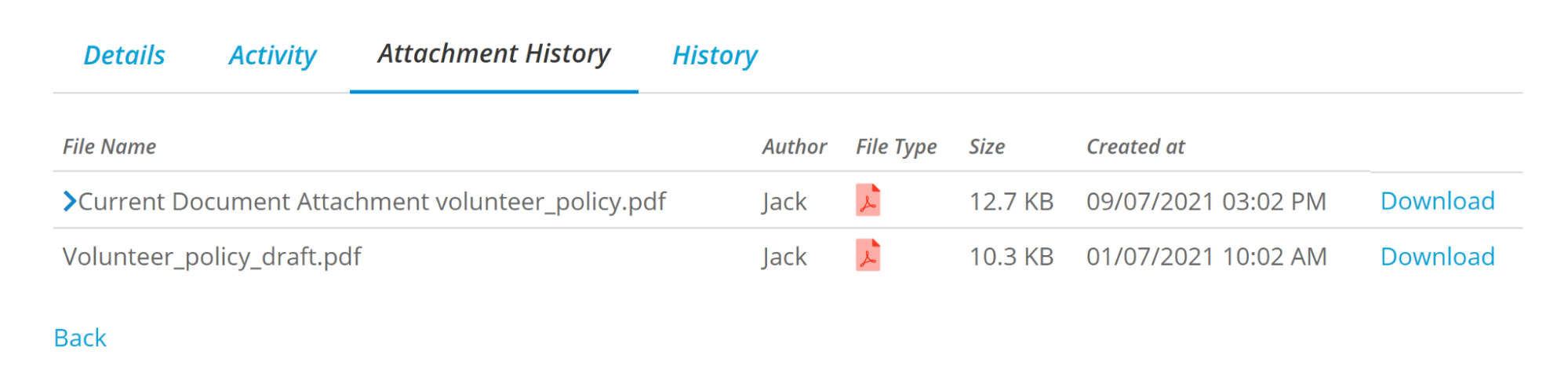
You are able to download any of the previous attachments from here.
Content History
For composed Documents the Content History will show all of the versions of the composed document, you are able to view any previously created versions by clicking on view.

You can also click Compare to compare the composed document with the previous version, the changes will be highlighted. Text added is in Green, and Text removed is in Red.

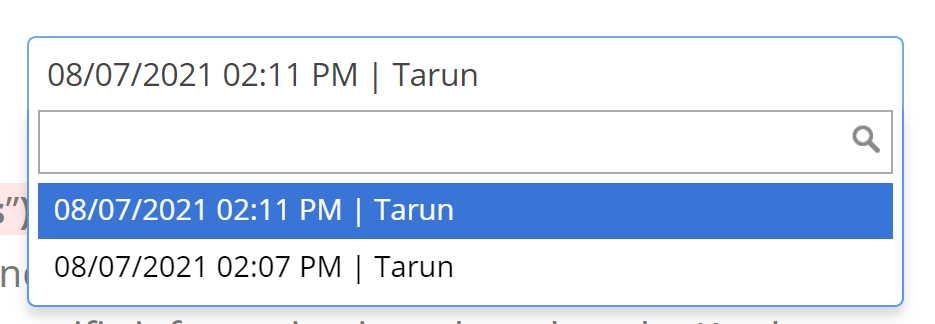
You can also use the dropdown to quickly change to different versions of the document.
Permanently Delete a Document
Documents can be permanently deleted by a Super User or a person with Document Delete rights. Once Documents are deleted, they cannot be recovered. This feature is useful, if a document is uploaded by mistake or it’s not required anymore. Deleting a Document will permanently delete the following:
- Document
- All its History
- All its Versions
- All its Content History
To permanently delete a document, please follow these steps:
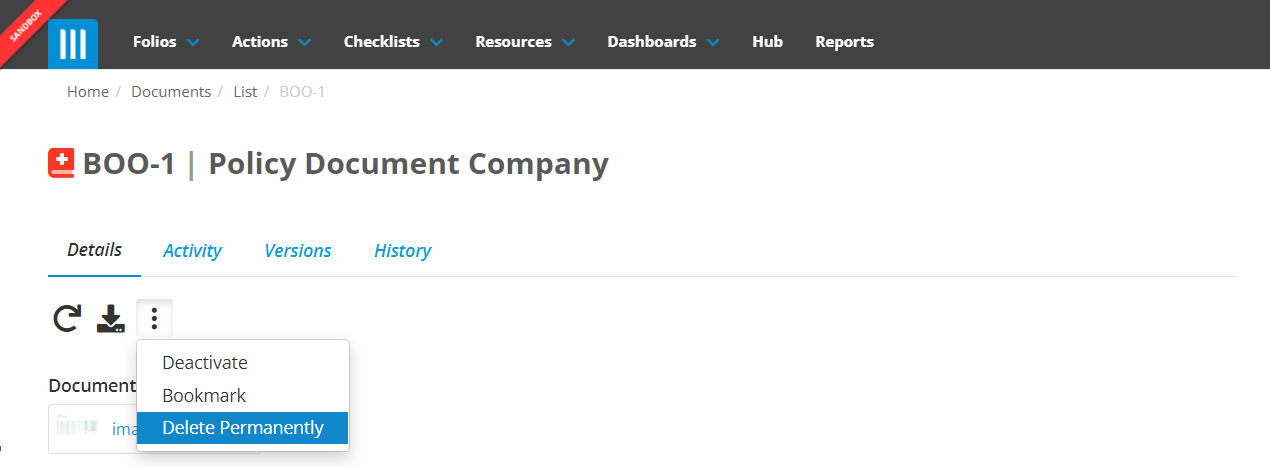
- Select the Delete Permanently option under the ellipsis on the Details tab of a Document.
- A confirmation modal will appear prompting you for a Reason for Deletion. You will also be asked to enter the Document Key of the Document Record you are deleting as a confirmation.
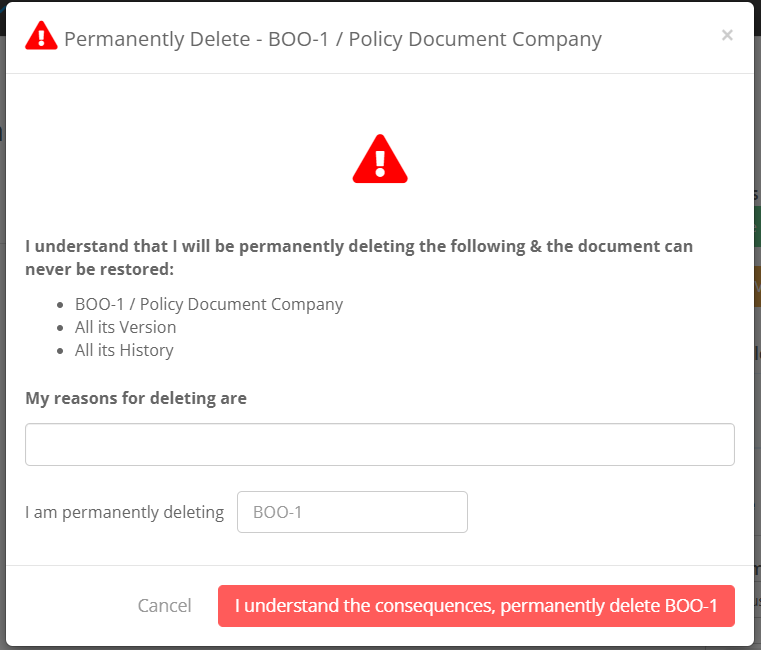
- Click I understand the consequences button to permanently delete the Document record. After deleting a Document you will be taken to the Document list screen.
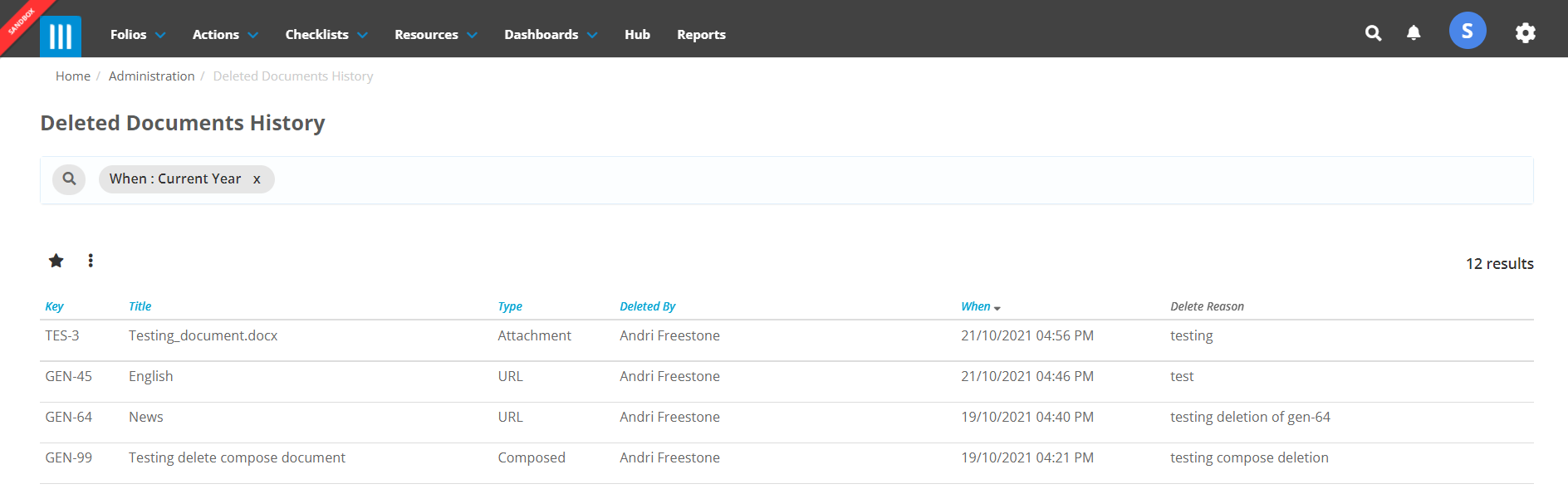
- Once a Document is deleted, it will be recorded in the Deleted Document History, an Admin or Super User will be able to view the Deleted Document History.
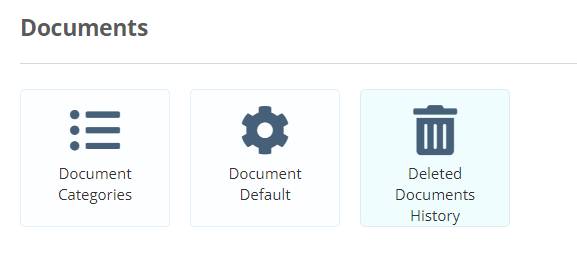
- Under the Admin Gear Wheel scroll to the Documents section and then select Deleted Documents History. Deleted Documents History shows you the Key, Title, Type, Deleted by, When and the Delete reason for the Deleted Documents. You will not be able to download a deleted Document, view a URL or view a composed Document.
Update Publishing Approvers
A super user or any user with the update rights to a Document can add or update publishing approvers on a document record. If there are approvers on a document then on creation, replacing & reviewing it has to go through the approval process before it is published and made accessible on Hub.
You can read more about updating Publishing Approvers here
Activating or Deactivating a Document (Policy & Procedure add-on only)
Documents created with the Policy & Procedure add-on can have 3 statuses:
-
- Draft: A new document or an existing document when replaced/reviewed can be saved as a draft. The draft document will not be accessible via the Hub or public access share links. A document can be saved as a draft if it is not ready or needs collaboration & approval before publishing.
- Active: Documents will be visible to users in the Hub (if they have the appropriate Read Document Access Rights) and via public access share links (If the Document is publicly accessible). Documents are Active when they are created.
- Inactive: Documents will not be accessible via the Hub or public access share links. Documents can be made Inactive. This is typically done when a new version of a Document is published, the old version is stored in Folio as inactive. You can also make a Document inactive if it has passed its “use by” date and you do not want to permanently delete it.
To make a Document Active or Inactive:
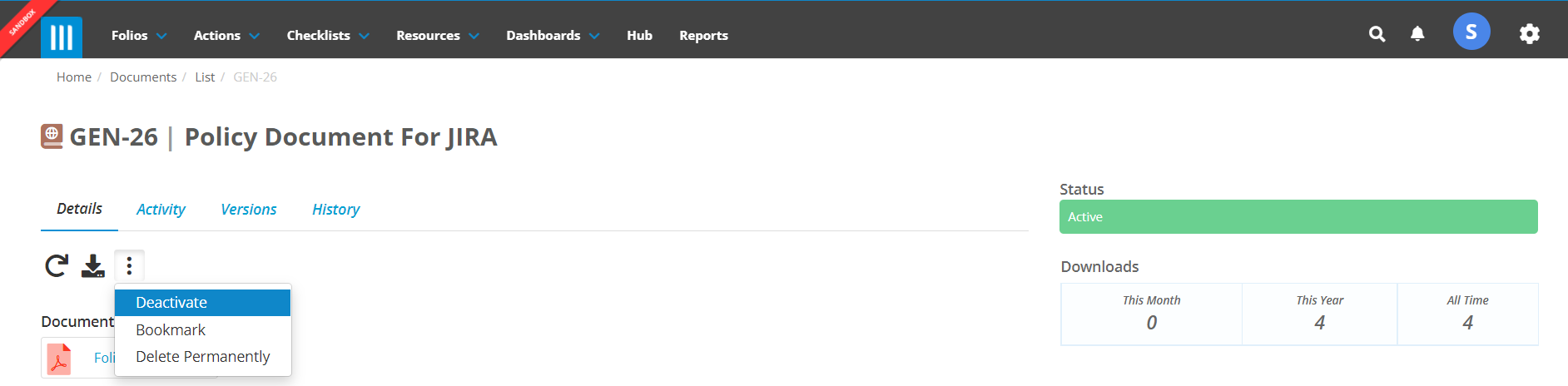
- Go to the Document, on the Details tab, go to the ellipsis and select Deactivate to make the status Inactive.
- To make the Document status Active, go to the ellipsis and select Activate.
Versions (Policy & Procedure add-on only)
With the Policy & Procedure add-on supports Version Control. A Built-in Version field supports numeric version numbers.
The version numbering system in Folio supports a major version number and a minor version number. The major version number is represented before a decimal point and the minor version number after the decimal point. For e.g. a Document could have the Major version 1 and the minor version number 10. This would be represented in Folio as 1.10
When a Document is replaced, the version number will auto increment by 1. If you would like to record a different version number you may change the version number manually. You may set the version number back to the current version number but not to any version numbers that are prior to the current version.
Please note: In order to have the benefits of version control you must use the built in version field, if you use a custom field for version numbers you will not have the benefit of the version numbers automatically incrementing when the version is replaced and the locking down of previous version numbers.
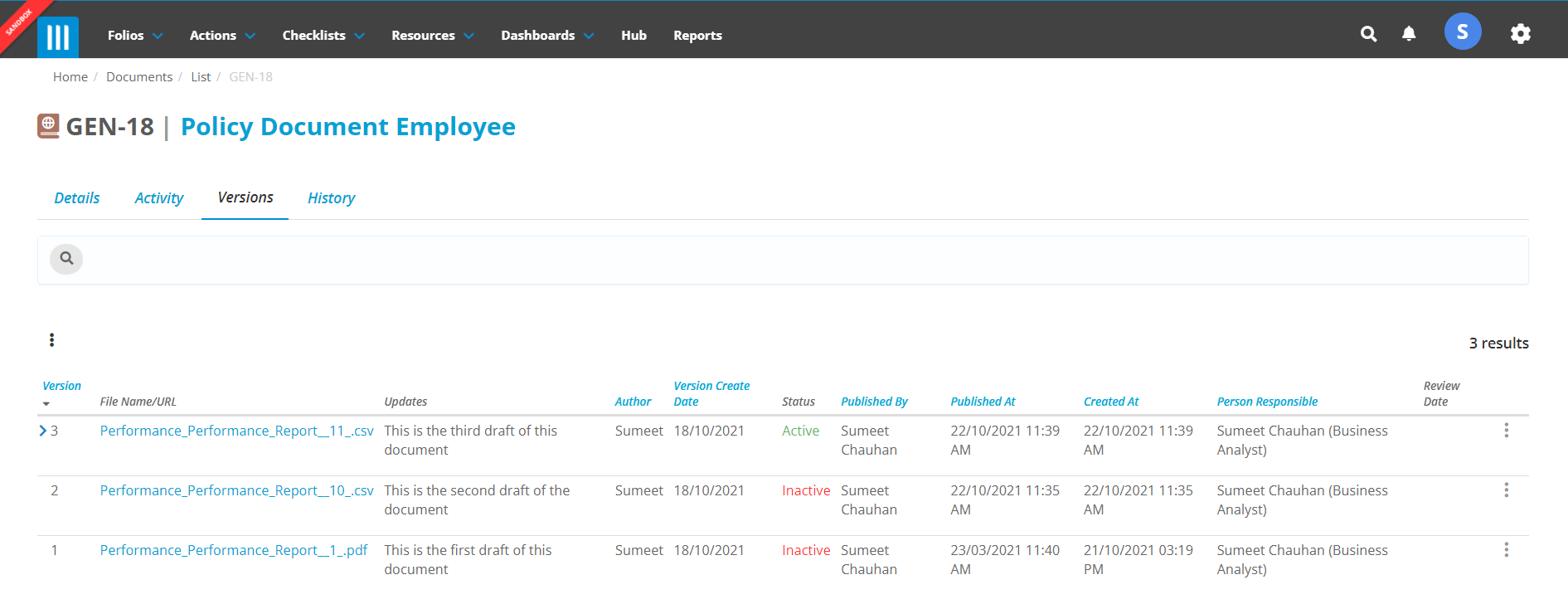
The current version and all previous versions of a Document are listed on the Versions tab
- Select a Document and click on the Versions tab to view the details of the different version of that Document.
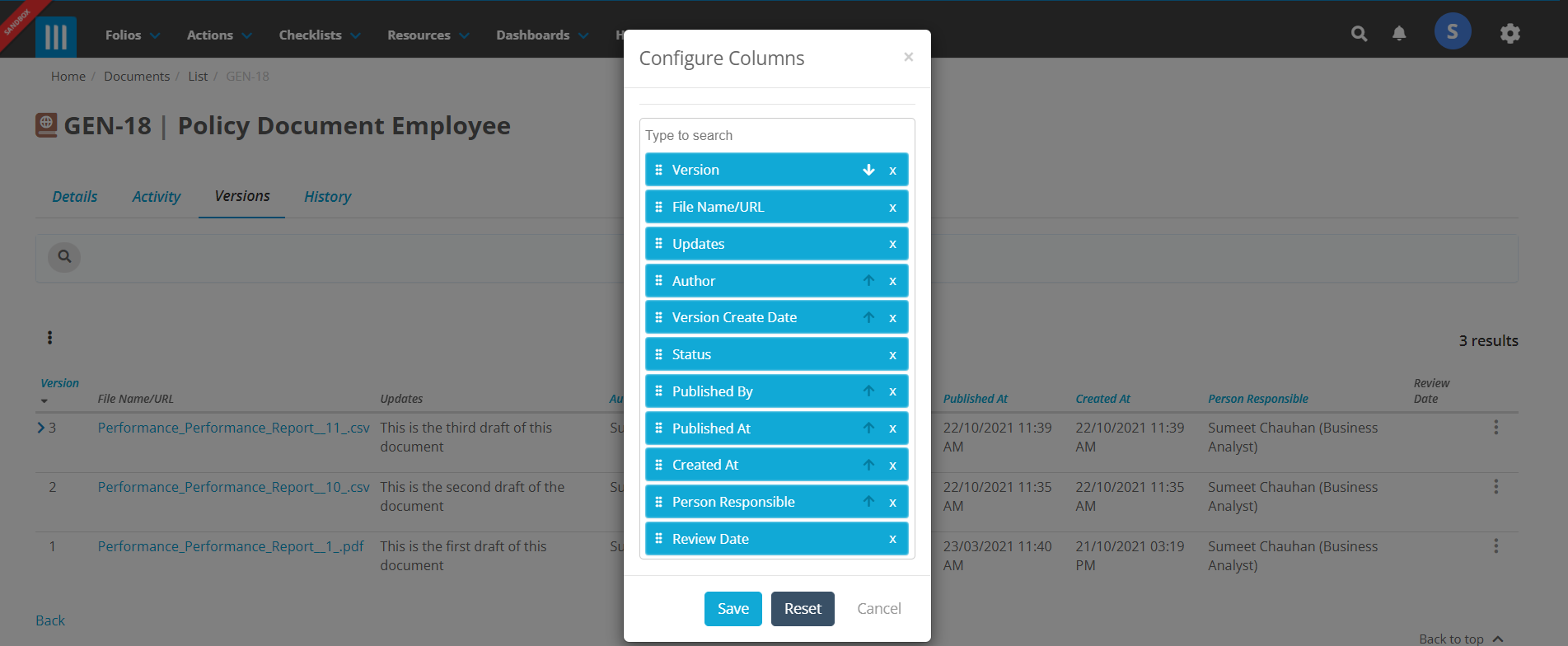
- You will see the following fields by default on the Versions tab:
-
- Version: Version number of the Document
- File Name/URL: The Document’s file name if it is an Uploaded Document or the URL if it is a URL Document.
- Updates: A short summary of the changes in that version of the Document.
- Author: The Document’s Author.
- Version Create Date: Date the version was created
- Status: Is the Document Active or Inactive. At any stage only one version will be Active
- Published By: The user who published the Document in Folio.
- Published At: Date and Time the Document was published.
- Person Responsible: The Person Responsible for the Document and for Document Reviews.
- Review Date: The Date the Document review was completed.
- To export the Version History to a PDF or a Spreadsheet, click on the ellipsis on the top left hand side of the screen under the search filters and select Export to PDF or Export to Spreadsheet.
- You can also change the fields on the list view, to do this click on the ellipsis on the top left hand side of the screen under the search filters and then on Configure Columns

- You can view a snapshot of any inactive version. The snapshot will show you the fields on the Details tab of the Document just before the Document was replaced by a new version. At the end of a version record select the ellipsis and


- Please Note: There is no Version Snapshot for an Active version. The Active version of a document is live, which means the changes you will do to the fields on Details screen will also reflect on the Active version of the document.