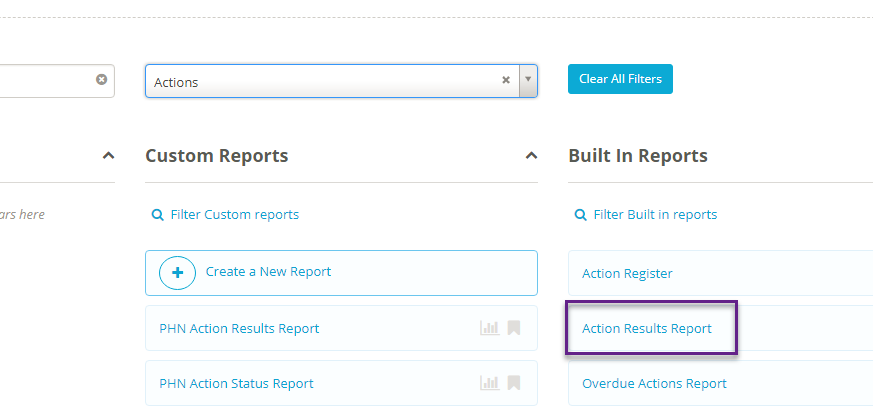
You can use the Action results report to make a report on the results of all the actions in your Folio instance. To get to this report click on Reports at the top of the screen then under Built In Reports select Action Results Report:
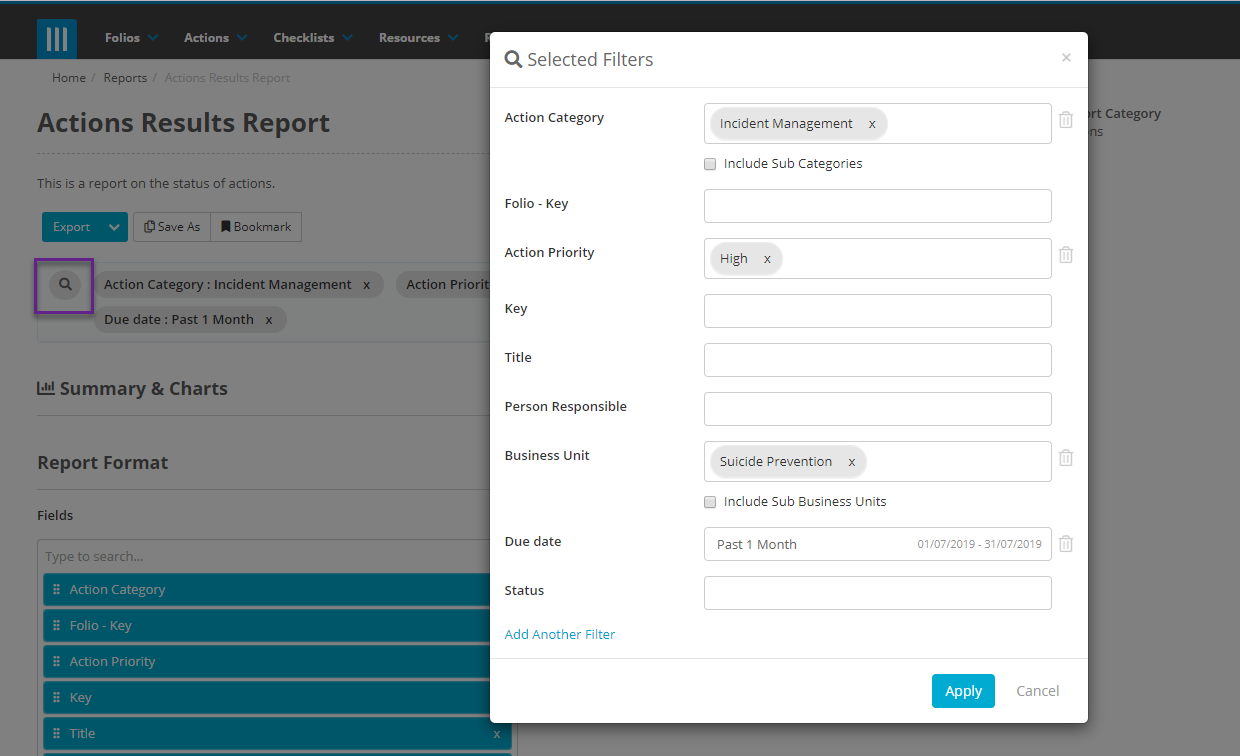
It is important that you filter the report and select only those Actions that you would like to include in your report, so you may choose to include only actions belonging to a certain user, or only actions linked to a certain Folio. To do so click on the Search bar, then select the field you would like to filter the report by, such as Action Category, Action Priority, Person Responsible, or Due Date:
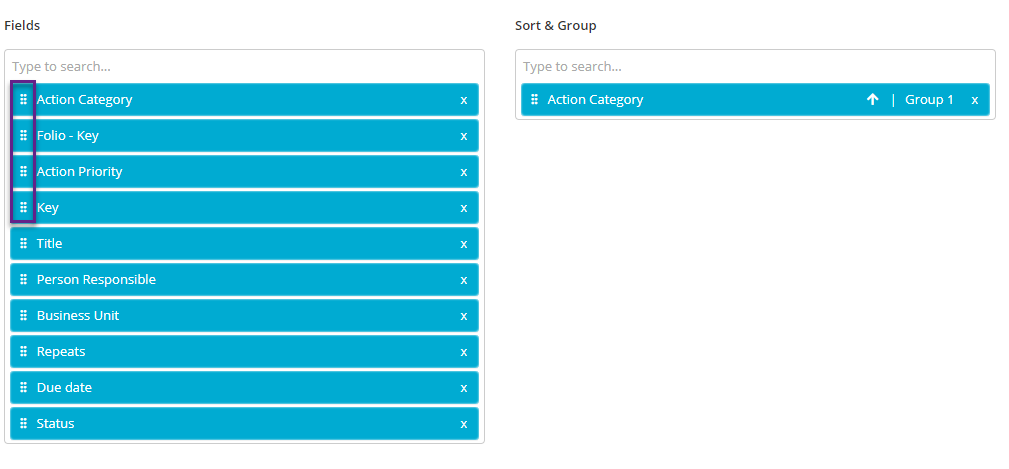
Drag and drop the fields that you would like to include in the report by clicking and holding the three dots, and to add more fields start typing in the white box beneath Fields. You can add fields from the Action itself, as well fields relating to the actions such as from Folios linked to them. You can also sort and group your report by different fields, so for example you can create a report and group them by the Action Category:
You can also choose to include a summary of the report and charts based on it by clicking on Summary & Charts to expand that section. This will show you two checkboxes, one for Summary and one for chart:
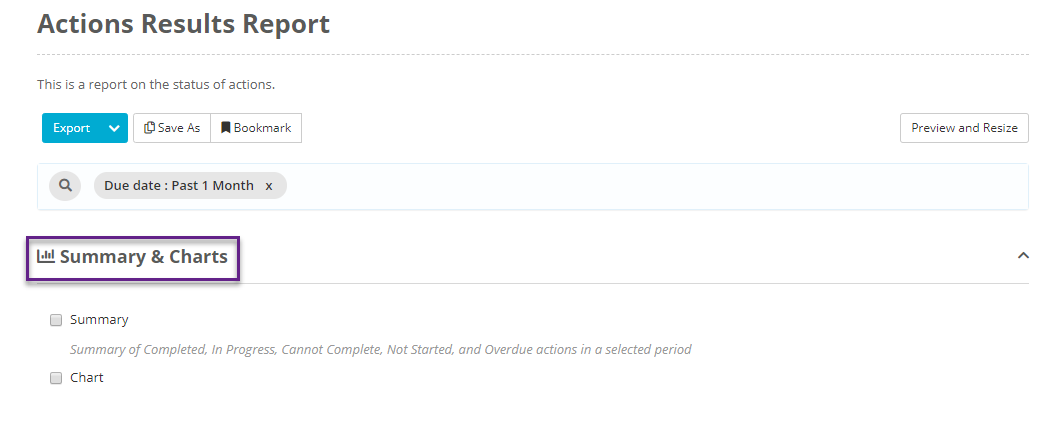
Ticking either of these to include them in the report will cause a third option to appear, Based On:
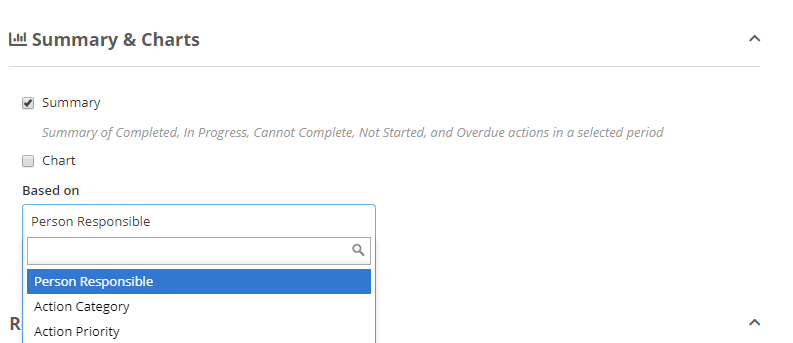
This has three options; Person Responsible, Action Priority and Action Category. This will decide what the summary and chart included in the report will be based on. Now when you run the report the summary and/or chart will appear at the top:
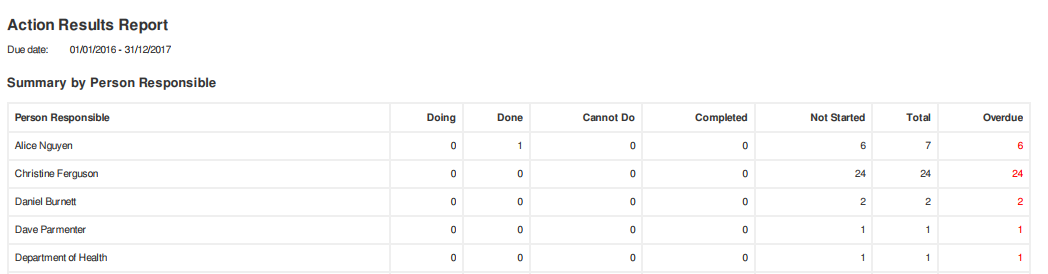
Note: Summary and Chart are only available for PDF export, not Spreadsheet.
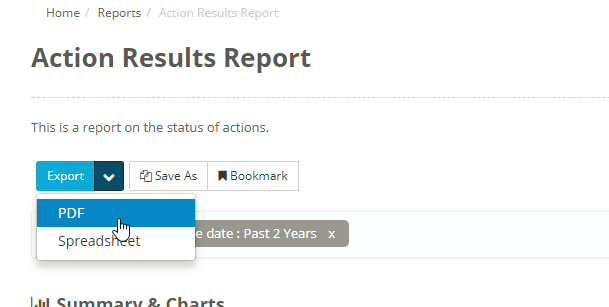
You can Export your Report to PDF or Spreadsheet, to run the report to PDF, just click on Export OR click on the down arrow next to arrow and select PDF. To run the report as a spreadsheet, select spreadsheet and a CSV will be exported from your browser.