
Exporting automations saves time and is an easy way to move an automation between Folio Templates.
The source Folio Template could be in a sandbox environment and the target in the production environment or vice versa or the source and the target Folio Templates could even be in the same Folio instance.
Once an automation is created on a source template it can be exported in a JSON file format. An automation export includes:
- Conditions
- Update Fields
- Notification
- Notified Persons
- Action Assignments Settings
- Checklist Assignment Settings
Administrators are able to export either one automation or all automations on a template.
Exporting an Automation
- Open An Automation
- Click on the Ellipsis
- Click on Export Automation
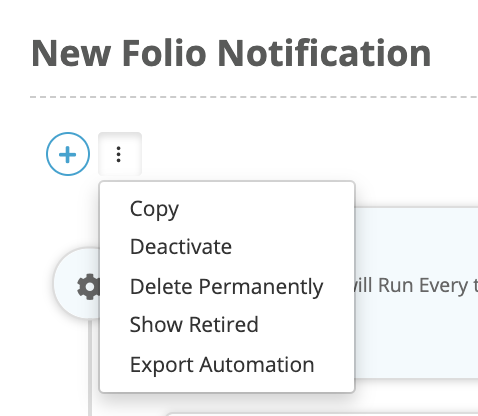
Exporting all Automations on a Folio Template
- On a Folio Template go to the automation tab
- Click on the ellipsis
- Click on Export All Automations
Importing Automations
After Automations have been exported from a sandbox or another template in your Folio instance, they now need to be imported to their target Folio template.
Importing Automations without Actions & Checklists
- On a Folio Template go to the Automation tab
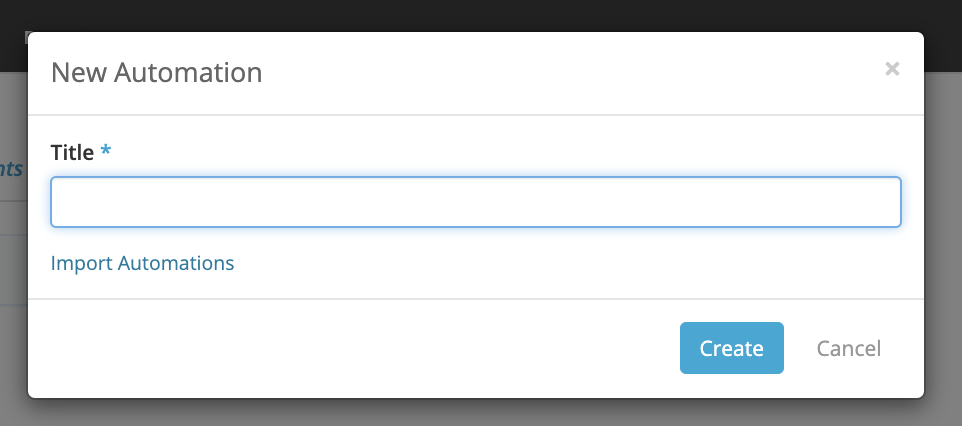
- Click on + New Automation button
- Click on Import Automations
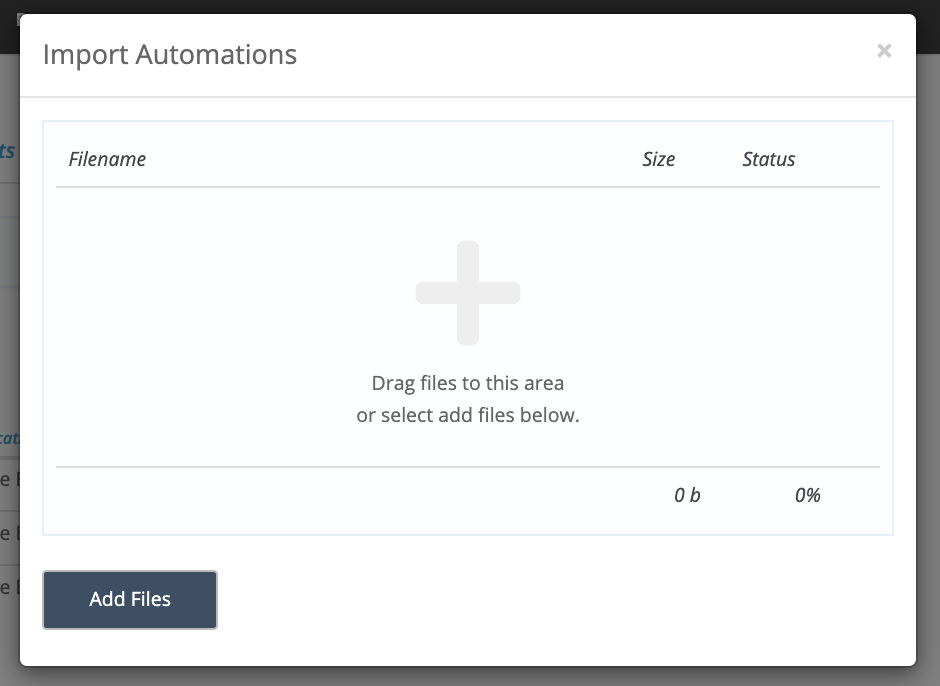
Click on Add Files to select an Automation JSON file or alternatively drag and drop the JSON file to the Add files target area.
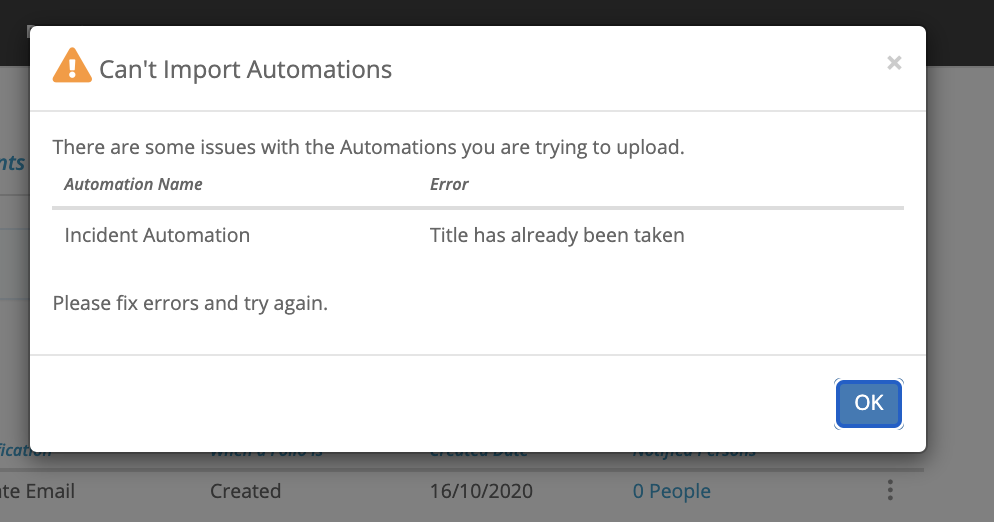
Sometimes you may encounter issues when you import automations, a troubleshooting section has been included below to help you resolve these issues.
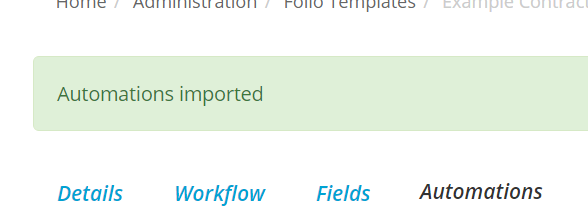
When the automation import is complete you will see the green banner letting you know that the automations were imported successfully.
Importing Automations with Actions and/or Checklists
If an Automation has Actions or Checklists in it, the exported Automation JSON files will include the Action and Checklist Assignment settings but will NOT include the Actions and Checklists themselves.
The Actions and Checklists must already be available in the target Folio instance or must be created there prior to importing the Automation JSON. The import process for Automation JSON files with Actions and Checklists is the same as detailed above - except after you import the file you will be asked to pick the relevant actions and checklists that should be included in the automation.
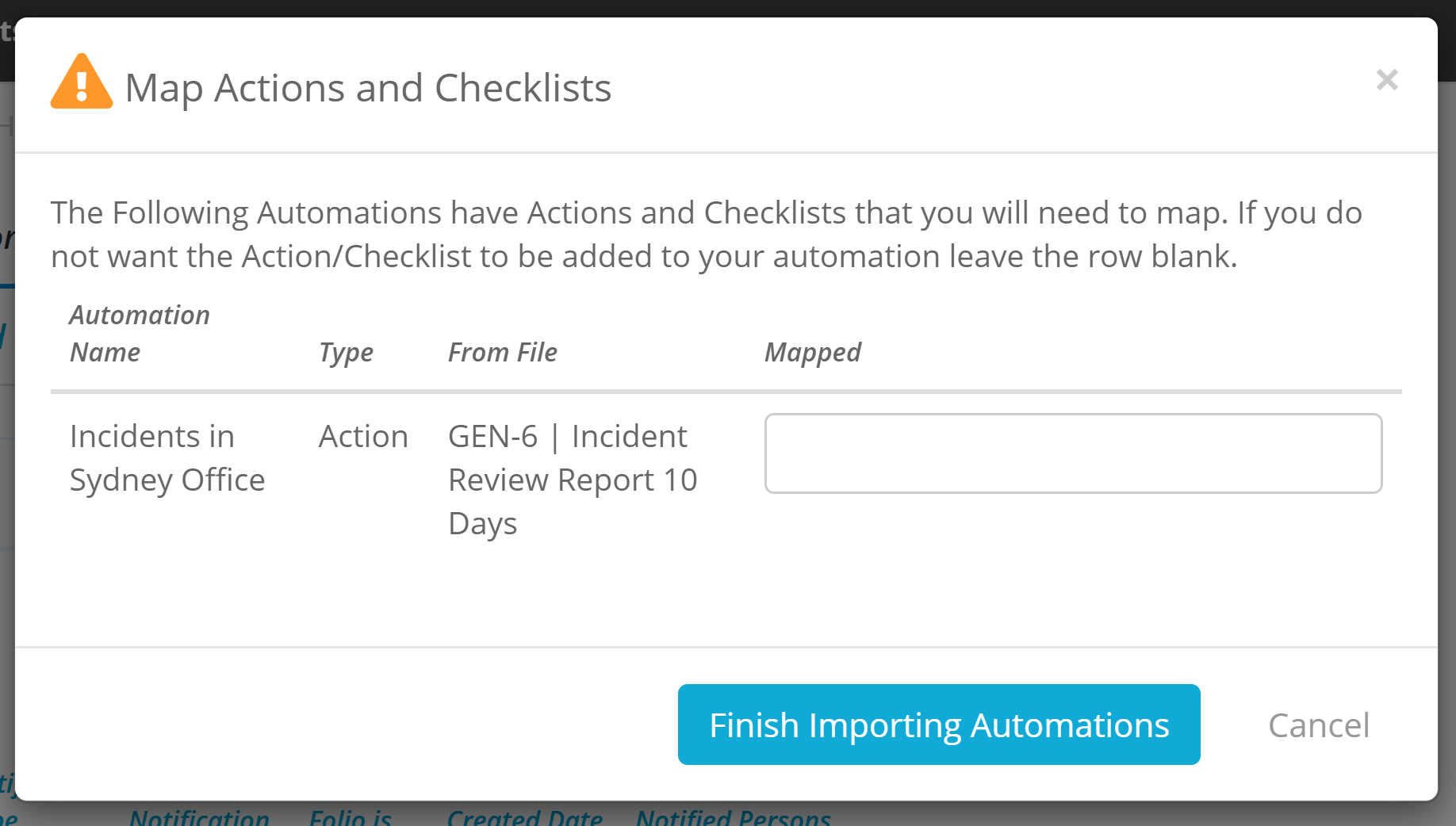
If you do not want an Action or Checklist on the automation you can just leave that row blank and the automation will be imported without that Action/Checklist.
Once the Actions and or Checklists are selected the automation can be successfully imported. Common issues and their resolutions are explained below.
Troubleshooting issues with Automations import.
Here are the errors that you may encounter when importing automations. The errors will be displayed to you in a pop-up titled “ Can’t Import Automations”.
|
Error |
Why did this happen |
Fix |
|---|---|---|
|
{User} is the selected Person Responsible for {Action/checklist name} but cannot be found Example: Kate Smith is the selected Person Responsible for Finance Review but cannot be found. |
This happens when you have an Assignment (either an action or a checklist) which only has one Person Responsible, but that User cannot be found. |
Add the User to the target Folio Instance. Try importing the automation again. |
|
User lookup field is the field used for the Person Responsible on Action/checklist name but cannot be found Example: Finance Manager is the field used for the Person Responsible on Invoice review by the Finance Team but cannot be found. |
This happens when you have an Assignment (either an action or checklist) which uses a user lookup field on the template to populate the Person Responsible, but the field cannot be found on the template. |
Add the same user lookup field to the target Folio Template. Try importing the automation again. |
|
Date field is the field used for the Due Date on action/checklist name but cannot be found Example: Invoice Review Date is the field used for the Due Date on Invoice review by the Finance Team but cannot be found. |
This happens when you have an Assignment (either an action or checklist) which uses a date field on the template as the Due Date for the assignments, but the field cannot be found on the template |
Add the Date Field to the target Folio Template. Try importing the automation again. |
|
Field Name cannot be blank on the assignment of Action/Checklist Name Example: Additional Information field cannot be blank on the assignment of Invoice review by the Finance Team |
This happens when you have mandatory fields on the Assignment that were not filled in when you exported the automation. |
You have 2 options:
|
|
Stage ‘Stage Name’ cannot be found on ‘Template Name’ Example: Stage ‘CEO Sign Off’ cannot be found on Service Contracts’ |
This happens when the automation is set to run when a Folio moves to a stage, but that stage cannot be found on the target Folio template. |
Add in the stage into the workflow on the target Template. Try importing the automation again. |
|
Field A is used in the conditions but cannot be found Example: Business Unit is used in the conditions but cannot be found |
This happens when a field is in the conditions but is not on the target template. |
Add the field onto the target Template, and try importing the automation again. OR You can continue the import without the field on the conditions for the automation. |
|
Field A is used in the conditions but Answer X is not found Example: Business Unit is used in the conditions but Finance Business Unit is not found |
This happens when an answer for a field is used in the conditions but cannot be found in that field of the target folio instance. |
Add the answer to the field, and try importing the automation again. OR You can continue the import without that answer on the conditions for the automation. |
|
User X is a notified person but cannot be found. Example: Alex Bis is a notified person but cannot be found. |
This happens when a selected notified person (a user, Entity, or Contact) cannot be found in the target instance. |
Create the User, Entity or Contact in the target instance and try importing the automation again. OR You can continue the import without that person as a notified person. |
|
‘Field’ is used in Notified Persons but cannot be found on ‘Target Template’ Example: 'Compliant Reviewer' is used in Notified Persons but cannot be found on 'Compliants' |
This happens when the Notified Person is set to a user lookup field but the field cannot be found on the target template |
Add the field onto the target template, and try importing the automation again. OR Rou can continue the import without that user lookup field as a notified person. |
|
User is the selected Person Responsible for action/checklist name but cannot be found Example: Reyna Kumar is the selected Person Responsible for Invoice Review by the Finance Team but cannot be found. |
This happens when you have an Assignment (either an action or a checklist) which has more than one Person Responsible, but one of the Users cannot be found. |
Add the User to the target Folio Instance and try importing the automation again. OR You can continue the import without the missing users as Person Responsible for the Assignment. |
|
“Field Name” is in Update Fields, but cannot be found on “Template Name” Example: Contract Type is in Update Fields, but cannot be found on Goods & Services Contracts. |
This happens when your automation is set to update a field's value, but the field cannot be found on the target template. |
Add the field onto the target template, and try importing the automation again. OR You can continue the import without the field being updated by the automation. |
|
Field y is in update fields, but answer x cannot be found Example: Contract Type is in Update Fields, but IT Services Contracts cannot be found. |
This happens when your automation is set to update a field’s value, but the answer for that field cannot be found on the template. |
Add the answer to the field, and try importing the automation again. OR You can continue the import without the field being updated by the automation. |