If you no longer need an Action or Action assignment then they can be retired to ensure that they are no longer used. Note: If an Action assignment is overdue when it is retired, then it will stop sending out notifications and will not appear in the Person Responsibles To-Do List, but will still be considered active until it is closed out.
Retiring Actions
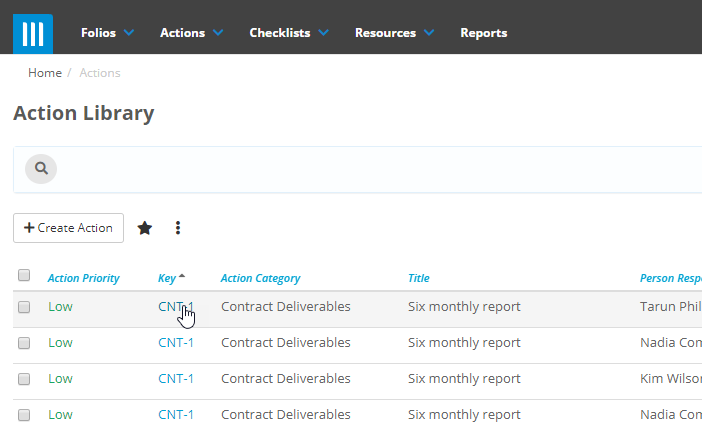
To retire an Action, click on Actions at the top of the screen to go to the Action List view, then select the Action that you want:
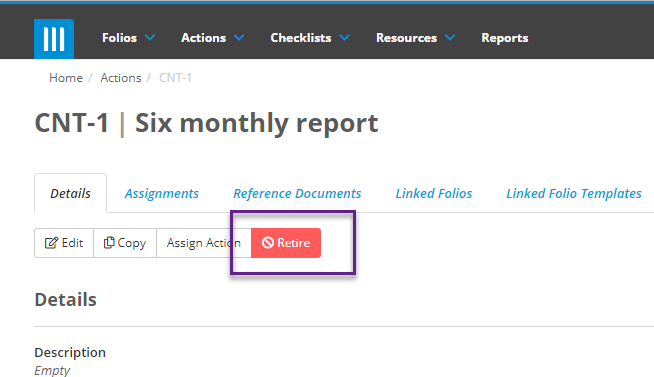
Now on the Details screen for that Action select Retire:
Note: Retiring an Action will also retire any Active Assignments of that Action, and a popup will appear warning you that these assignments will be retired as well:
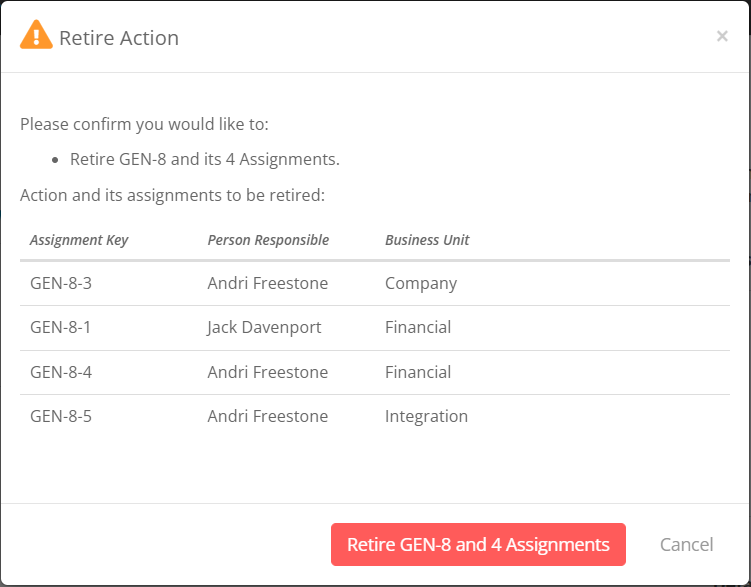
When you are ready click Confirm to retire the Action. The Action can then be unretired anytime by clicking Unretire:
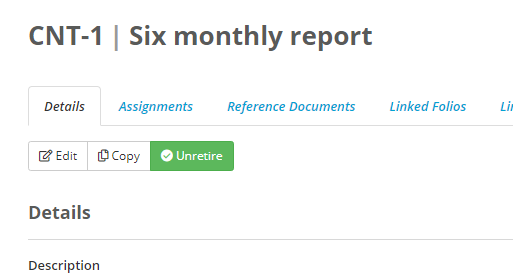
Note that unretiring the action will not unretire any assignments, they will need to be unretired manually.
Retiring Action Assignments
To retire an Action Assignment, click on Actions at the top of the screen to go to the Action List view, then select the Action that you want:
Then click on Assignment to view the assignments for that action:
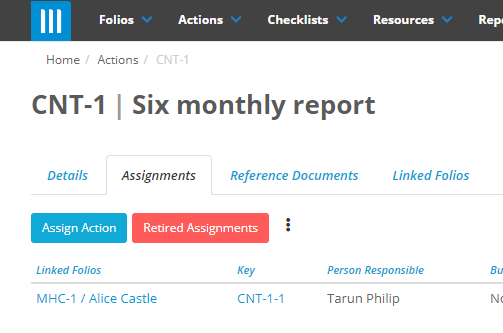
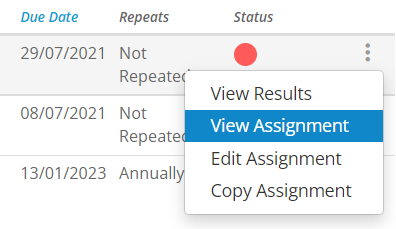
Find the assignment that you want to retire, then click on the ellipse to the right of the assignment and select View Assignment:
Then on the Details tab of the assignment, click on Retire, then click Confirm on the modal that appears:
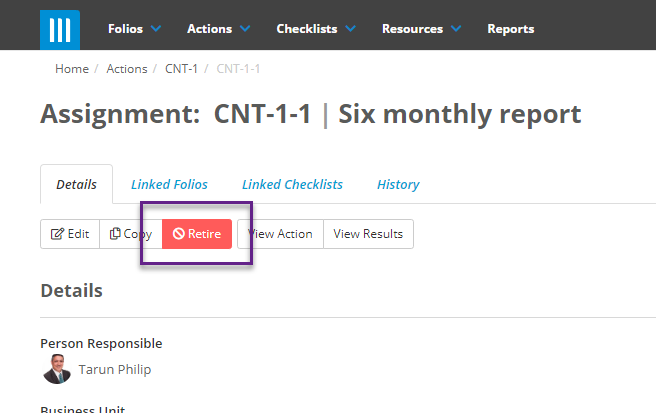
The assignment can be unretired at any time by clicking on the Unretire button.
Retiring in Bulk
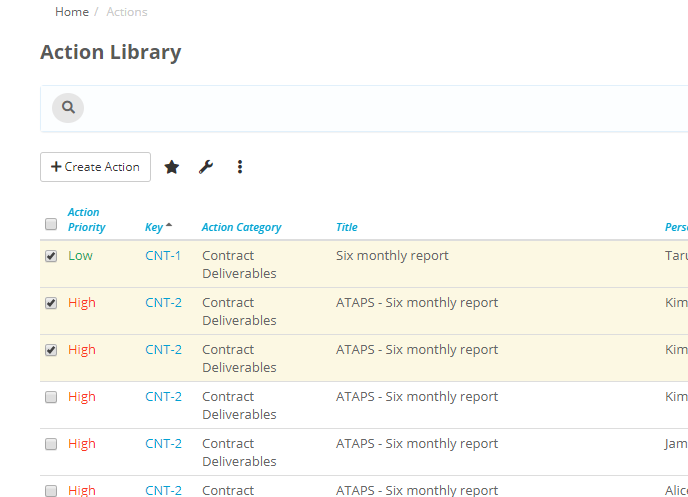
You also have the option of retiring Actions and Action Assignments in bulk. To do this go to the Action List view, then tick the box next to the Actions and/or Assignments that you want to retire:
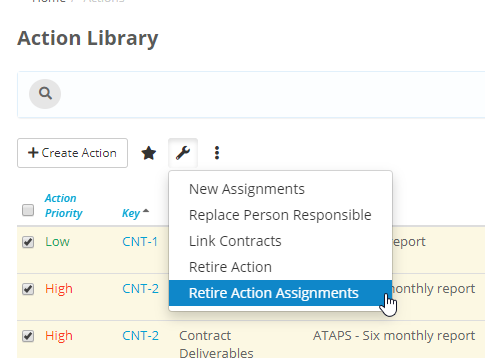
The click on the Tools Menu and select either Retire Actions or Retire Action Assignments:
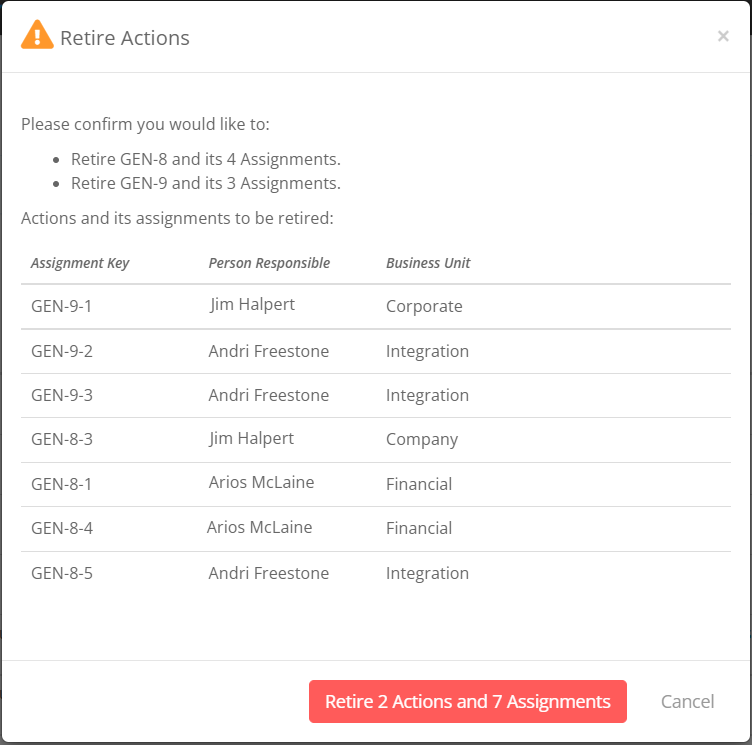
Note: Retiring Actions in bulk will also retire any active assignments for those Actions, and a popup will appear warning you that action and it's assignments will be retired as well: