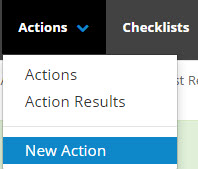
Click on Actions in the Main Menu and then New Action to create:
In the New Action pop-up enter the actions details.
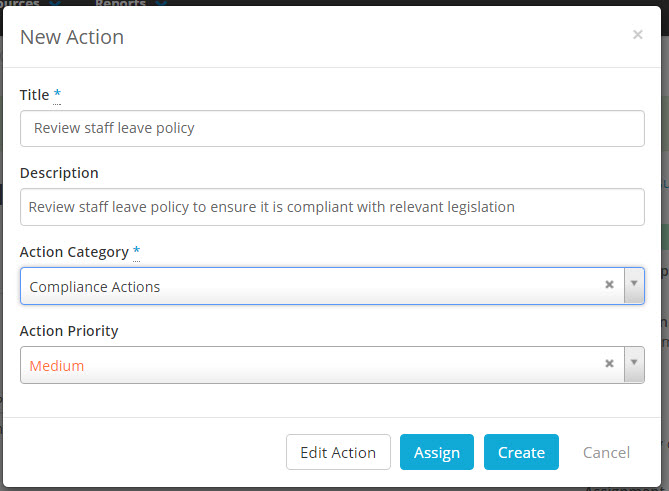
The New Action pop-up is a quick action set up and does not display Action Default Settings which are acquired from the Action Defaults set up under the Admin Gear Wheel, you can change these settings by clicking the Edit Action button.
Default Settings are an important feature of an action, they allow you to set up the following defaults:
- Action Repeats.
- Evidence Required Responses
- Comments Required Responses
- Escalation
- Notifications On Assignment, Progress and Completion
- Overdue Notifications
Default settings are copied to Actions from the Action Defaults in the Admin Gearwheel and can be changed for each action if required. Action Default Settings in turn are copied to every Action Assignment and can be changed for each assignment if required. What are default settings for actions and why should I set them up?
The next step is to click on the Assign button if you want to assign the action.
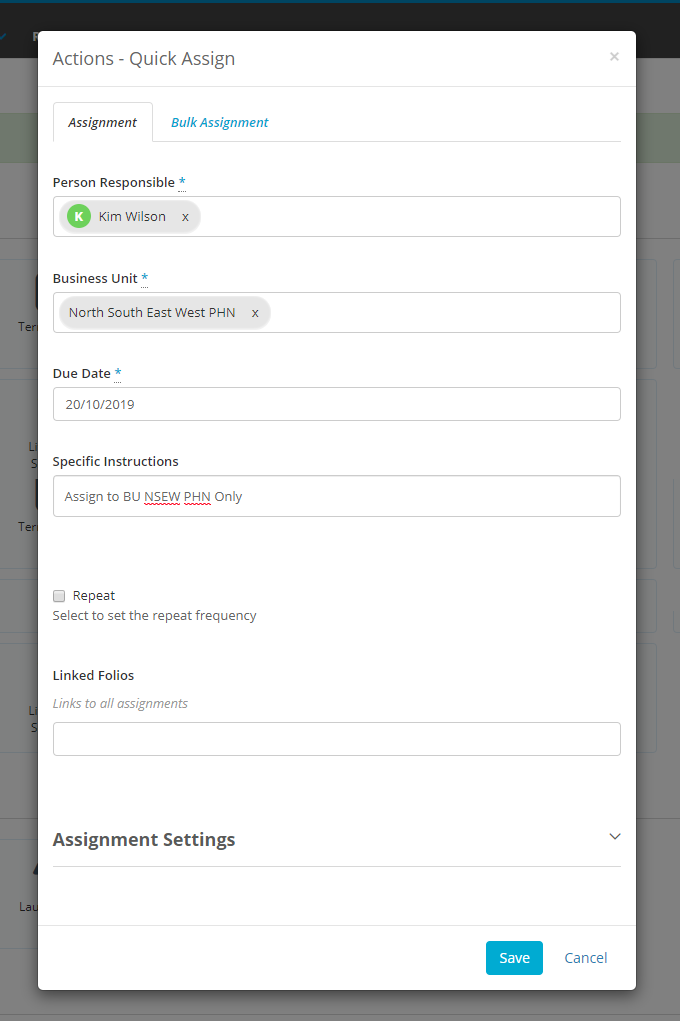
Creating a new action from Action Library
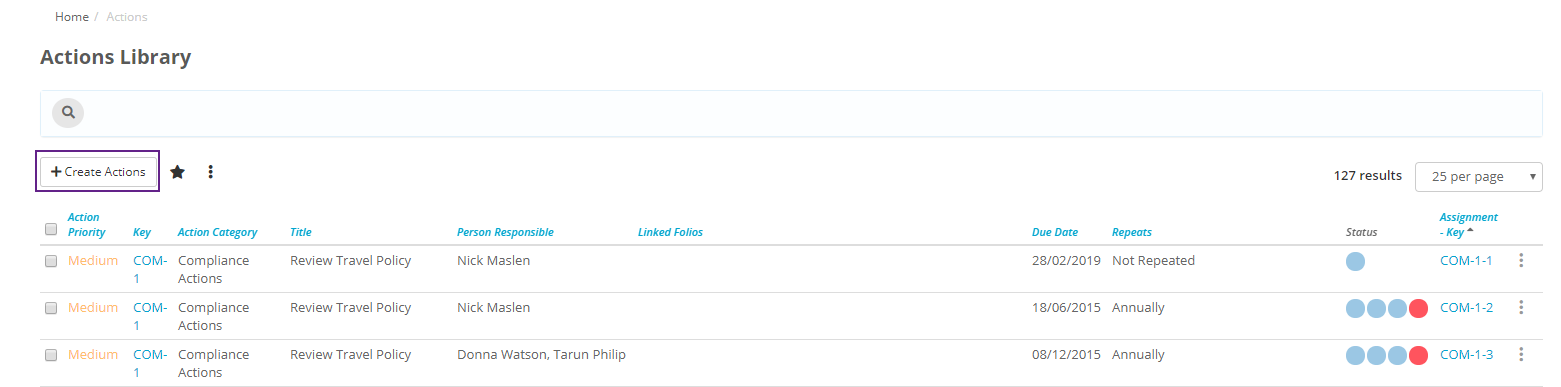
You can also create a new action from the Action Library. Click on Actions in the main menu and then select Actions, you will be taken to an Action list screen called the Action Library. Click on the Create Action button.
Creating an Action from a Folio
Actions can be created and assigned from a Folio record.
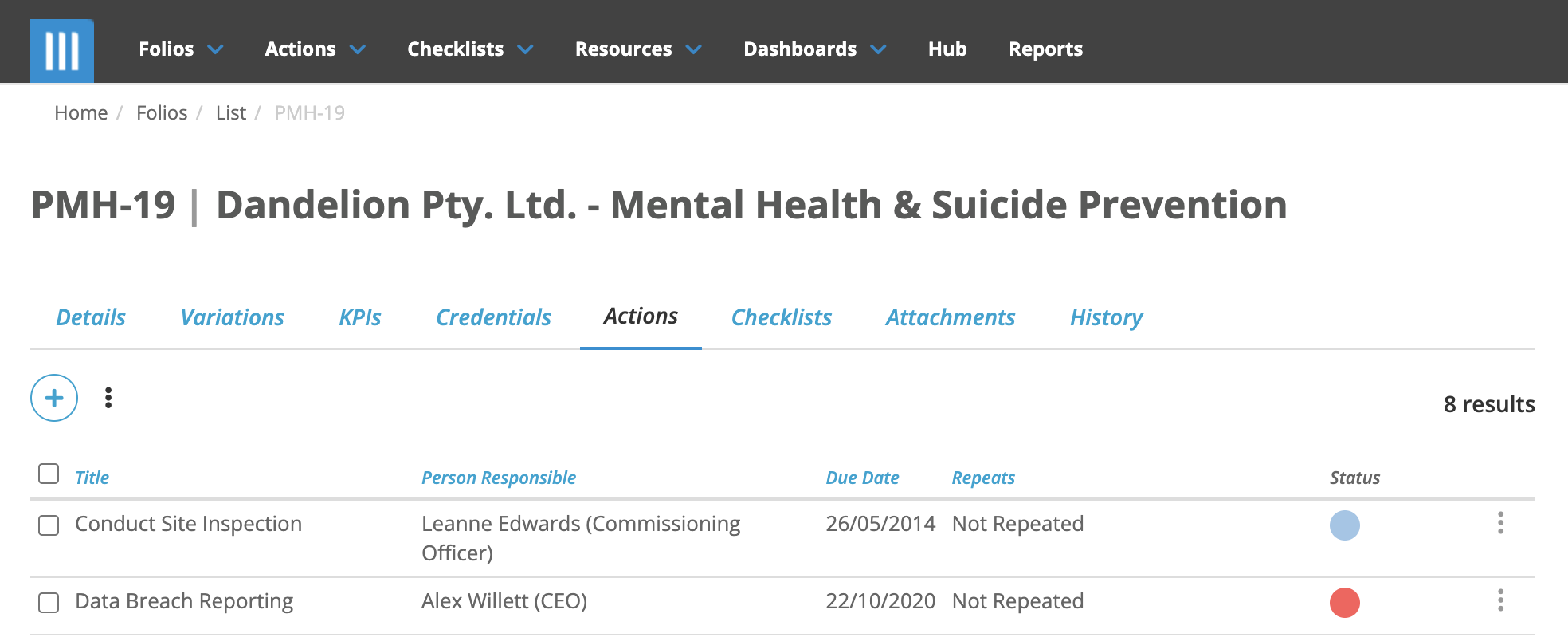
To create an action from a Folio record, got to the Folio record and click on the Actions tab. Click on the + to add a new action and you will be taken through the same process as in the first 2 methods above.