This feature lets you export a Folio Template out of one Folio instance, and then import it back in to another instance. This means that if you have a template that you have been working on in the Sandbox, you can now import this template into your Production instance directly instead of building the template up from scratch.
Note: With this feature you can export the following on a Folio Template :
- Everything on the Details tab of the Folio Template
- On the workflow tab, the stages (excluding approvers)
- Everything on the Fields tab including Visibility and Default View
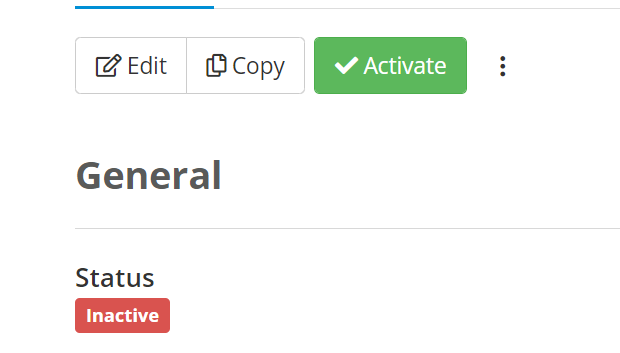
To do this, go to the Folio Template that you want to export, then click on the ellipsis and select Export Template
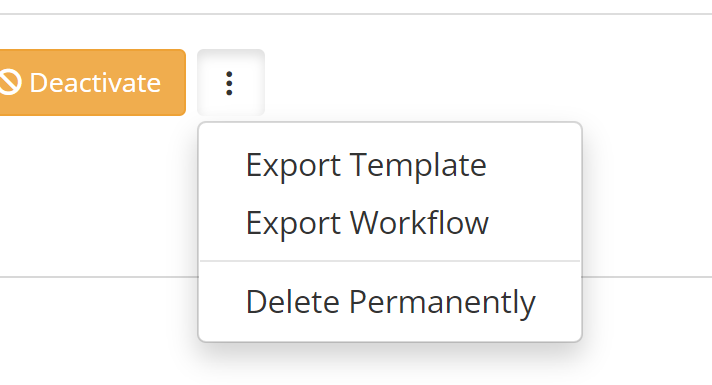
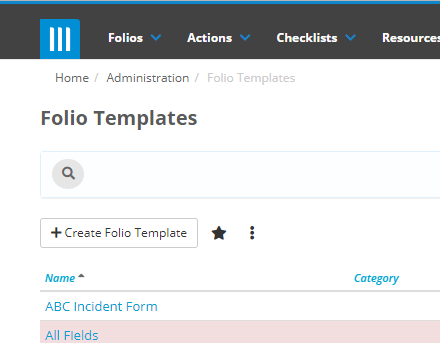
This will export the template out as a .json file. You do not need to edit this file at all. Then to import a template in, go to the Folio Template list screen, then select +Create Folio Template:
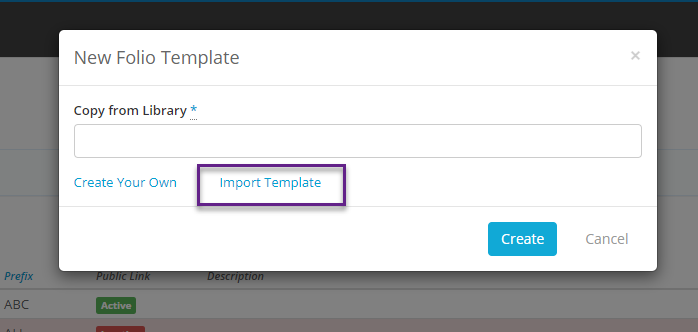
On the modal that appears click on Import Template:
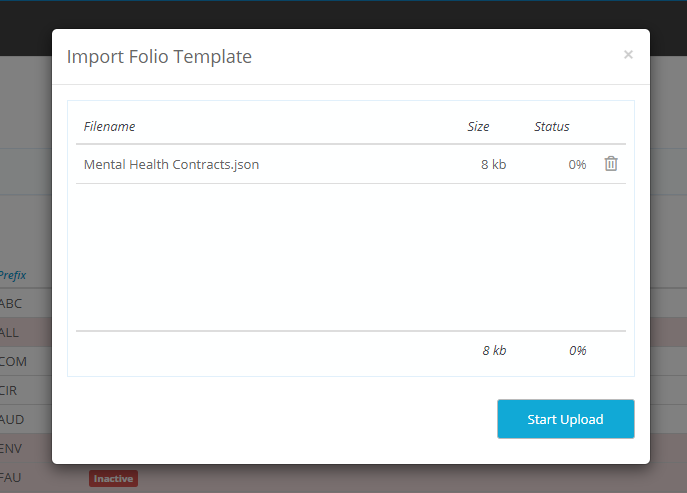
Then upload the .json file that you just exported:
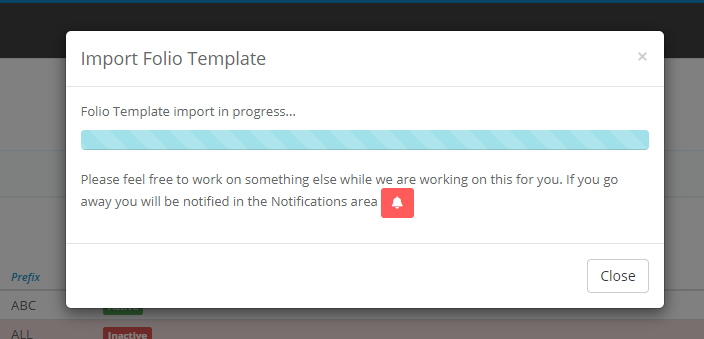
The import will start happening in the background. You can either wait on this page for the import to finish:
Or go and do something else while the import happens, and check the Notification Bell when the import is done:
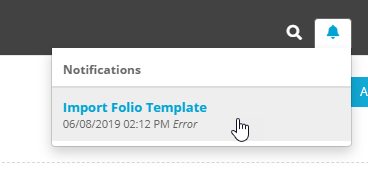
There may be some errors when you try to upload the Template. The most common errors are:
- Field exists with different parameters. This occurs if you have a field in the new template that has the same name as an existing field, but a different field type. This is an issue because you cannot have two fields with the same name, and because they are different types the field that you are importing cannot be mapped to the existing field. If you want you can click continue to create a copy of the field.

If there are no errors then the template will be imported successfully, and you can Activate it to begin using it.