
Getting Started with the Reports Menu
Introduction to Reports
Folio gives users the flexibility to create the reports that you need by giving you a suite of Built-In Reports which can be configured to create your own Custom Reports.
Folio enables you to build custom reports that zone in on data you want to see in your team and management reports. You can select the appropriate fields with a simple search, drag and drop, filter the report and sort and group data for meaningful analysis. Folio supports PDF and CSV report outputs. Reports can also be shared and subscribed.
Getting started with the Reports Menu
Let's get started, to access Reports Menu, click on the Reports on your Folio menu at the top of the screen.
Every report that you have access to will be visible under three headings:
- Bookmarked Reports: These reports can either be Built In or Custom reports. They are your favourites, the reports that you use all the time.
- Custom Reports: These reports have been configured by you or another user and shared with you.
- Built In Reports: The reports come with every Folio instance and are used as the basis for custom reports.

Report Title Cards
Every Report on the Reports Menu is represented by a Report Title card. To navigate to a report, click on the Report Title.

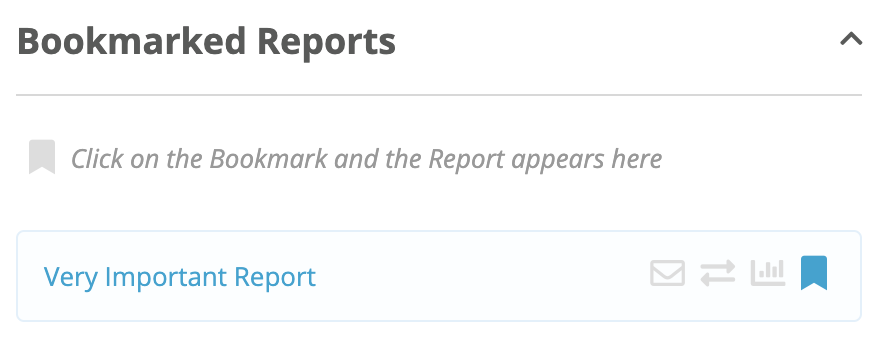
Report Title Cards have icons on them to indicate certain attributes of a report.
The Email Icon indicates that there is a report subscription on the report. Hover on the icon for the details.

The Integration Icon indicates that the Report is used in an SFTP Integration.

The Chart Icon indicates that the report has a summary or a chart.

The Bookmark Icon enables you to bookmark a report that you use really often. Bookmarking makes a report easier to find. You can bookmark both Built In and Custom Reports by clicking on the Bookmark Icon.

When you click on the Bookmark Icon, the report gets added to Bookmarked Reports and the Bookmark Icon turns blue. To remove a bookmark, click on the Bookmark Icon again.
Search & Filter Reports
When there are many reports in the Reports Menu as quite often happens, the report you are after can be hard to find. Folio gives you some search and filter options to make finding a report easier.
You can Search Reports by Title or Description. Simply start typing and Folio will narrow down the list of reports.

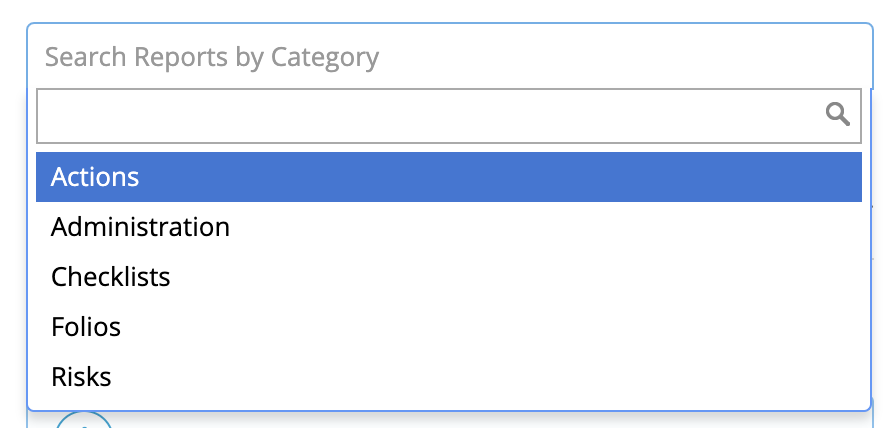
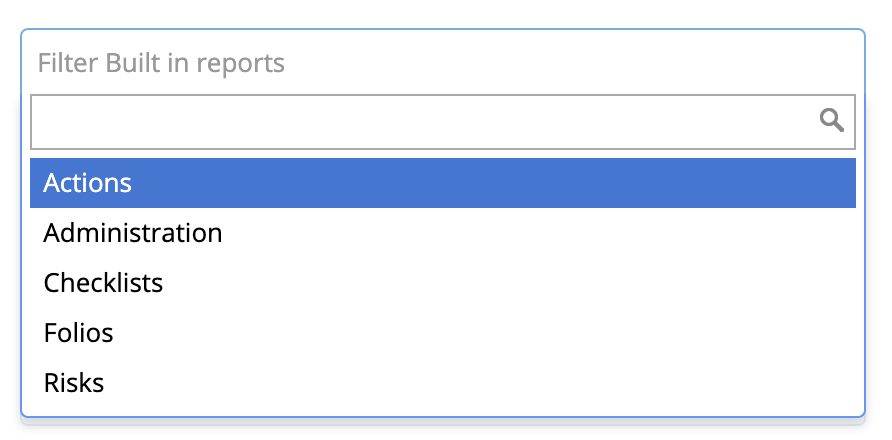
You may also Search Reports by Category. Folio categorises Built-In Reports into standard categories based on the type of report. Folio Administrators can also create Report Categories that are specific to your Organisation.
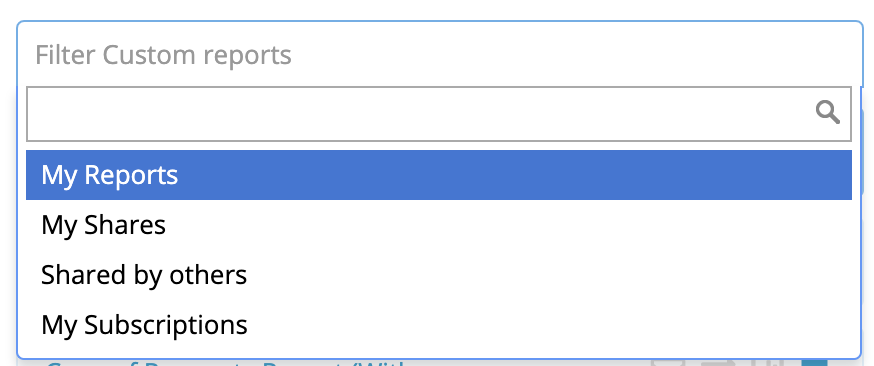
Custom Reports can also be filtered by clicking on Filter Custom Reports.
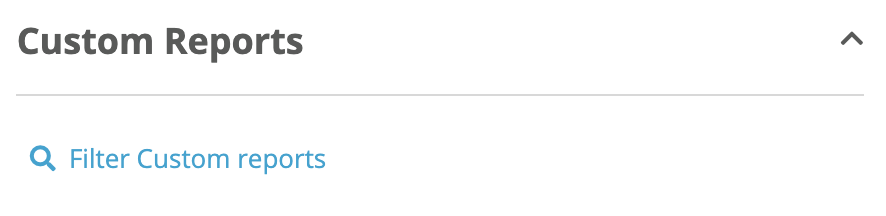
Users are provided with the following options for filtering custom reports:
- My Reports: These are reports that the user has created
- My Shares: These are reports that have been shared by the user with others
- Shared by others: These are reports that have been shared by others with the user
- My subscriptions: There are reports that the user is subscribed to.
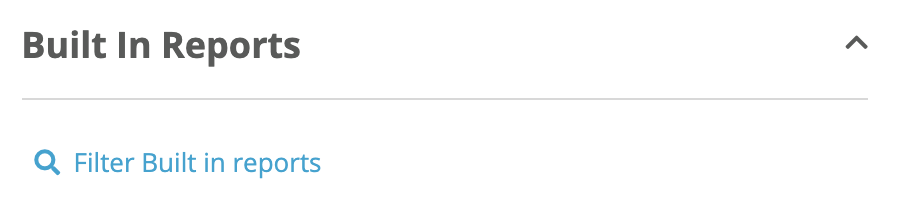
Built-In Reports can also be filtered by clicking on Filter Built-in reports.
Users can filter Built-in Reports by the standard Report Categories.
Create A New Report
To create a new custom report, use the Create A New Report button under Custom Reports. Or drag and existing report and drop it this Create a New Report button to start the process of creating a new report.

You can follow this article to Create a Custom Report.