
Folio enables users to create custom reports based on reports provided by us in Folio called Folio Reports.
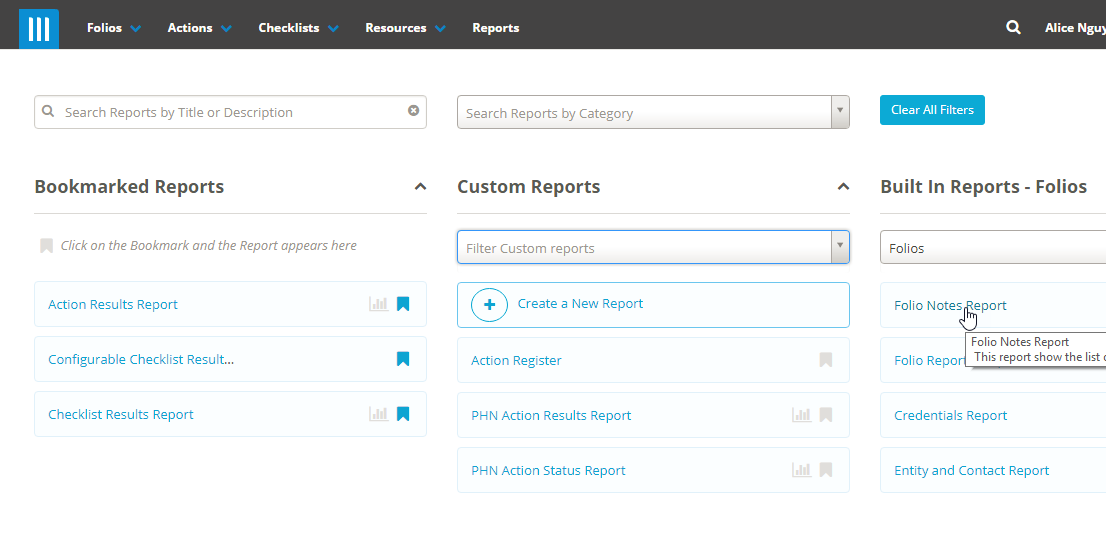
To create your own custom reports in Folio, click on Reports and Select a Folio Report displayed in the list.
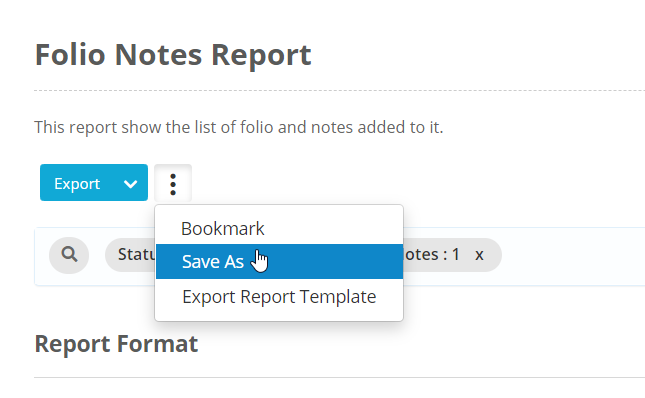
Then click on the Ellipsis button and select Save As on the report you've selected to create a custom report.
You will be asked to provide a unique name for your new custom report.

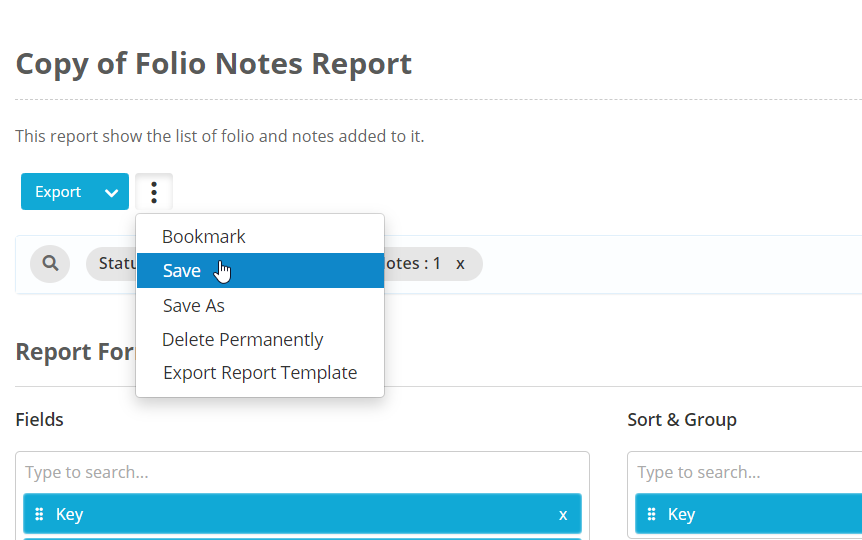
You can always modify the fields and the filters on the report. Remember to click save when you make a change.
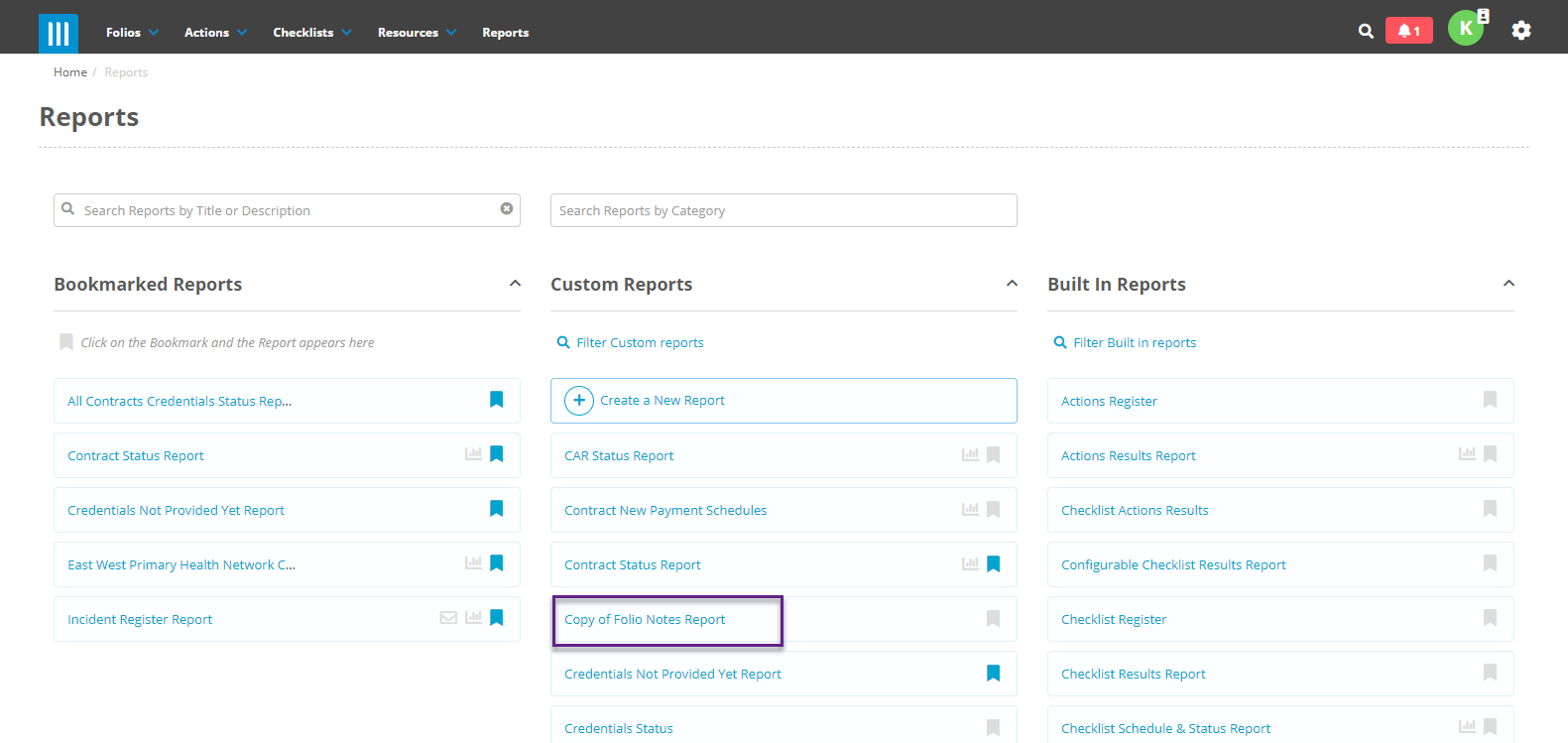
To find the Custom report, look under the Custom Reports column on the Reports page.
Alternatively, you can also create a custom report directly from the Reports page without going into a particular report. To do this go to the folio reports page, then click on the Create A New Report button under Custom Reports:
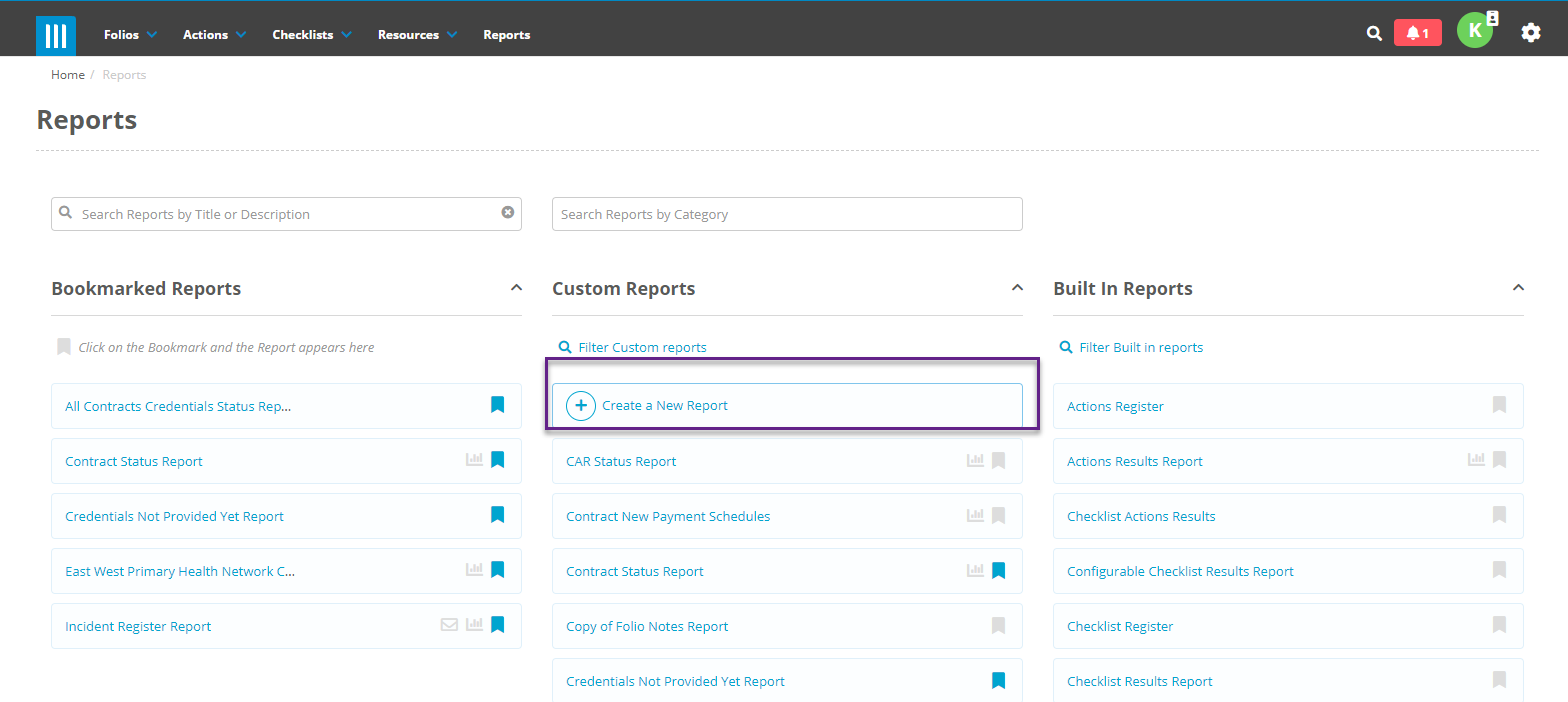
A popup will appear that you need to fill out for the new report:
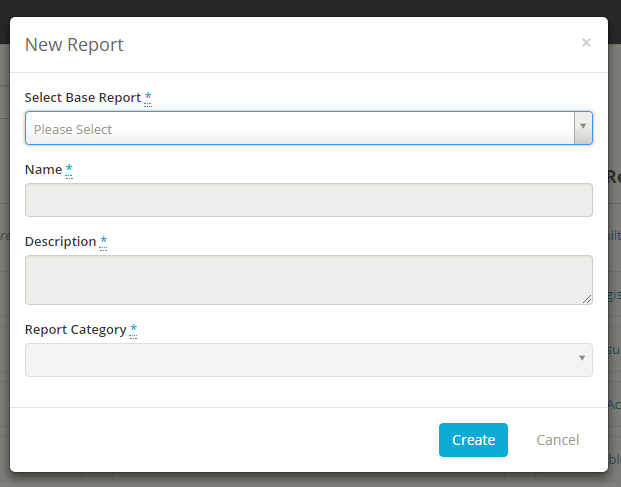
First you will need to pick an existing report for your new report to be based on. This can be either a built in or a custom report. Once you have selected that the other fields will be auto-populated with details based on the base report that you have selected:
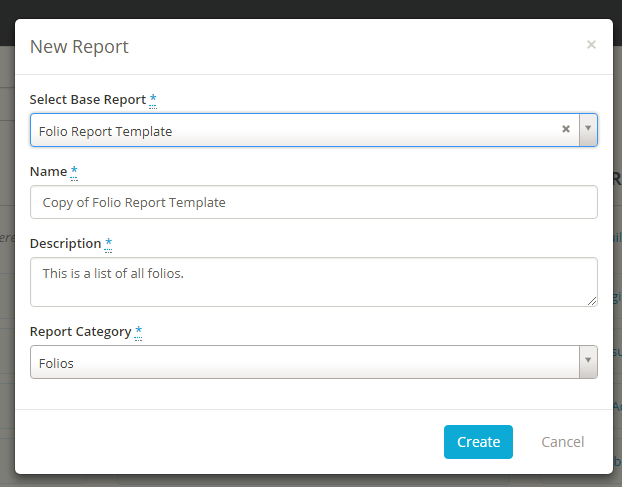
Edit the other fields with the details that you want (Note that the new report you are creating must have a unique name), then hit Create. You can save changes to this new report in the same way as reports created using Save.