
The list screen for every Folio template can be set up with default columns that an administrator can set up for themselves, or for every user. To do this, click on the Admin gearwheel and select Folio Templates on the admin screen.
After you've selected the template you want to set up a default view for, navigate over to the Fields tab. On the Fields screen select the Default View button:
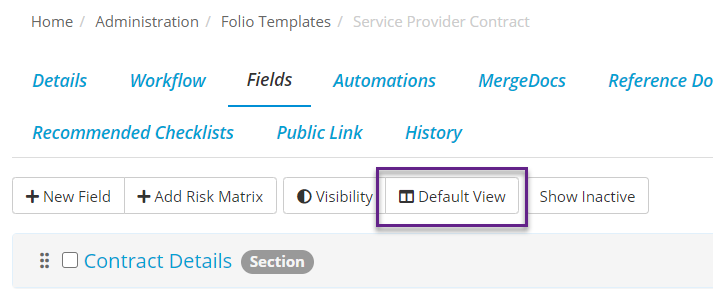
After clicking Default View you will see a pop-up that show the current columns that show up on the search screen for this Folio:
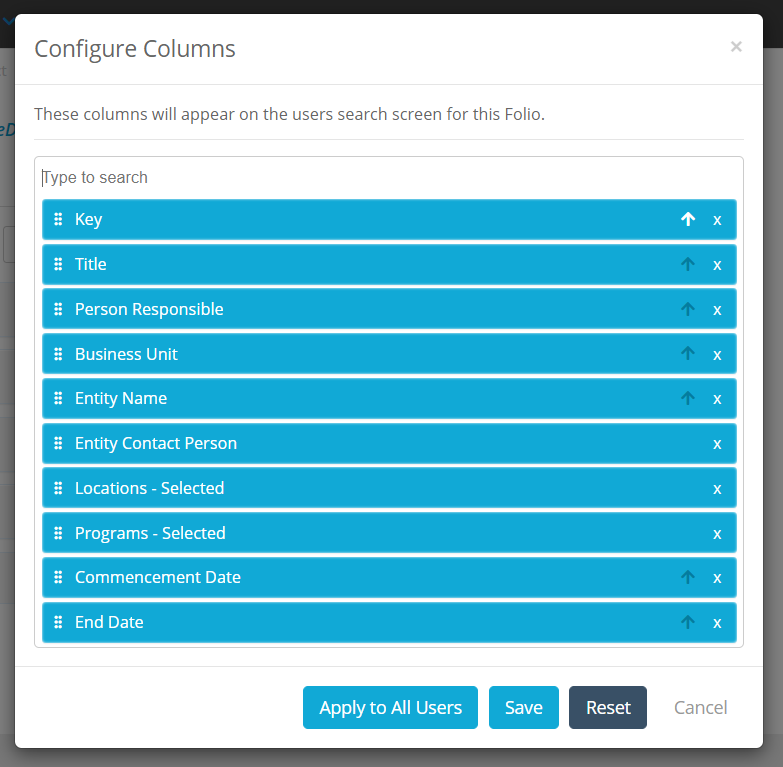
You can add new columns by searching for them in the top of the pop-up, remove columns by clicking on the x on the right hand side, and rearrange them using the three dots on the left hand side. You can select which field the list is sorted on by clicking the arrow next to the x:
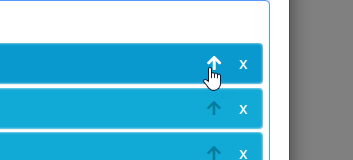
If you want to sort by descending instead click the arrow again,
Once you are finished editing you can select Save to save this Default View for yourself only, or select Apply to All Users to save this Default View for everyone using your Folio instance.