
You can add a user to a Role in 2 ways - either through the Access Rights tab or through the user record.
Add a User to a Role through Access Rights
Click on the admin gearwheel and select Access Rights, then select All Roles . To add users to a role, scroll down to the role that you wish to add the user to. Click on the Users Column (which will display either No users or the number of users that are already in the role).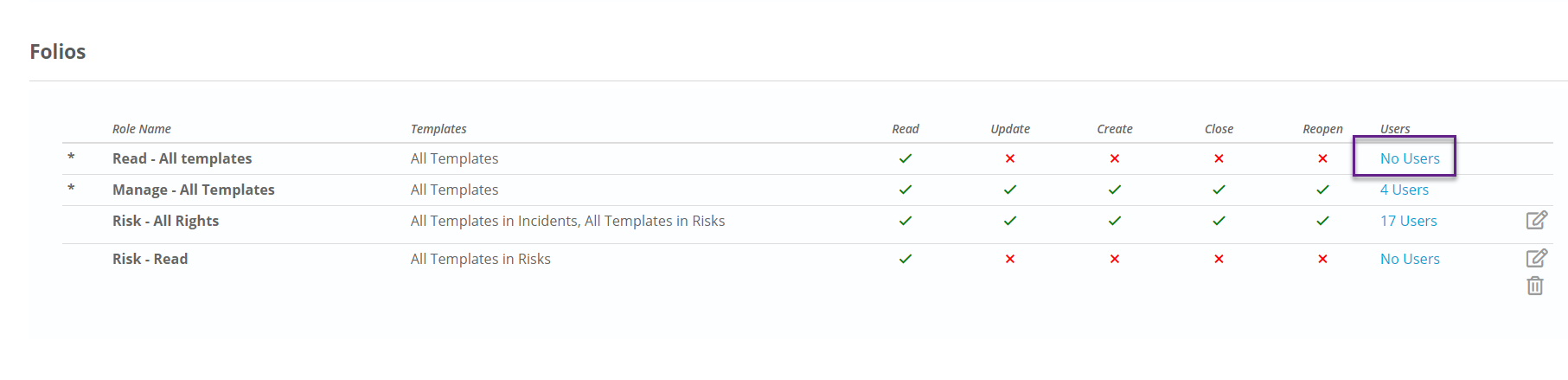
A pop up will display the users that are currently in the group. To add the new user, click on + Users.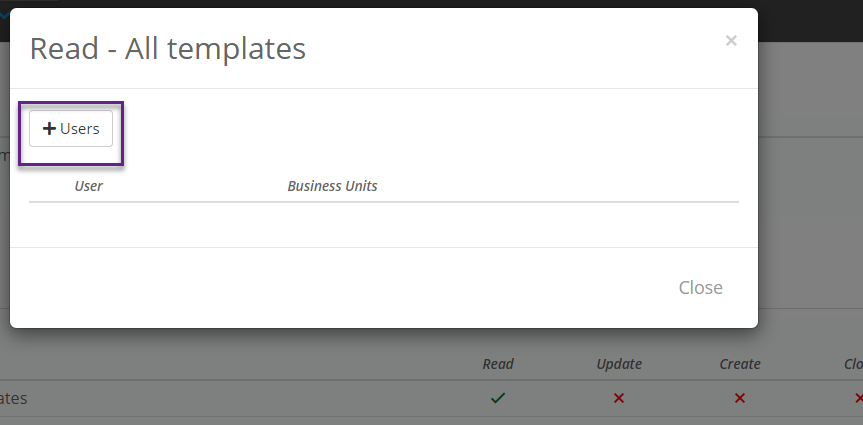
You can select users by either selecting users in the Select users tab or if you are wanting to narrow down your selection to a particular business unit, click on the Select Users by Business Unit tab. You will find that all users from that business unit will be displayed – you can remove those that you do not want to include in that role if necessary. Once you have selected the users to be added to the group, click on Add Users.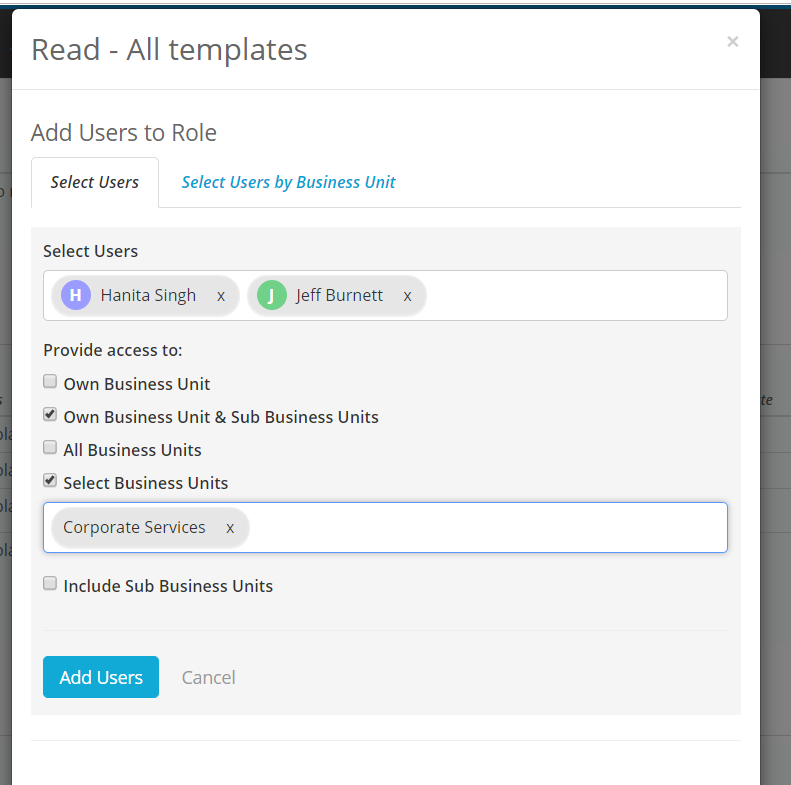
Access Rights by Business Unit
For some access roles once you have selected the users you then select the Business Units they will have access to.
For Folios it limits which Folios the user can see based on the selected business units. If the template does not have business units set up as a field this is not required.
For Action Assignments & Checklist Assignments the business units will determine which assignments can be read and/or modified by the user.
For Checklist Results & Action Results the business units determine which results can be read and/or completed by the user. By default the user is given access to their own business unit and its sub business units.
Learn more about how to restrict access rights by Business Units
Adding a role to a user through the User Settings
Click on the Admin gearwheel and select Users. Then click on the User that you wish to edit and select the Rights tab.
To add a new role, click the + Add Role button.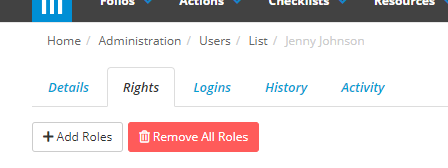
Then select the role type (Checklists, Actions, etc.) and you will then be able to select from the roles that have already been set up. 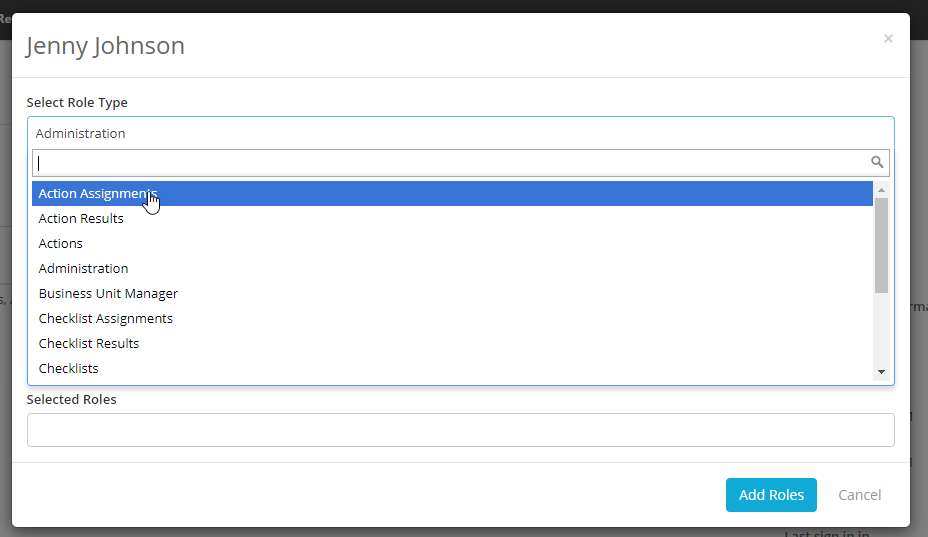
To add a role click on the + button next to the role name.
For some access roles you will need to select the Business Units they will have access to.
For Folios it limits which Folios the user can see based on the selected business units. If the template does not have business units set up as a field this is not required. 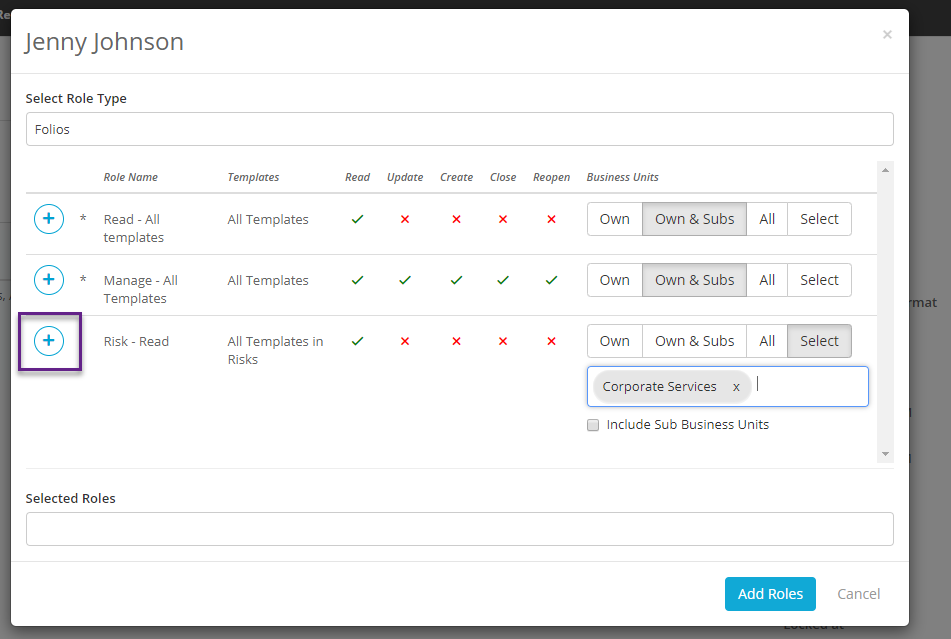
When you are finished click on Add Roles