
Creating a Draft Folio
When creating a new folio, if you want the details of the folio to be saved, but the folio isn't ready to be formally accepted into the system yet then you can save the folio as a draft.
To do this, while creating a Folio there will be an option at the bottom of the page next to Create and New called Save as Draft:
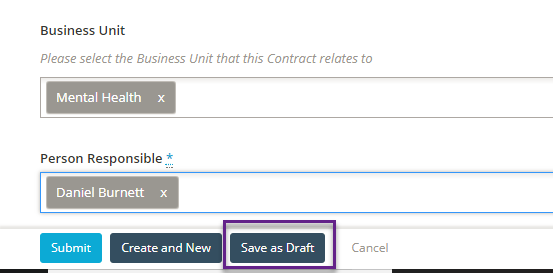
Selecting this will save the folio you are creating as a draft and assign it a draft key, and you will be taken to the draft page for this folio:

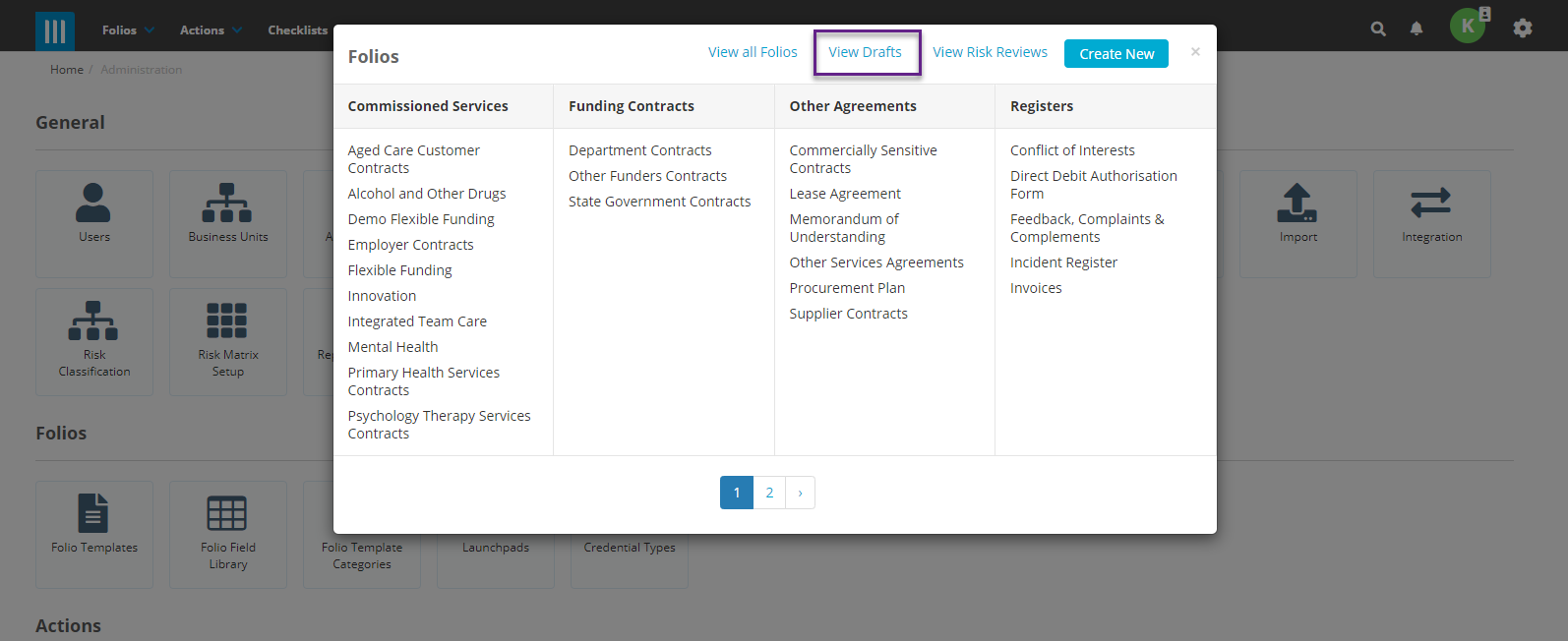
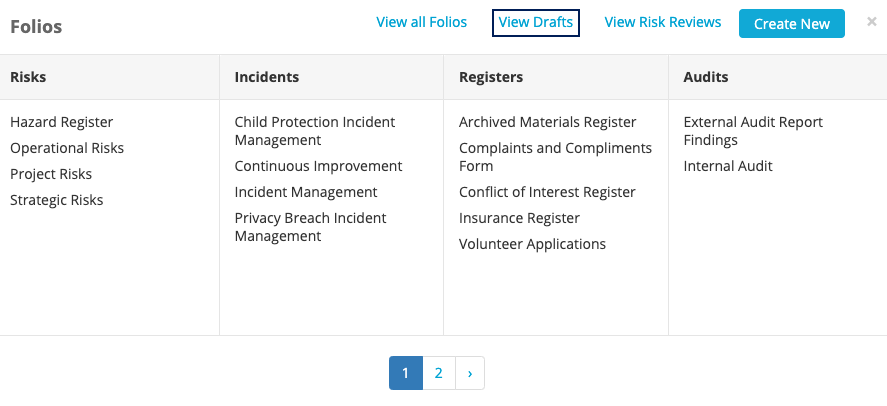
You can view all of the drafts that you have saved by clicking on the Folio tab at the top of the screen and selecting View Drafts:
Editing and Publishing a Draft
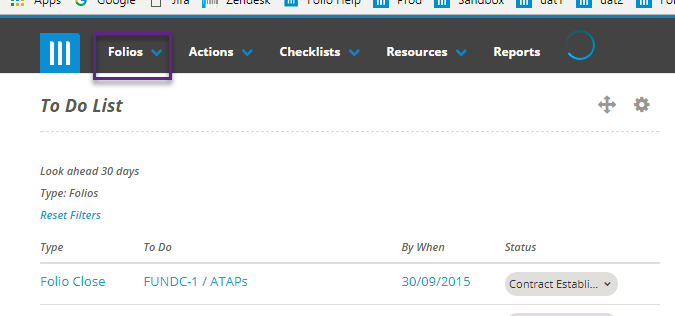
If you have folios saved as drafts, you can edit and publish them by going to the View Drafts screen. To do this click on the Folios tab at the top of the screen:
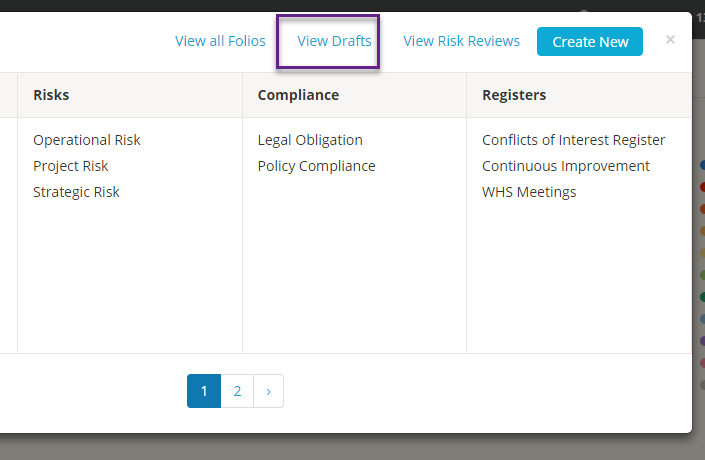
Then on the popup that appears select View Drafts:
This will take you to a screen that lists all of your draft folios:
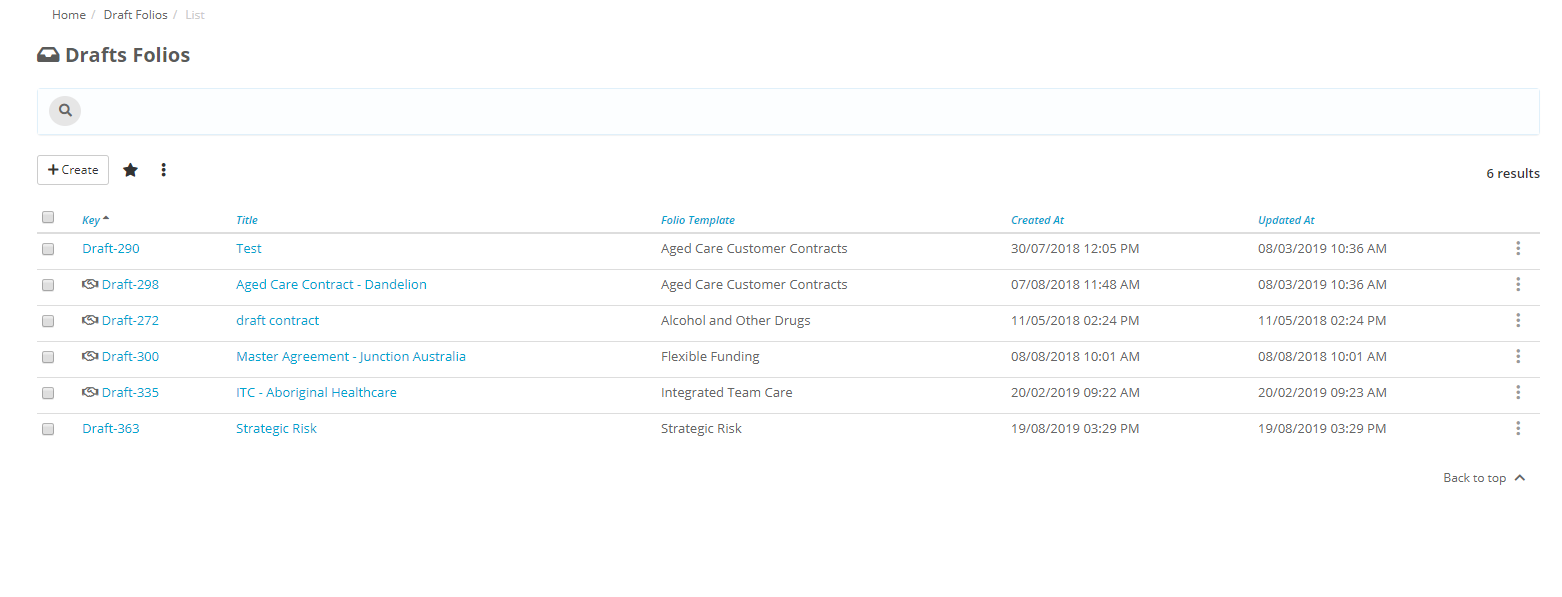
Note: This will only show draft folios that you have created, not all of the draft folios in the system.
Click on the draft that you would like to edit to be taken to the details page for that draft:
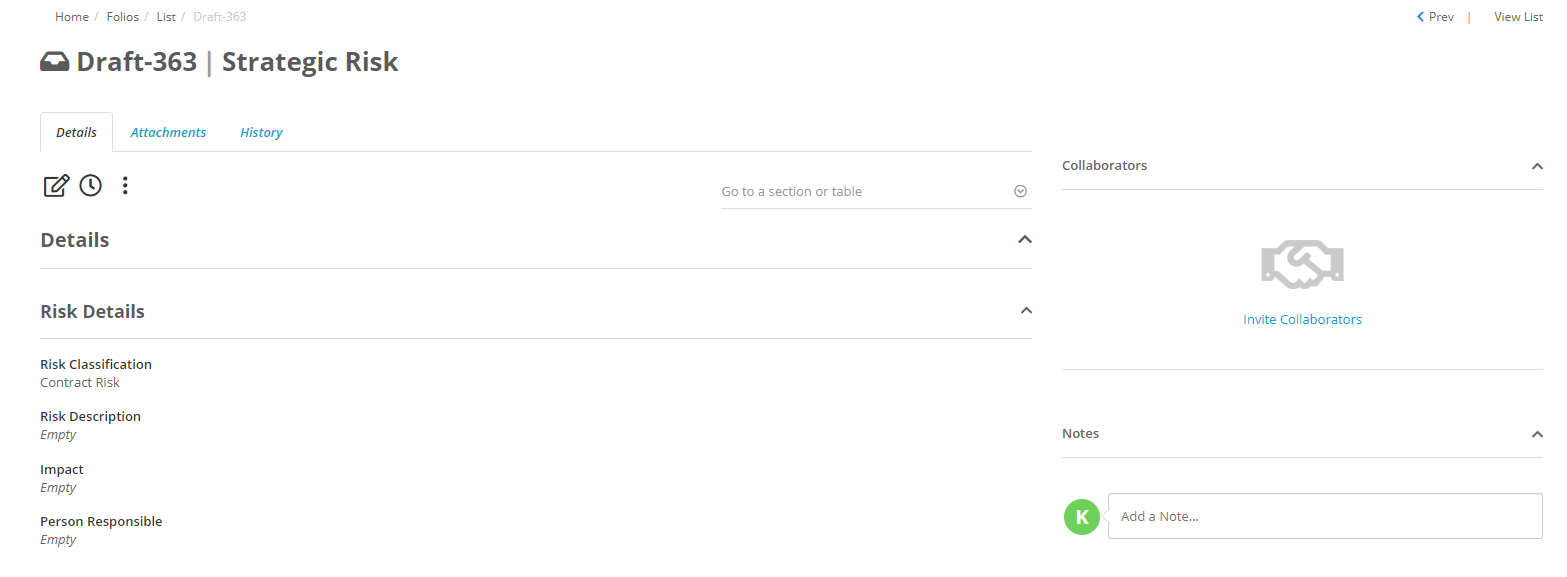
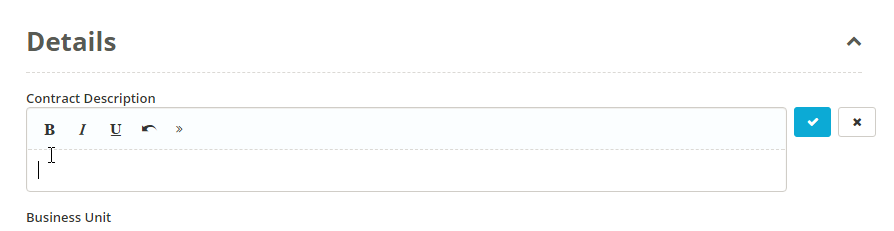
Editing a draft is done the same way as editing a folio, either through inline editing of a field:
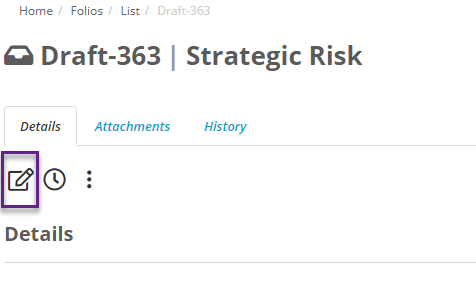
Or by clicking on the Edit Icons to be taken to the full edit screen:
From the edit screen you can either Save the Draft again to apply any edits you have made, or you can publish the draft:
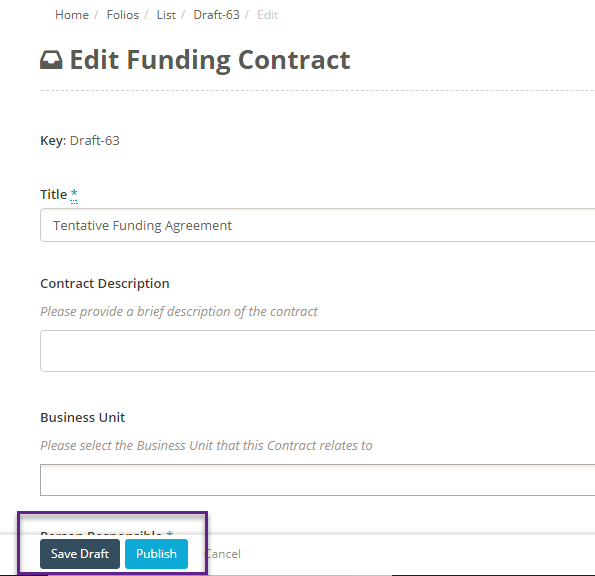
If you click on Publish a popup will appear asking you to confirm:
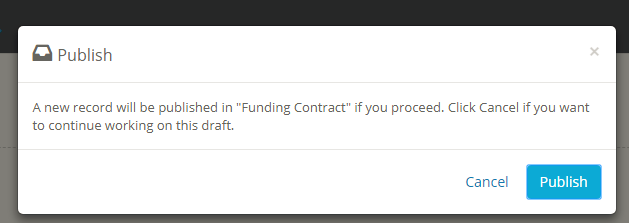
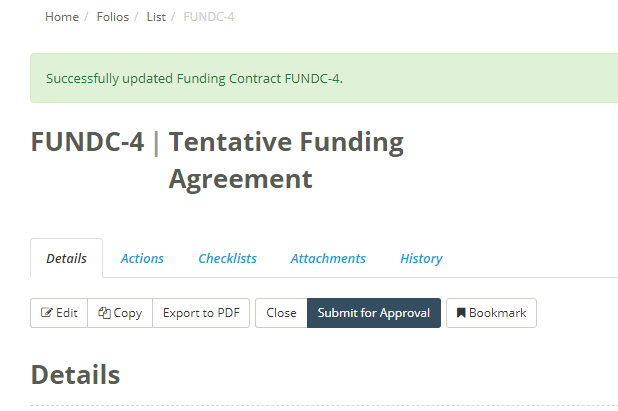
Then if you select Publish again then the draft will be formally entered into the system as a new folio under that template:
Deleting a Draft
If you have folios saved as drafts, you can delete them by going to the View Drafts screen. To do this click on the Folios tab at the top of the screen:

Then on the popup that appears select View Drafts:
This will take you to a screen that lists all of your draft folios:
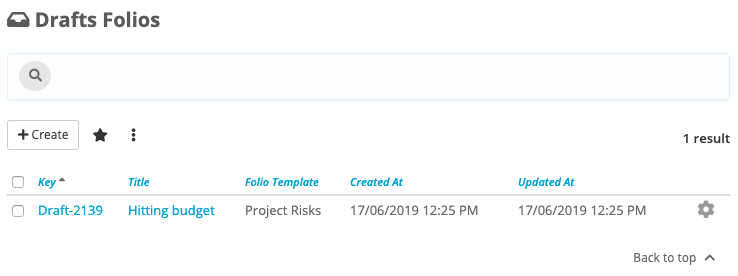
Note: This will only show draft folios that you have created, not all of the draft folios in the system.
Click on the draft that you would like to edit to be taken to the details page for that draft.
From here you can delete the draft using the Delete Draft button.
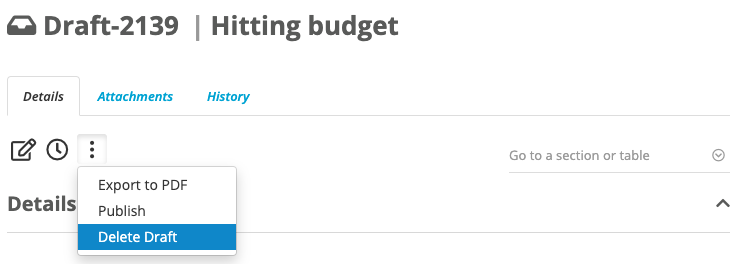
Clicking this will bring up a popup asking you to confirm:
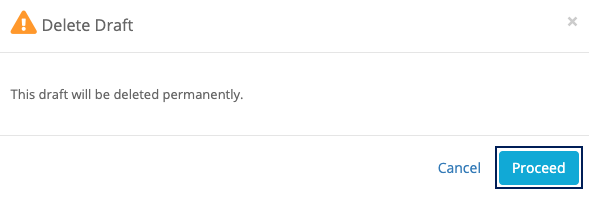
Then click Proceed and the draft will be deleted permanently.
Changing Draft Ownership
The draft owner is set as the person who created the draft. If you want to change the owner of a draft you can do this by going to the user profile of the current draft owner, and on their Details tab you will see a section labelled Draft Folios:
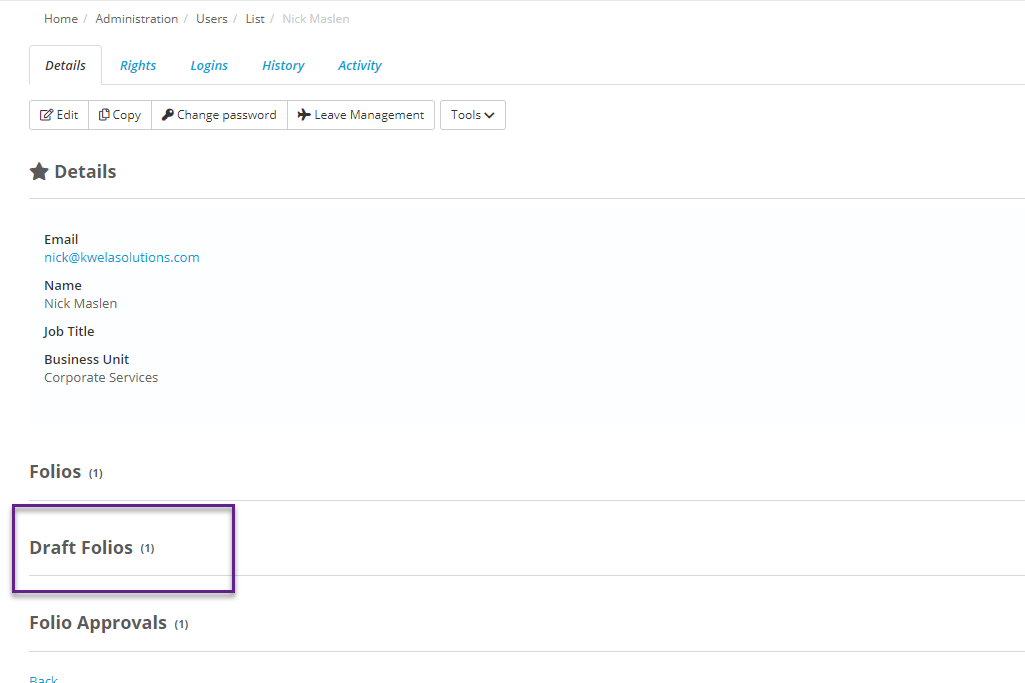
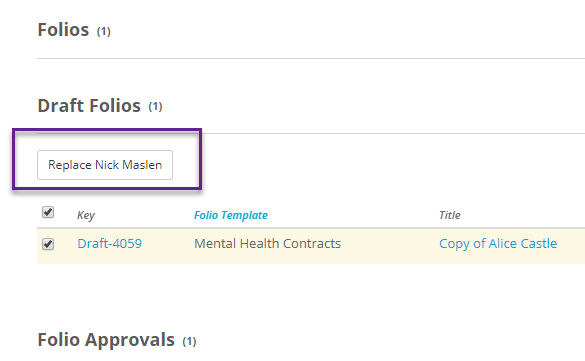
Expand this to see a list of Draft Folios that this user currently owns. To replace this user as owner tick the box next to the Drafts that you want then select Replace <User>:
This will bring up a popup where you can select the user that you want to be the new Draft Owner:
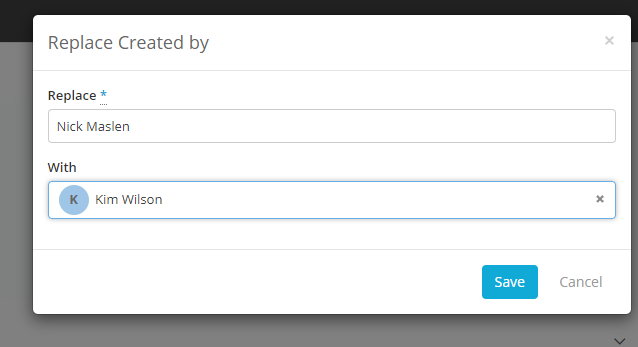
When you have selected the user that you want, hit Save.