Folio enables you to import both New Actions and Assignments and New Assignments to existing actions.
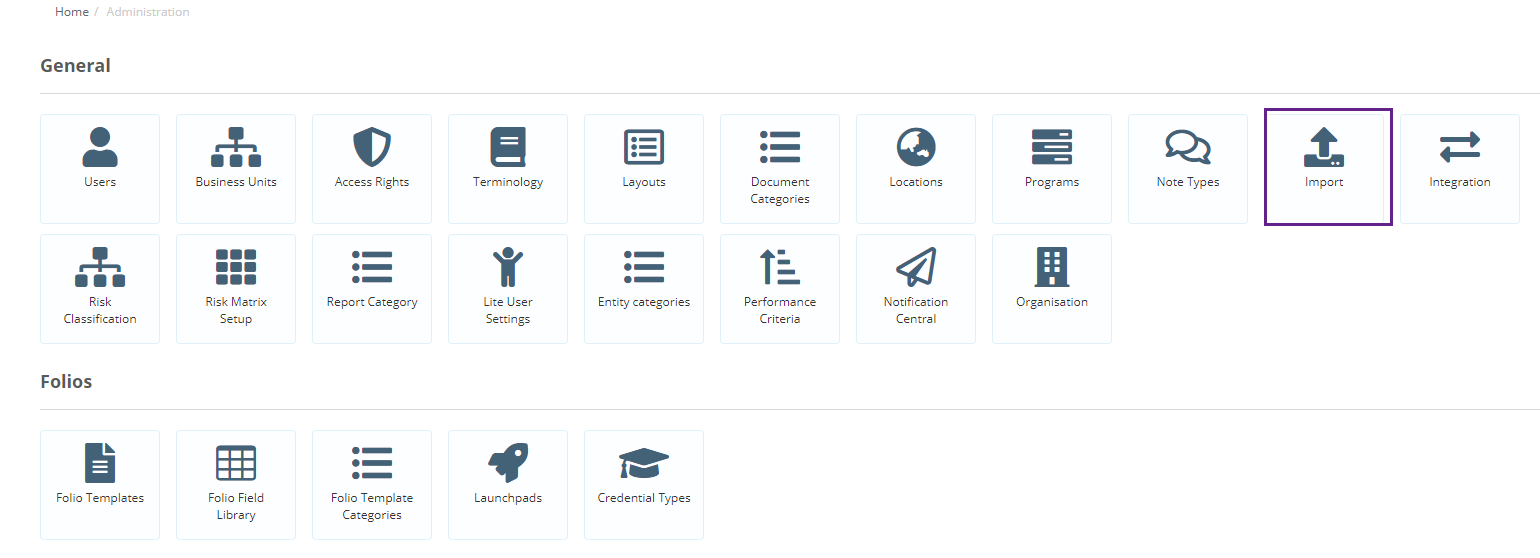
First click on the gear wheel icon and then on Import.
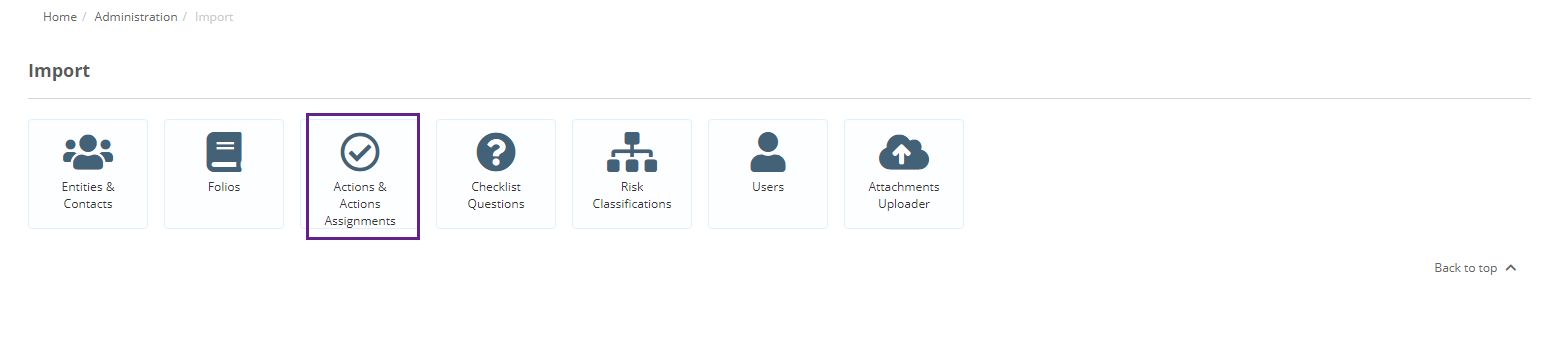
1. Click on Actions & Action Assignments
You will then need to Download the Import Template to do this Click on Download Import Template and choose between the New Actions and Assignments Import Template or the New Assignments for Existing Actions Import Template.
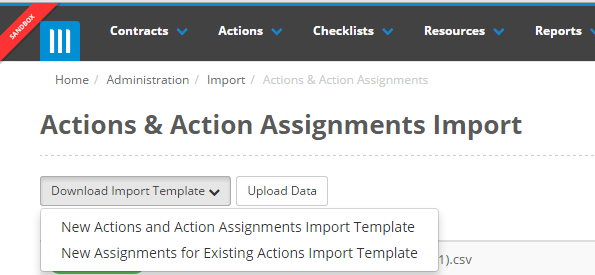
New Actions and Assignments Import Template
If you select this template you will get a CSV file with a column for each of your action and action assignment fields.

There are a few general rules for setting up the CSV file for data import, they are as follows:
- Using one line for each action, fill in your details and save.
- When there are multiple assignments for the one action, simply enter all the assignments together in separate lines and there is no need to repeat the action details on each line.
- When importing assignments for an existing action, the Action Key is needed to identify which Action to link the assignments to.
- When importing new actions without assignments, simply enter all the action details and leave all the assignment fields blank.
- For more information on how certain types of fields are captured - look at Data Rules article in Help
- Please note all fields prefixed Action will be associated with the action and all fields prefixed Assignment will be associated with each Assignment.
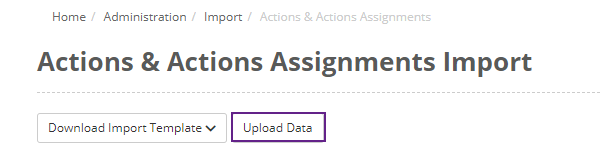
- Once you have completed your spreadsheet, save it and click on Upload Data button.
9. Simply drag the CSV file or click on Add files to select the CSV.
10. Click on Start Upload. The import facility will then create and validate the file.
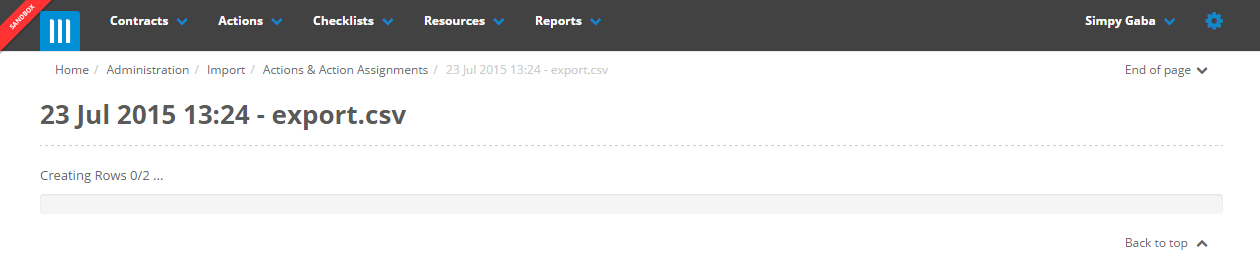 11. A page will then be displayed which will list all the records to be imported. It will indicate whether the records are OK or whether there are any errors in the system (please refer to the What to do if there are errors in my import article for how to deal with errors).
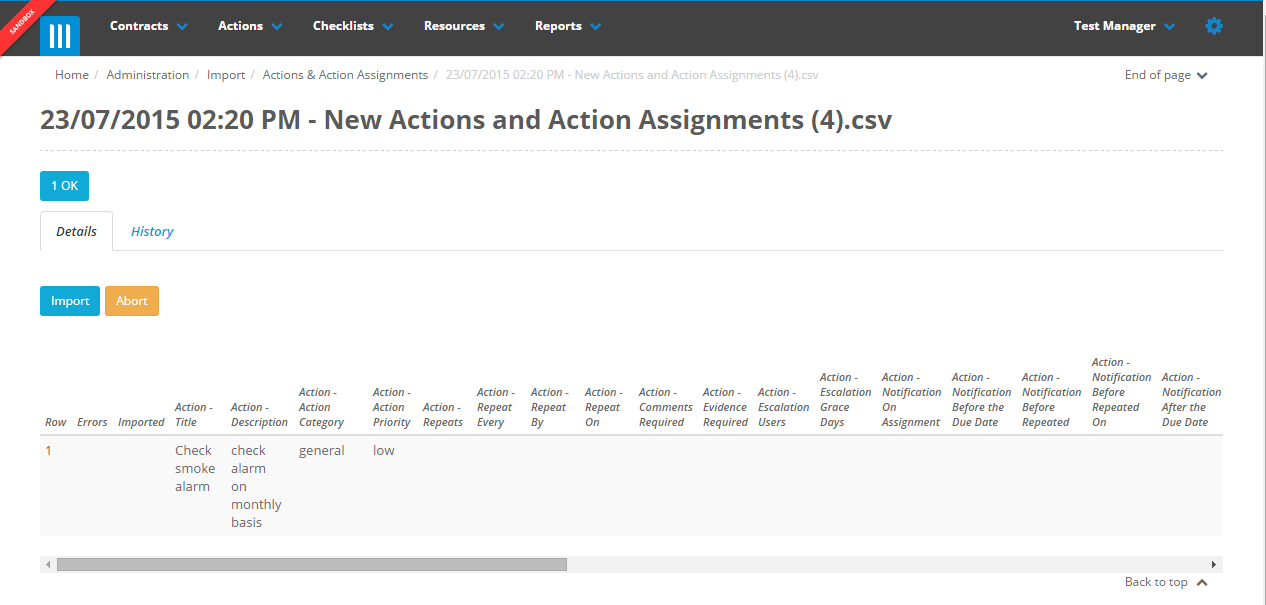
12. If all records are OK, click on Import and the records will be imported.
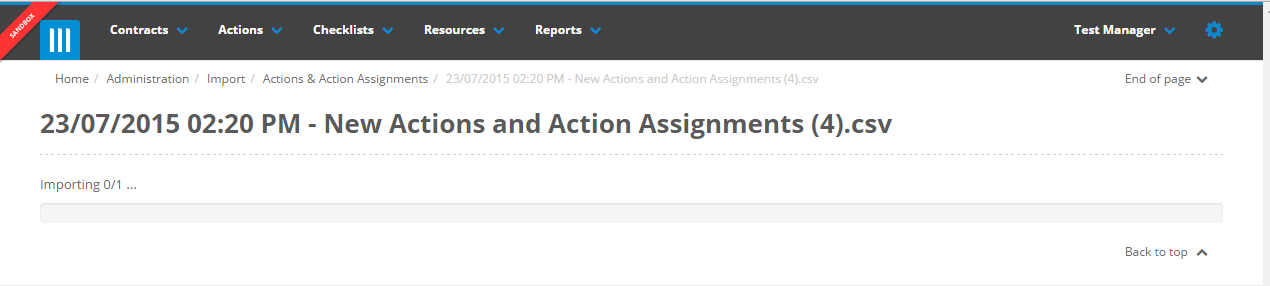
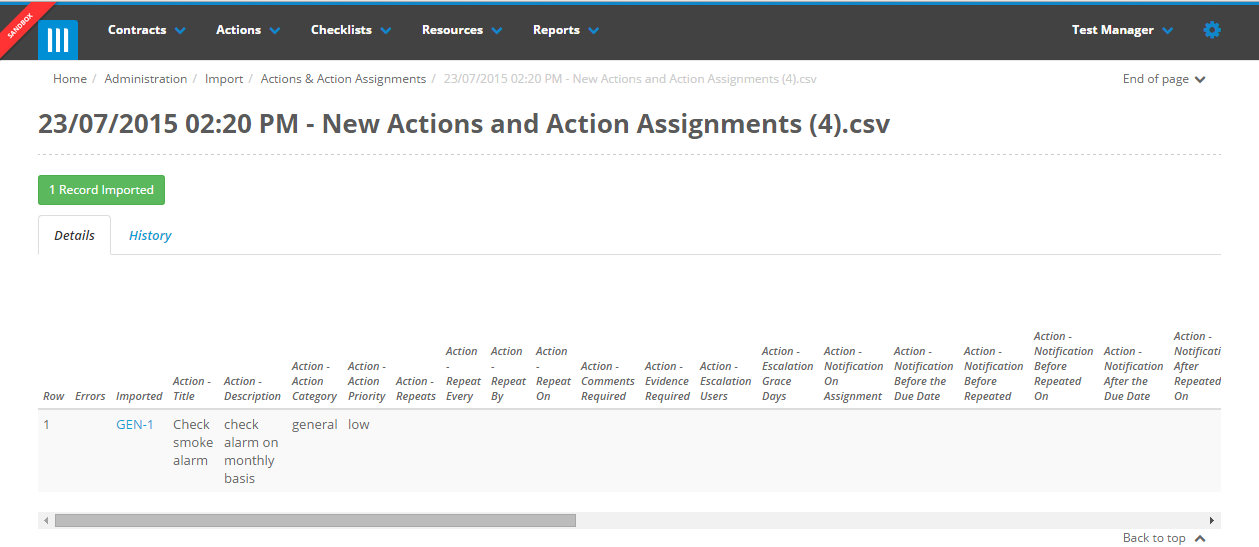
13. After successful import you will get a listing of Imported Records showing the details of the records and the number of successfully imported records. You can review this at any time, it will remain as a full record of the import under the Import tab.