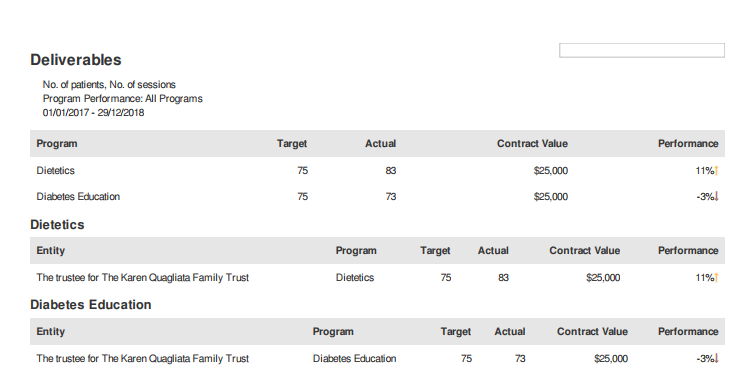
The deliverables snapshot can be used to gain an overview of how service providers are performing based on specific questions.
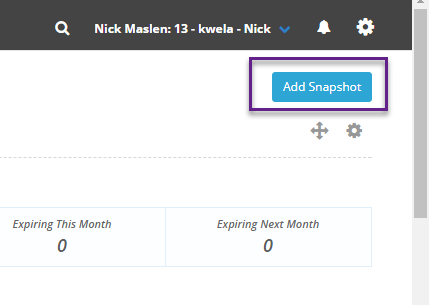
To add the deliverables snapshot to your dashboard, first go to the homepage by clicking on the Folio logo in the top-left of the screen, then click on the Add Snapshot button:
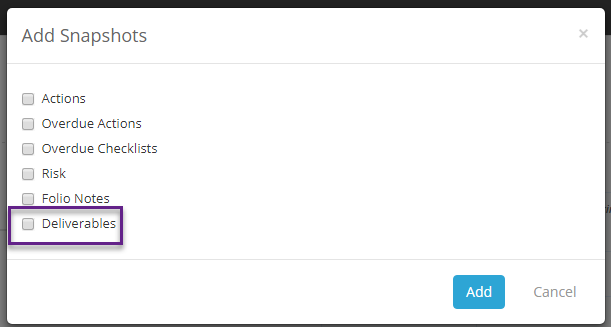
Tick the box next to Deliverables on the popup that appears then hit Save:
Scroll down to find the snapshot. When you first add it you may not see any results, but you can click on the filters to change what you want to see:

Then on the popup that appears:
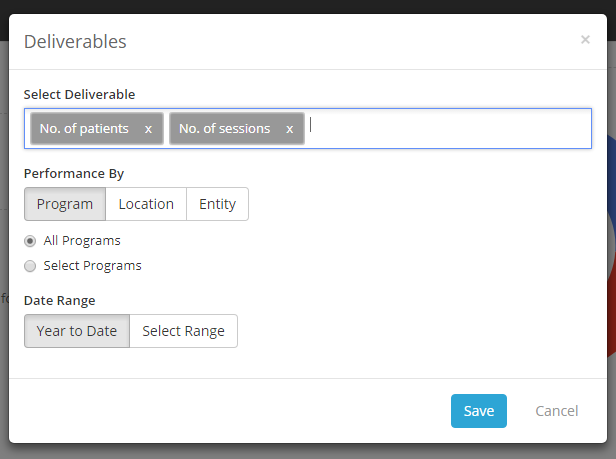
Use the Select Deliverable section to decide what questions you want the snapshot to be based on. Use the Performance By section to choose if you want the snapshot broken down by Program, Location or Entity (Service Provider). Furthermore these can be filtered further to be either all programs/locations/entities or only certain ones:
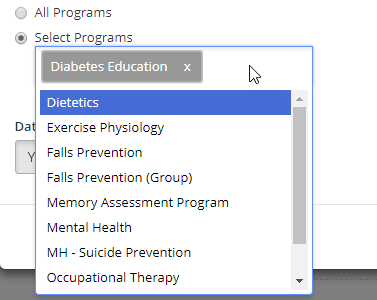
Lastly use the Date Range section to decide what time period you want the snapshot to represent. When you are finished hit Save.
You will then see an overview of deliverable performance for you given filters:
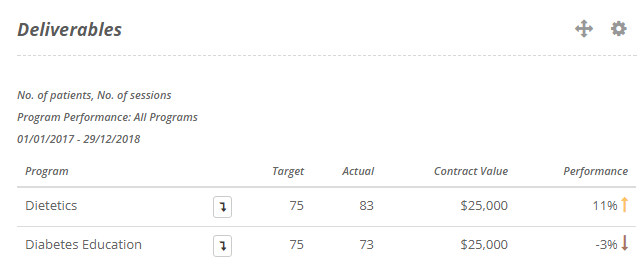
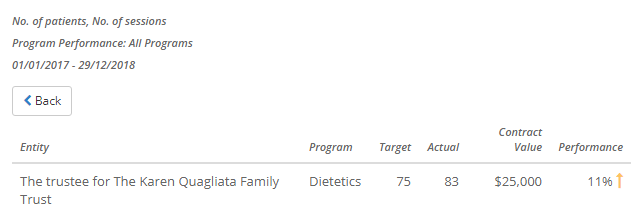
If you are filtering by Program or Location you can click on the arrow to see a further breakdown for that row based on Entity:
 \
\
You can edit the filter anytime either by clicking on the filters again, or by click on the gearwheel and selecting Settings:
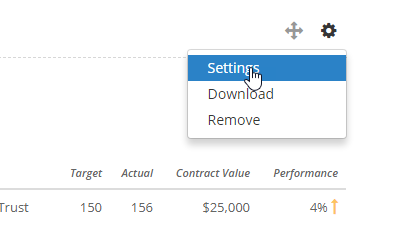
You can also use the gearwheel to export the snapshot as a report by selecting download: