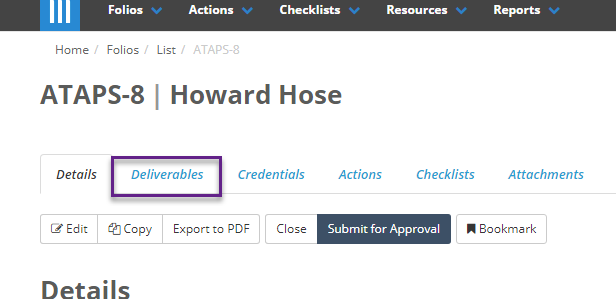
Once a provider has submitted a deliverables checklist you can go to the deliverables tab of the Folio that the checklist is linked to if you want to view the results:
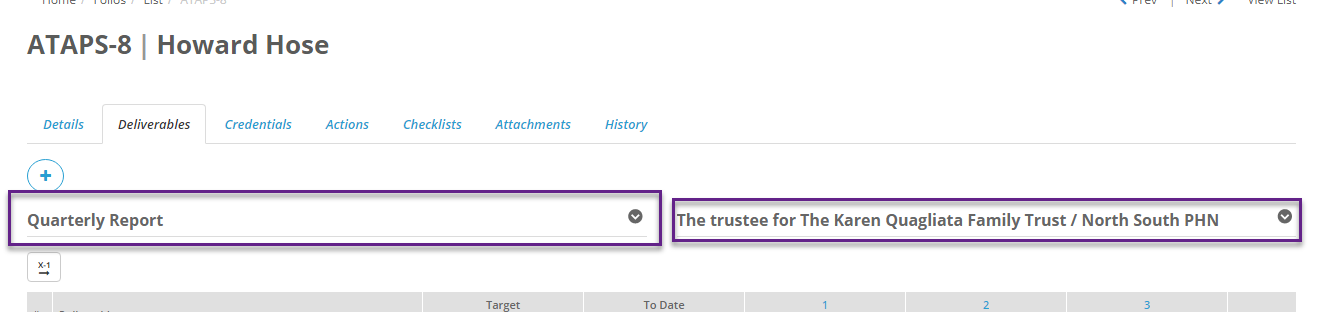
On this screen you can select which Deliverables Checklist you want to view using the dropdown on the left side of the screen, and then you can pick which assignment of that checklist you want to view using the dropdown on the right side of the screen:
Once you have selected the one you want you will be shown a table with a list of questions, and if there were targets set up for this assignment, targets for those questions:
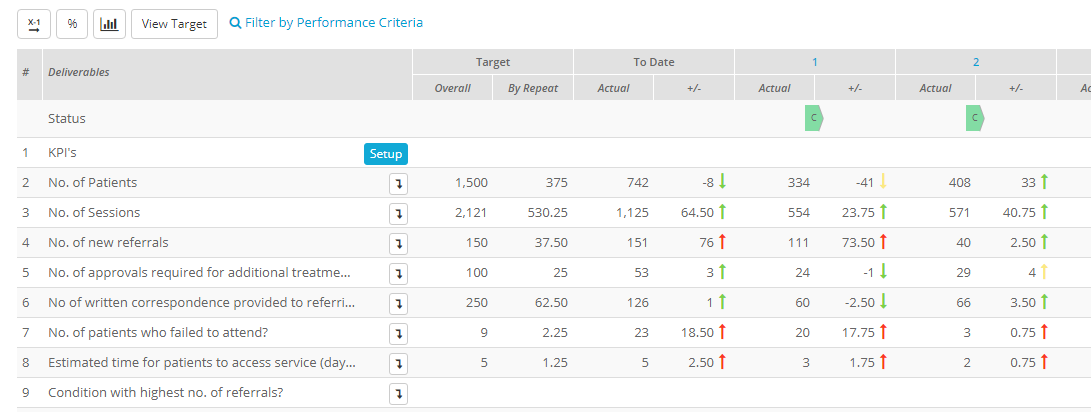
The columns in the table represent the following:
- #: Questions number
- Deliverable: Question name
- Target: Target that was previously set up for the quantitative questions. Is further separated into the overall target for that question over the entire checklist, and the target for each individual repeat (which is the overall target divided by the number of repeats). Or, if the target for each repeat was set up manually then the By Repeat column will be blank.
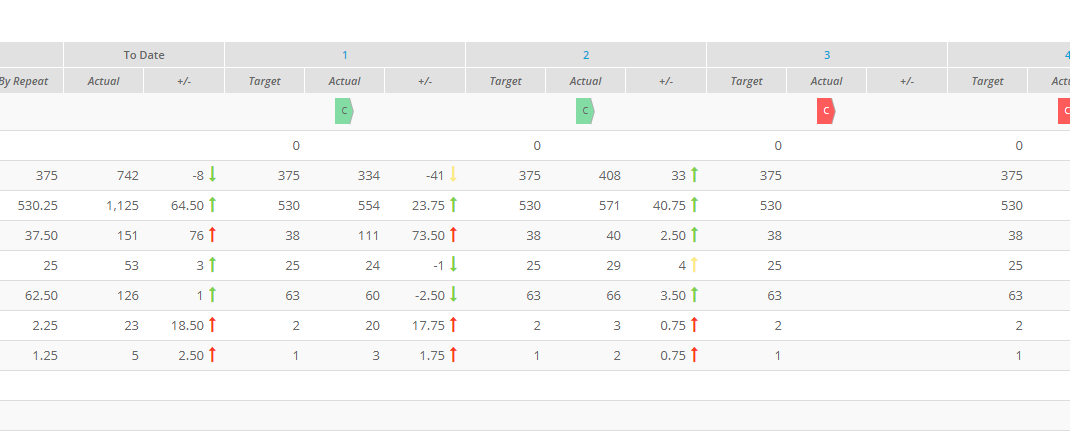
- To Date: The performance of the service provider to date. This is updated every time the service provider submits another repeat of the checklist. This column is further divided into Actual, which is the actual values the service provider has given for that question, and +/-, which represent the variance between the actual provided and the target so far.
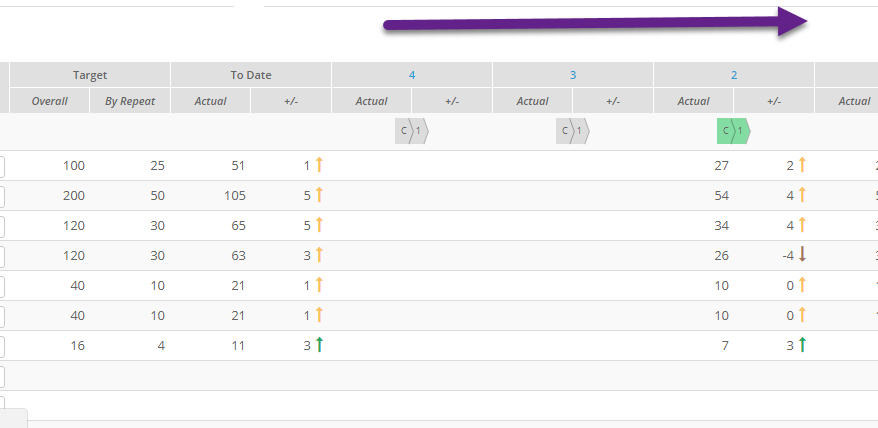
- 1, 2, etc: Each number represents a repeat of the checklist, with 1 being the first and so on. Like To Date this is further divided into Actual and variance, but instead of representing the values so far, they represent the actual given to this repeat only, and the variance measured against the target by repeat.
If the target for each repeat was set up manually and you want to know what each target is, then you can click on the View Target button:
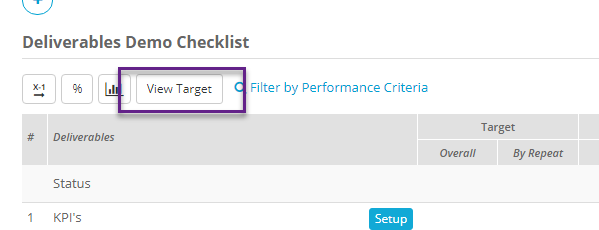
This will add a new column under each repeat showing the exact target for that question:
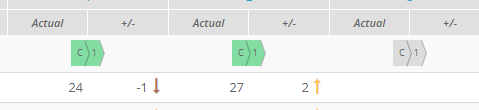
The rows each represent a question, except for the status row, which shows the current status of that checklist repeat:
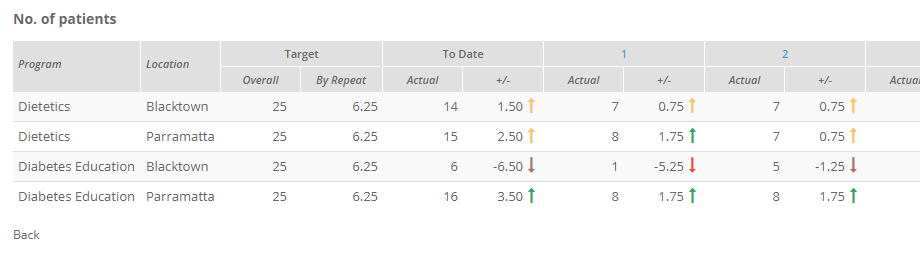
This view shows the overall actual value provided for a question, but if the question was broken down by program and/or location then you can view the breakdown by clicking on the button to the right of the questions name:
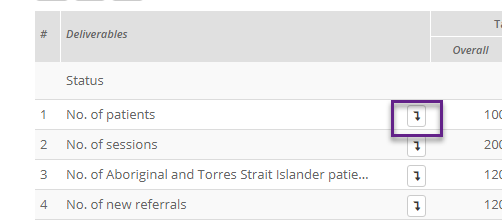
This will take you to a view will show you the target, actual and variance for each individual breakdown of a question.
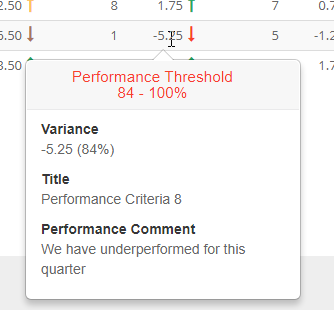
From this screen you can also see any performance comments that were provided for a particular response by hovering over the variance for that response:
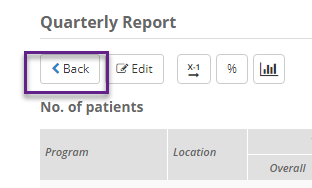
From this screen you can also edit the targets that were previously set up for a question, but note that if a checklist repeat was already submitted then the targets for that repeat won't change. You can use the Back button to return to the previous screen:
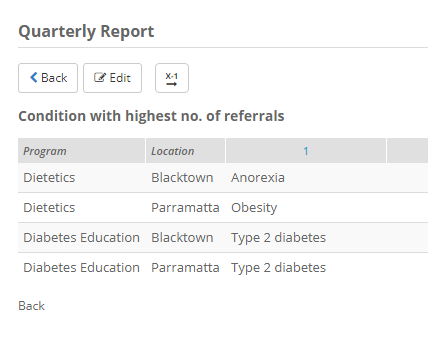
If you want to see the responses to a qualitative question then you also use the breakdown button:
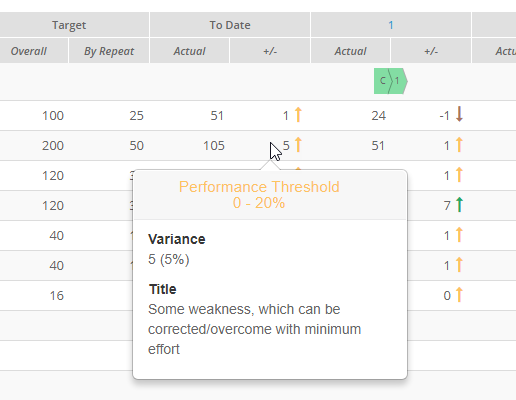
If you want to see more information on the variance, such as what performance bracket an entry falls into you can hover over the variance for that row:
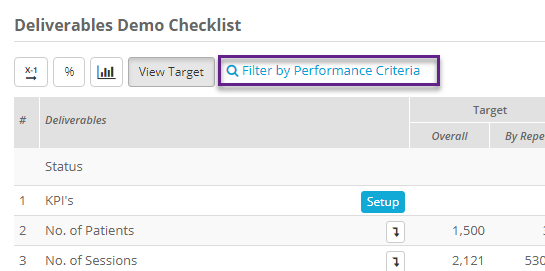
If you want to filter the screen by performance criteria, for example if you want to highlight entries that underperformed, then you can click on Filter by Performance Criteria:
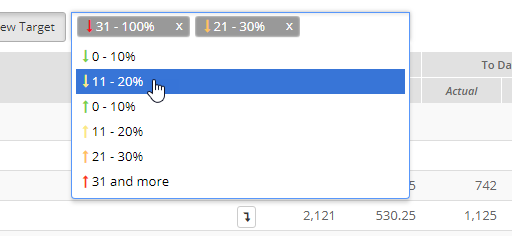
Then select the performance brackets you want to filter by:
Then on the screen only the entries that fall under that filter will be highlighted:
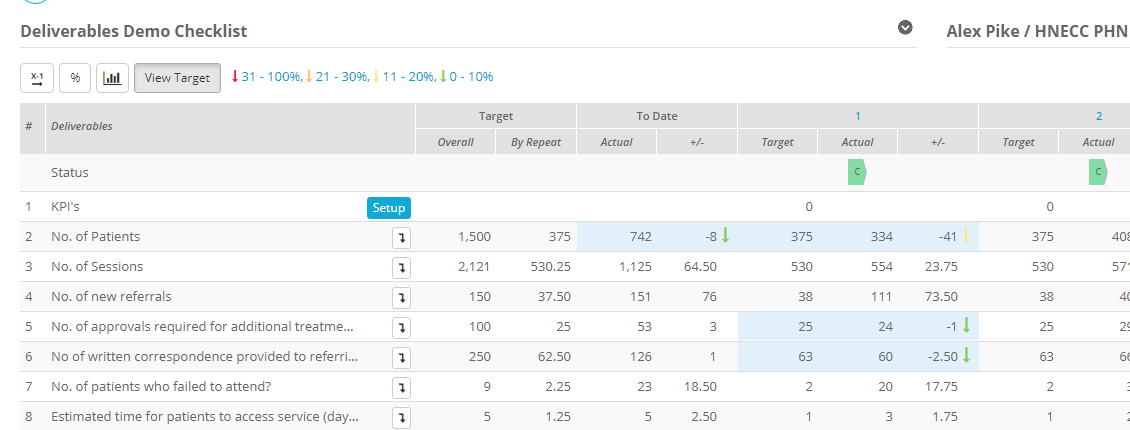
Note that the other responses will still appear, they just won't be highlighted or show their performance while the filter is active.
Lastly there are also three buttons at the top of the table that you can use to change the view:
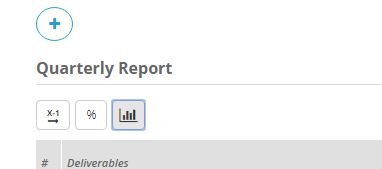
The  button reverses the order of the repeats:
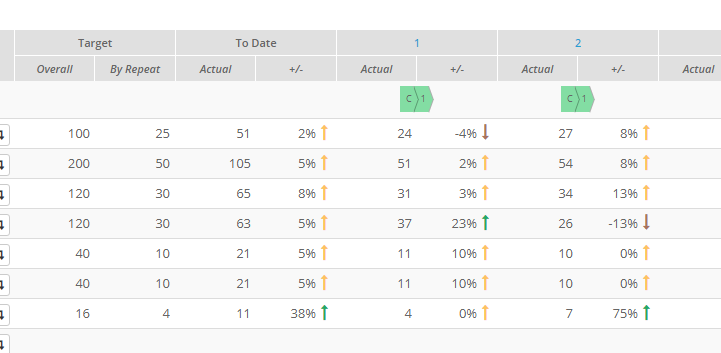
The  button changes the variance to show you what percentage the actual is over or under the target, instead of showing you the exact number:
And the  button removes the view of the repeats and instead represents the checklist results as two charts, a line chart and a bar chart:
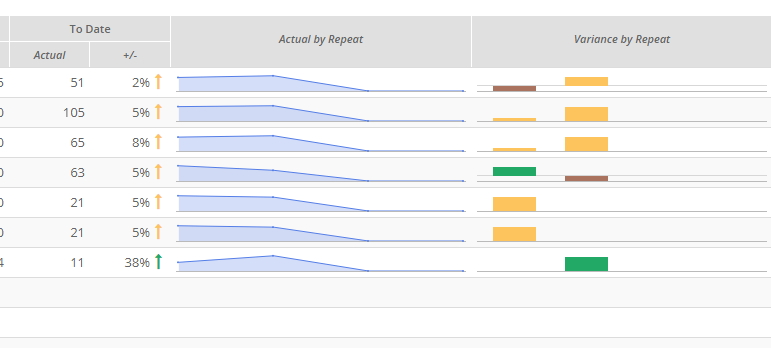
These charts can be used to get a more visual idea of how the service provider is performing overall for quantitative results.
If you want to go to the checklist itself then you can use either the number for that column to be taken to the results screen for that repeat:
Or you can click on the status to be taken directly to the questions screen: