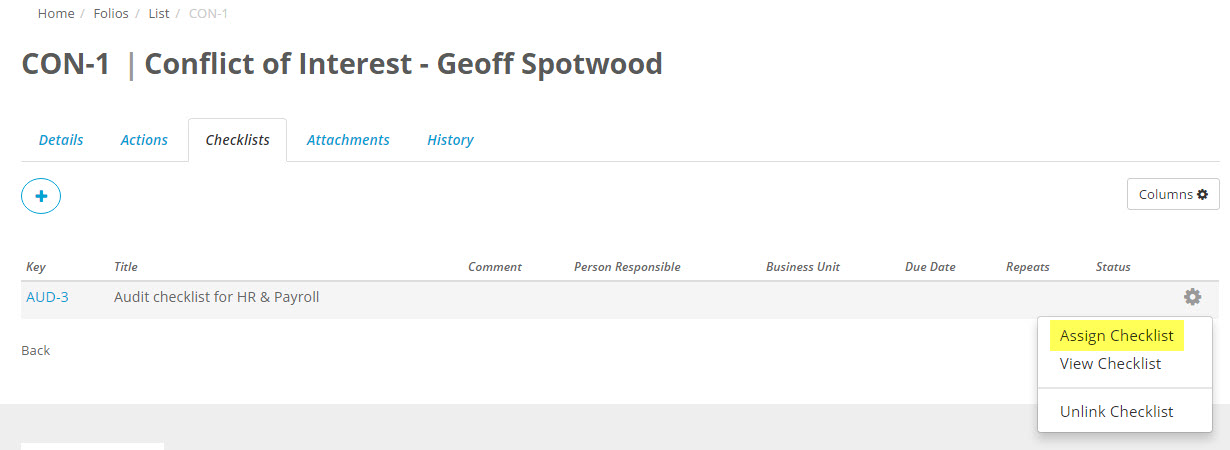
You can link a Checklist to a Folio in 3 ways -
- You can link it from the Checklist Assignment page
- You can link it from the Folio details page
- You can link Checklists to Folios in bulk using bulk tools - Click here for instructions on how to do this.
Linking from the Checklist Assignment Page
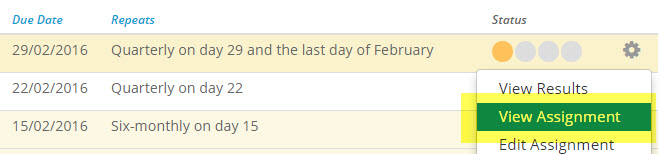
In the checklists page, click on the gearwheel and select View Assignment (alternatively if you have selected the Checklist Assignment Key as a column in your Checklist view you can click on that.
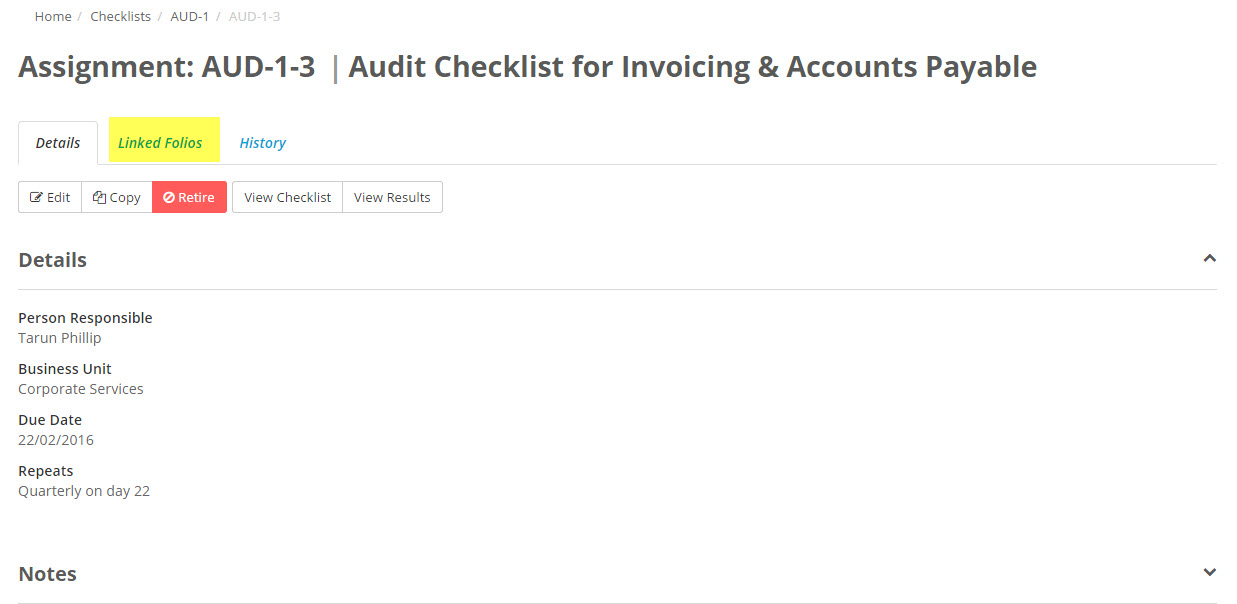
Click on Linked Folios
Click the + button and select the Folio you want to link the Checklist Assignment to, add any comments (if required) and click on Add.
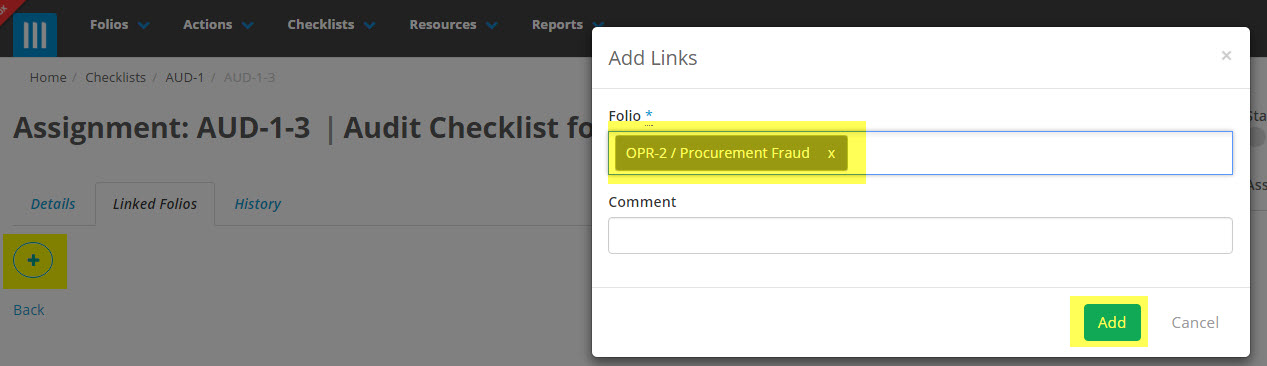
The Checklist Assignment will now be linked to the Folio.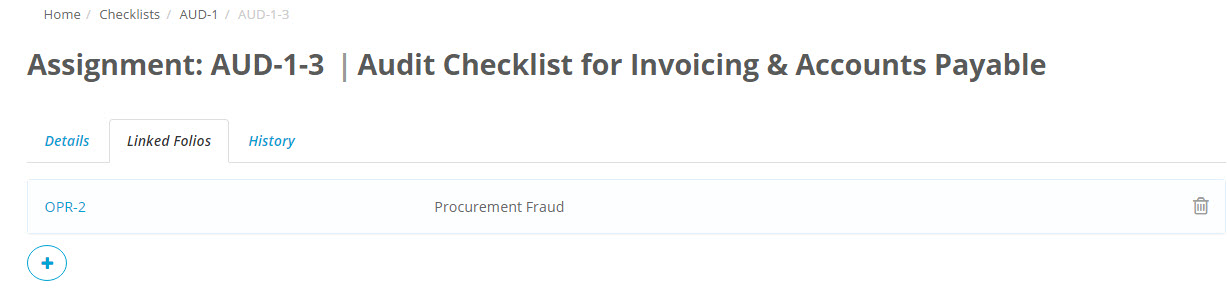
Linking from the Folio details Page
In the Folio details page, select the Checklists tab.
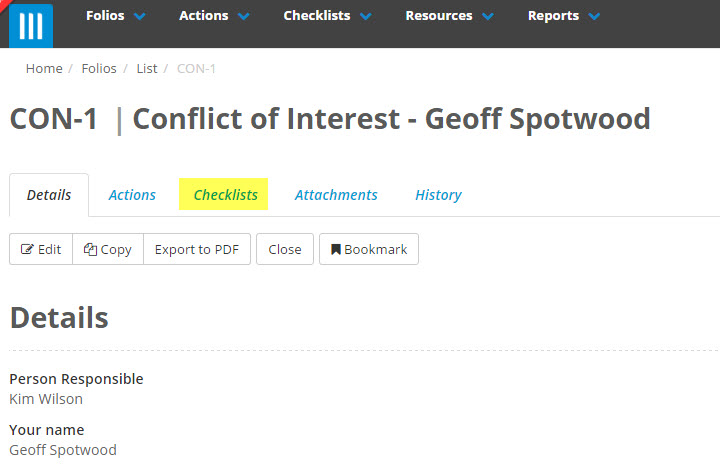
Click the + button and select the Checklist/s you want to link the Folio to, add any comments (if required) and click on Add.
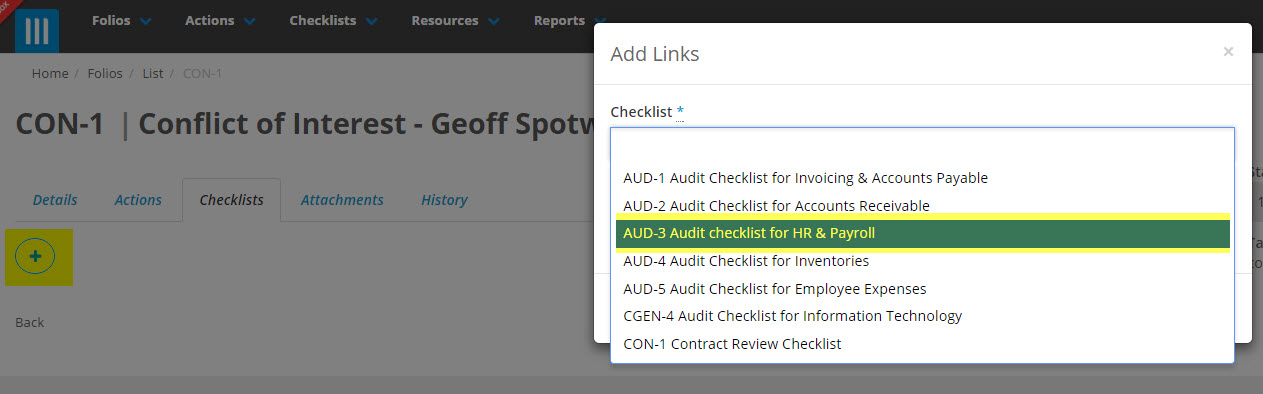
The Folio is now linked to the Checklist but you have to take the further step of creating an Assignment of that Checklist to be linked to the Folio. To do this click on the gearwheel icon and select Assign Checklist. Type in the person responsible and due date and Save.