
IIP whitelisting enables you to restrict Folio access to a limited range of IP addresses. While this feature has its benefits the downsides are significant as you lose the easy access to Folio that you would have if IP addresses are not restricted.
Note 1: To turn on IP address whitelisting for your instance you will need to contact Kwela Support.
Note 2: While using IP address whitelisting you must make sure that your organisation is using static IP addresses, otherwise your machines may lose access to Folio if their address changes. You also won't be able to access Folio from home. If you manage to lock yourself out of Folio after setting up IP whitelisting please contact Kwela Support.
If you have whitelisting turned on, then to set it up click on the admin gearwheel in the top right of the screen, then on the admin screen select Organisation:
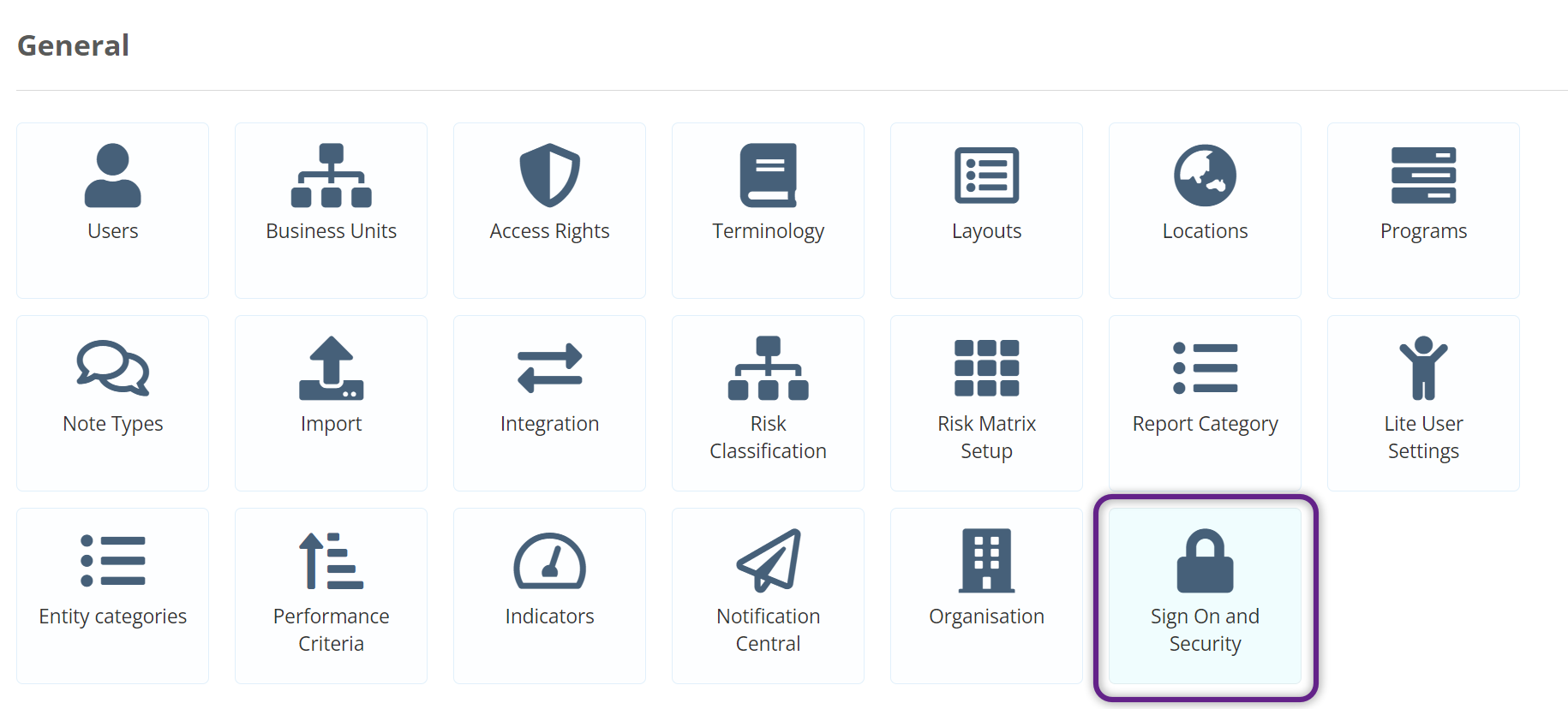
Then change to the IP Whitelisting tab:
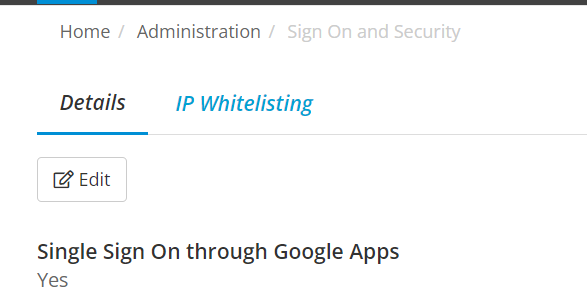
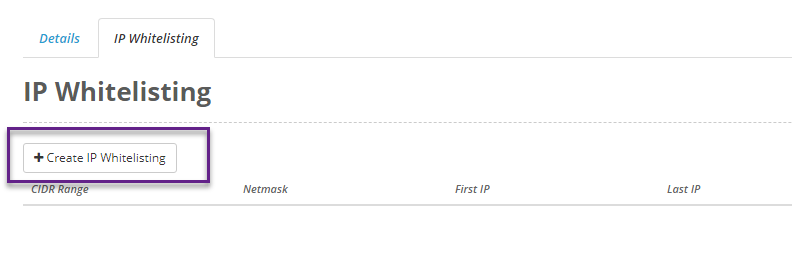
On this screen if any whitelists have been set up then you will see a list of IP ranges that have access to your Folio instance. To create a new range select Create IP Whitelisting:
You will then see a popup prompting you to enter a CIDR range which will need to be in the form ip-address/subnet-mask. Once you have entered the range then press verify. Note: if you are unsure about the usage of CIDR please contact your IT department before continuing.
For example if you enter 203.206.130.0/24 then hit Verify you will see this:
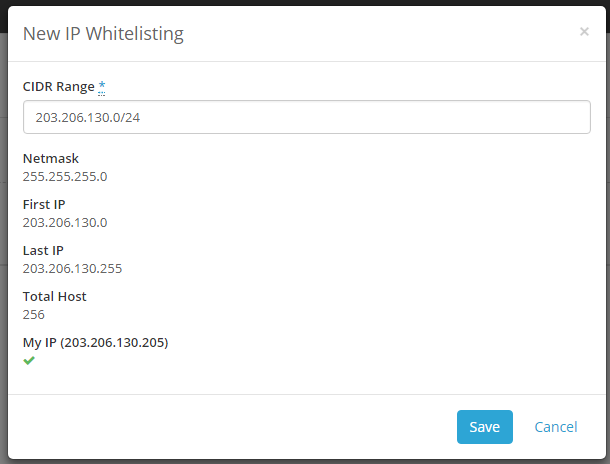
This will make sure that you have entered a valid CIDR range and give you more information such as the first and last addresses in the range, the total number of hosts available (i.e how many devices will be able to connect to it) and lastly will tell you whether or not your current IP address is in that range.
Note: Make sure that the first whitelist you add includes your current IP address in the range otherwise you can lock yourself out.
When you are finished hit Save and you will see the new whitelist you added in the list:
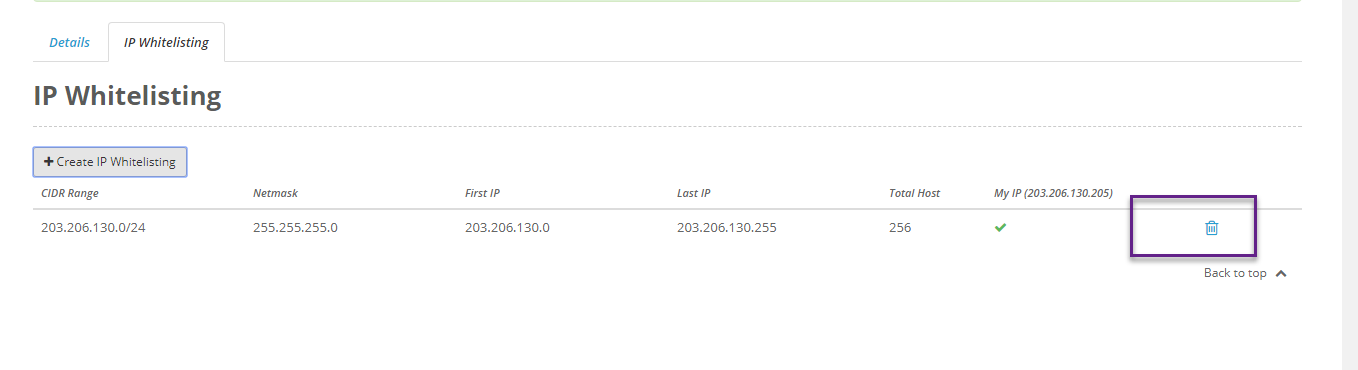
Now if somebody tries to access your Folio instance with an IP address outside of that range their access will be denied. You can remove the whitelists added at anytime using the bin on the right side of the screen.