If you have certain questions that are used across multiple checklists, and would like to generate a report containing the responses to this question across the different checklists this can be achieved using the Checklist Schedule & Status Report.
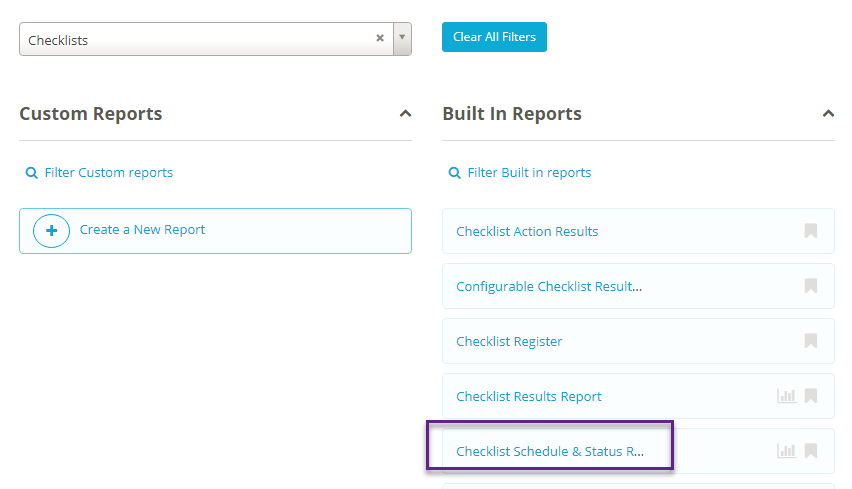
To do this click on Reports at the top of the screen then select Checklist Schedule & Status Report.
You will now need to filter down the report to only include the checklists you want to report on. You can add other filters as well such as based on the Due Date of the checklist, business unit, status of the checklist or by a questions responses. To add a filter click on the Search bar then fill in details for the filter you want:
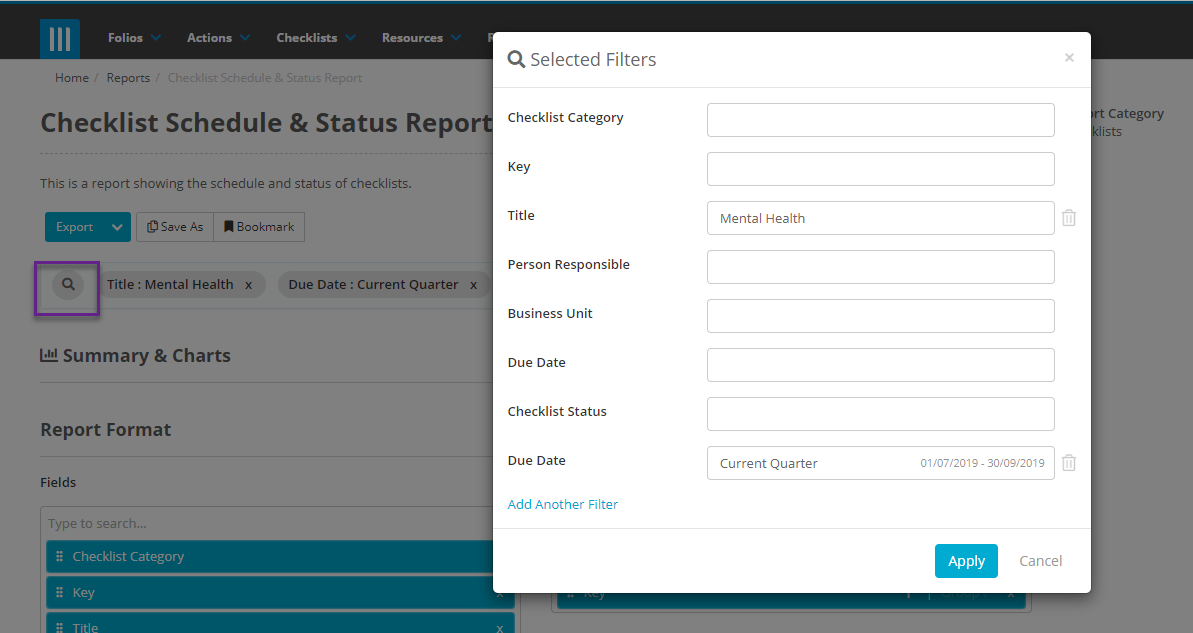
Then click on Apply. After you have added the filters you can drag and drop the fields that you would like to include in the Folio Report by clicking and holding the three dots to the left of the field name:
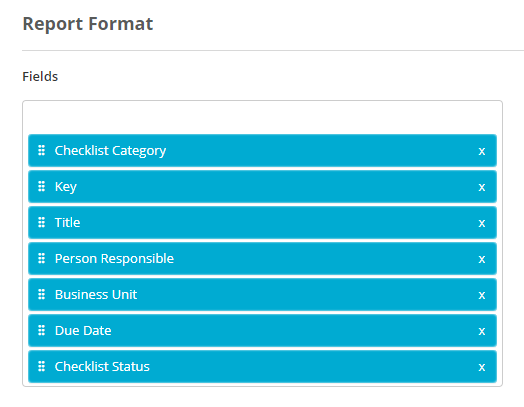
And to add more fields or questions start to type in the white box beneath Fields. You can add fields for the Checklist itself, as well questions used in the checklist:
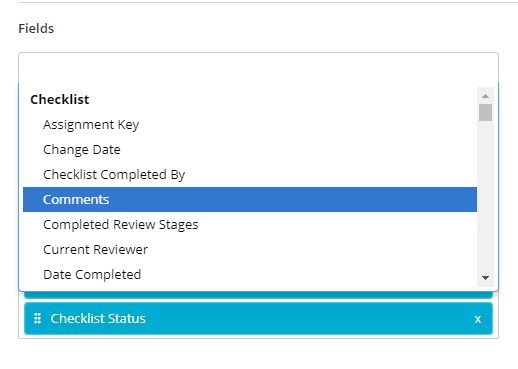
Note that the questions available will be determined by what filters you have applied. If no filters are applied then every checklist question will be available. If you have filtered down to include only certain checklists then only the questions used in those checklists will be available. Note that the question does not need to have been used in both checklists, as long as it is used in one of them then it can be included on the report.
If a question is used in one checklist but not the others then on the report the column entry for that question in the checklists that do not use it will simply be blank.
You can also sort and group your report by different fields, so for example you can create a report and group them by the Entity associated with each checklist assignment, and sort it by the responses to a certain question:
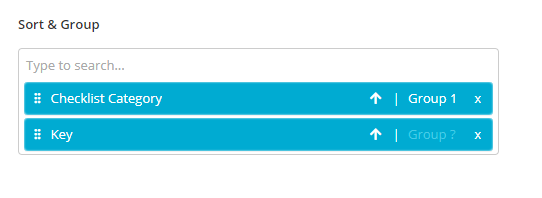
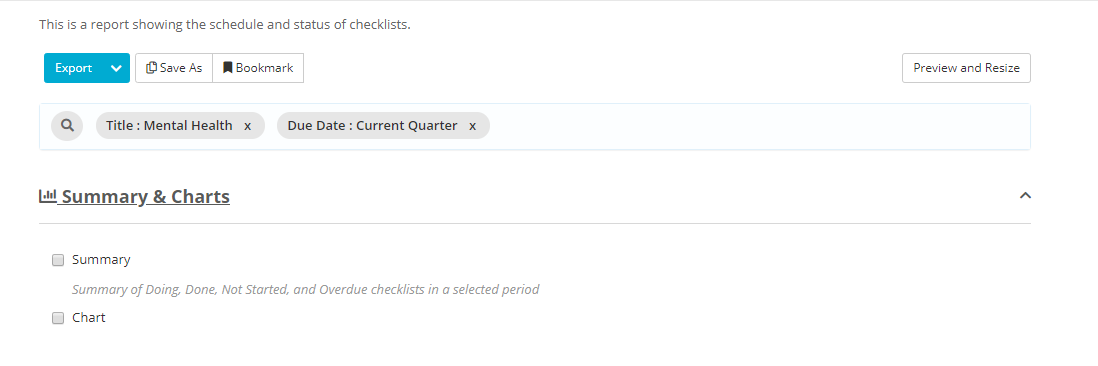
You can also choose to include a summary of the report and charts based on it by clicking on Summary & Charts to expand that section. This will show you two check-boxes, one for Summary and one for chart::
Ticking either of these to include them in the report will cause a third option to appear, Based On:
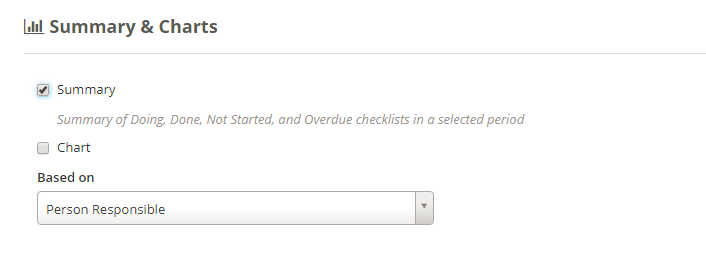
This has two options; Person Responsible, and Checklist Category. This will decide what the summary and chart included in the report will be based on. Now when you run the report the summary and/or chart will appear at the top:
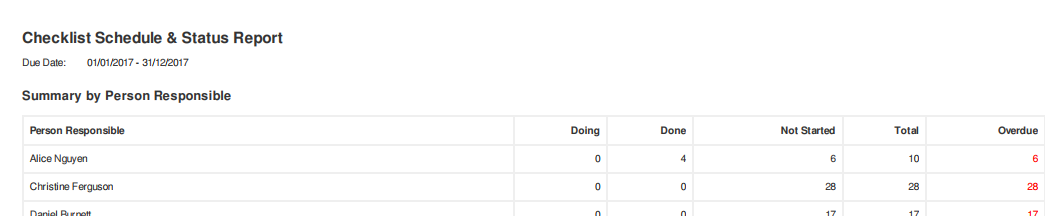
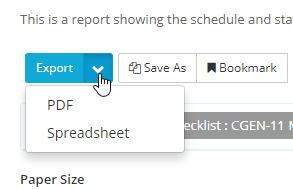
You can Export your report to PDF or Spreadsheet, to run the report to PDF, just click on Export OR click on the down arrow next to arrow and select PDF. To run the report as a spreadsheet, select spreadsheet and a CSV will be exported from your browser: