
Certain fields in public link forms can be prepopulated with values so that when the user opens the public link, these fields are already filled out but can still be edited if the user needs to.
This is done by generating a URL for the public link that contains parameters for the fields that you want prepopulated, and can then be filled out by external software that your organisation uses.
Note: Not all fields in a template are available for prepopulation. These fields are unavailable:
-
Attachments
-
Formula enabled numeric fields
-
Dependent fields
-
Address
-
URL
-
Fields which are in a table
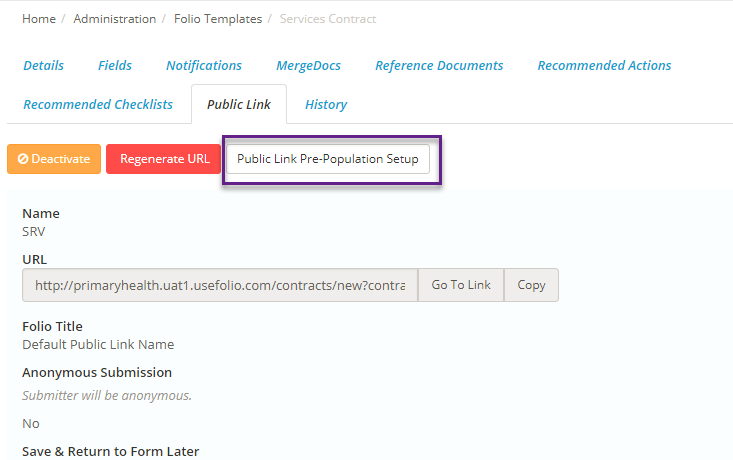
To set this up go to the public link tab of the folio template that you want to set up prepopulation for, then click on Public Link Pre-Population Setup:
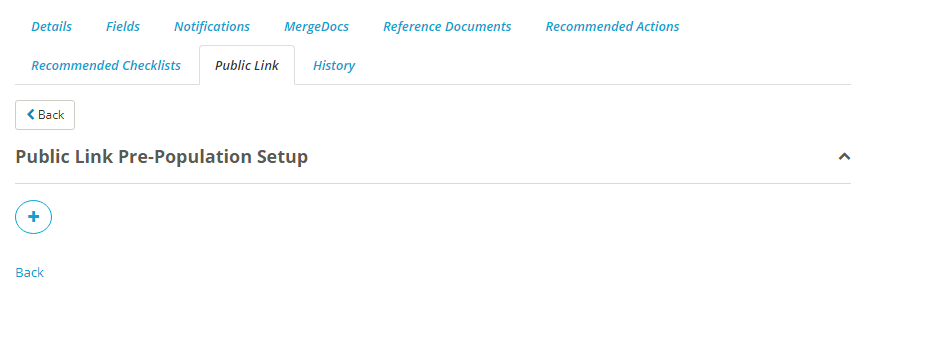
This will take you to a screen where you can start adding fields that you want to be prepopulated. To add a field click on the blue + button:
This will bring up two fields to be filled out; Template Field and URL parameter name:
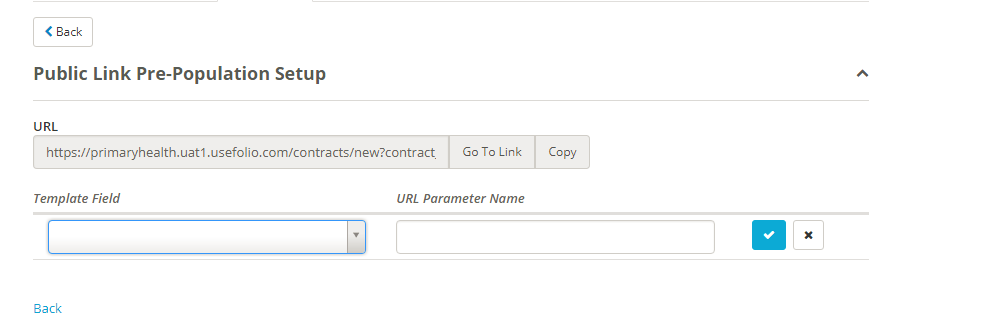
Template Field will contain the field from the Folio Template that you want to be able to prepopulate, and URL parameter name will be how this field is named in the URL that is generated:

Note that the URL parameter name can be edited, and will appear in the URL as whatever you have named it:


When you are finished click on the tick to add the field.

Once you are finished adding fields, the public link URL will contain those fields as parameters. The fields will be shown in the URL starting with a ?, which denotes the beginning of the URL extension for prepopulation. From the ? the URL will follow this pattern:
<parameter name>=<data>&
Except for the last field in the url, which will not finish with a &, as the & is used to separate fields:

The data that is to be prepopulated into a certain field goes immediately after the =.
Note: The URL that is generated by Folio will have the data empty for all fields. This URL generated by Folio is intended to then be filled out using external software used by your organisation.
There are rules for filling out different types of fields:
| Short & Long text fields |
|
| Numeric & Scale fields |
|
| Date fields |
|
| Time fields |
|
| Single Select fields |
|
| Multi Select fields |
|
If a data entry for a certain field parameter is invalid, then when opening the public link that field will just be blank.
Once the URL has been filled out then when a user goes to that URL the fields that you have selected to be prepopulated will already have values in them based on the URL.