
To complete a checklist, either click on the link in the Folio notification/ reminder email that you received or log into Folio and click on the Not Started button next to the Checklist in your To Do List.
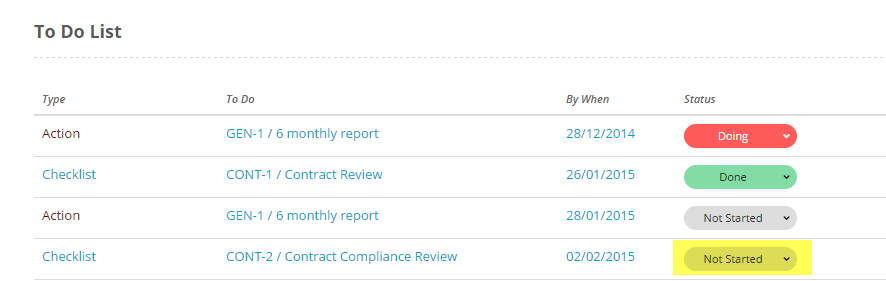
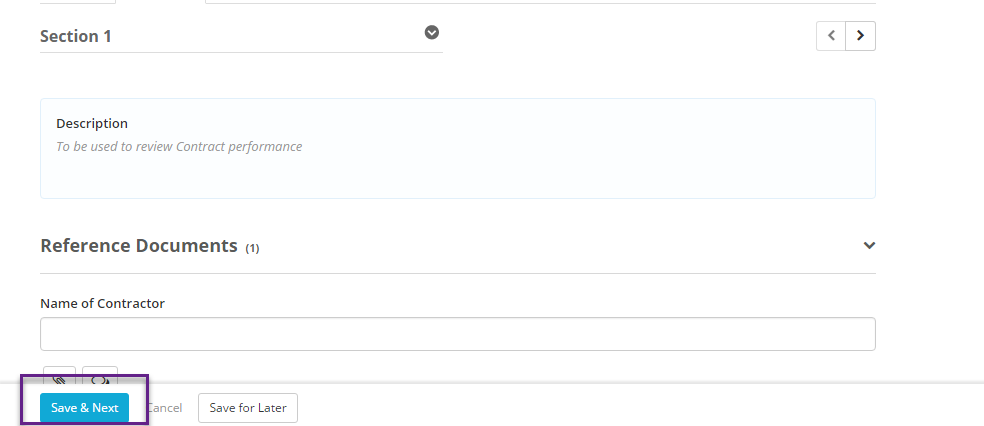
You will then be taken to a Checklist Screen where you can begin answering questions. This page also show any reference documents that are attached to this checklist that you can view if needed.

If your checklist is broken up into Sections, you will be able to answer each Section one by one, to save your answers in a Section, click on Save and Next. When you have completed the whole checklist, Click on Submit. Note that if you do not select Save & Next or Save for later your answers will not be remembered.
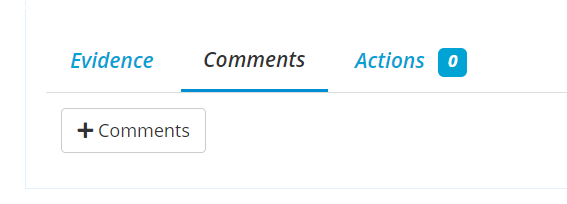
If you want to add comments or notes to a checklist answer, click on the Comments tab and then click +Comments add comments. You can add multiple comments to any Checklist answer.
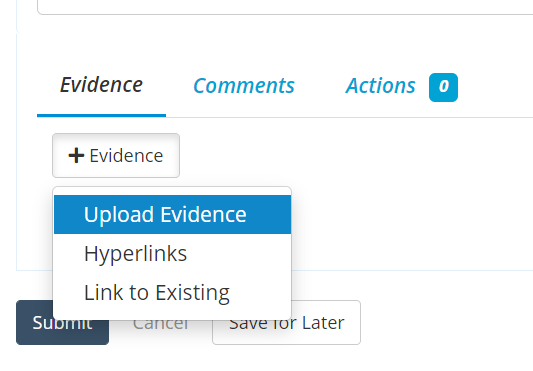
If you want to add evidence, you can click on the evidence tab underneath the question and click + Evidence to upload some evidence. The evidence can be either a document, hyperlink or a link to an existing document already uploaded in the Checklist.
All evidence that you have uploaded against a Checklist can also be found in the Attachments tab when you view a Checklist Result.
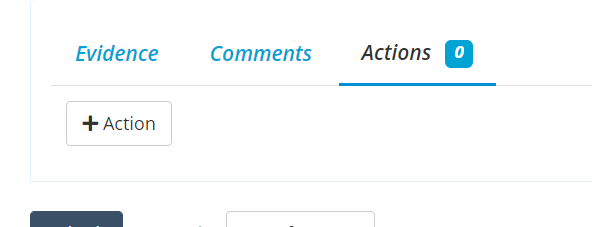
If you would like to link an Action to the question click on the Actions tab, and click + Action.
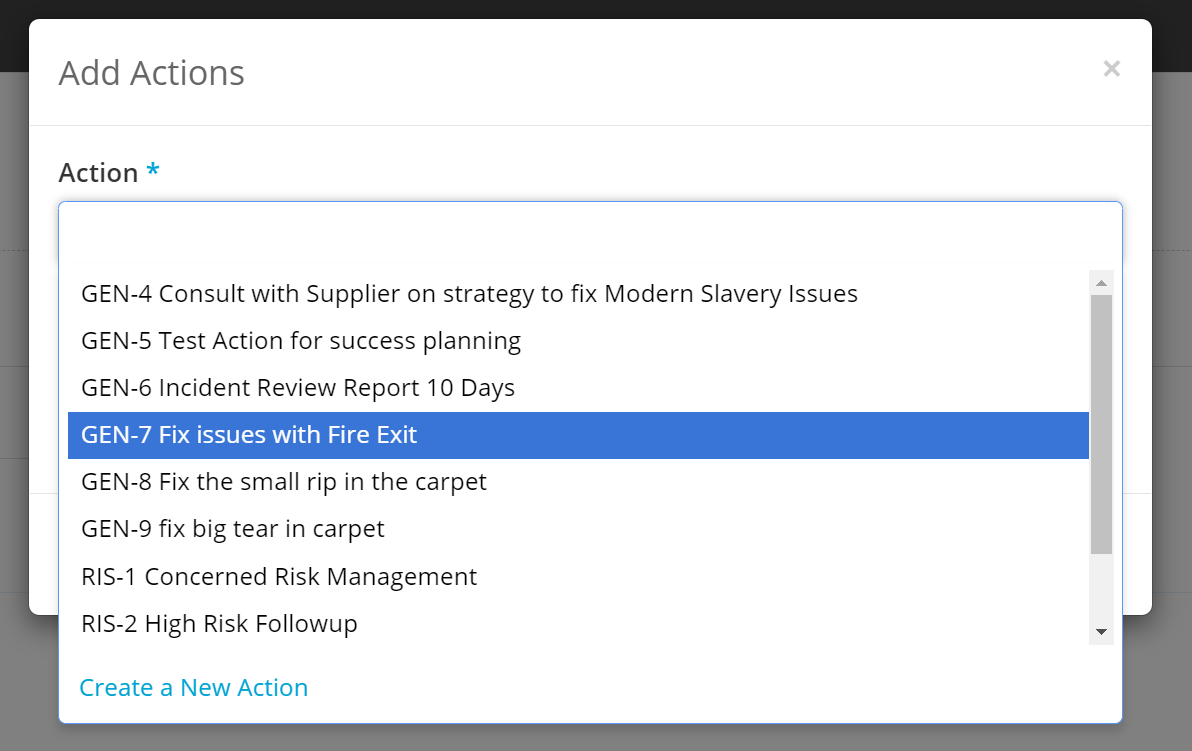
You will then be asked to pick the action you want to link. If you want to create a new action you can click on Create a New Action if you have the access rights to do so.
Once the Action is linked, if you have the correct rights, you are able to assign the action for another user to complete. To do this just click on the Assign Action button, and follow through the normal assignment process.
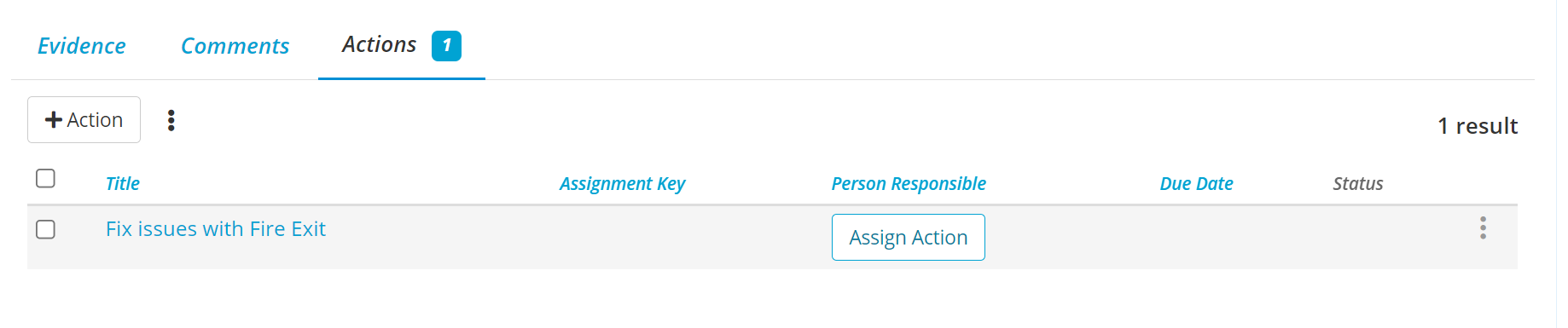
Please note that the assignment will be created when you click create, so if you do not complete the checklist the assignment has already been created.
If you want to see the Evidence or Comments on the linked action you can add those columns to the checklist by clicking on the ellipsis and selecting columns
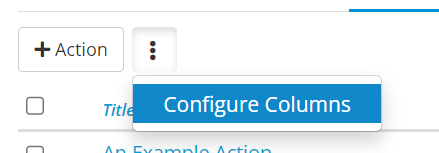
 And then selecting evidence or comments from the dropdown


Then click save.
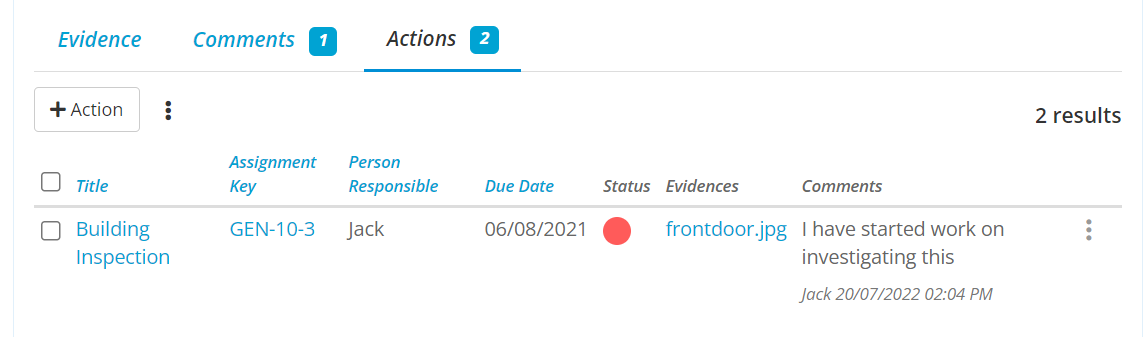
You will then see the evidence and comments for the most recent repeat of the action.
Once you have completed the checklist email reminders will go out to other owners of the checklist telling them of the status update. The person who made the status update does not receive this email.